From Bright Pattern Documentation
Created page with "<translate>= Configure a Co-browsing Integration Account = In the Bright Pattern Contact Center Administrator application, you will create a co-browsing integration account. A..." |
Updated via BpDeleteTranslateTags script |
||
| (One intermediate revision by one other user not shown) | |||
| Line 1: | Line 1: | ||
= Configure a Co-browsing Integration Account = | |||
In the Bright Pattern Contact Center Administrator application, you will create a co-browsing integration account. As a reminder, your service provider must enable this feature for your contact center. To configure this integration account, take the following steps. | In the Bright Pattern Contact Center Administrator application, you will create a co-browsing integration account. As a reminder, your service provider must enable this feature for your contact center. To configure this integration account, take the following steps. | ||
| Line 6: | Line 6: | ||
# From the Create integration account menu, select '''Co-browsing''', and then click '''OK'''.<br><br>[[File:CCA-Integration-Co-browsing-1-5399surfly.PNG|450px|thumb|center|Select the Co-browsing option]]<br><br> | # From the Create integration account menu, select '''Co-browsing''', and then click '''OK'''.<br><br>[[File:CCA-Integration-Co-browsing-1-5399surfly.PNG|450px|thumb|center|Select the Co-browsing option]]<br><br> | ||
# In the Properties tab, configure the following: | # In the Properties tab, configure the following: | ||
#* The [[ | #* The [[Contact-center-administrator-guide/CallCenterConfiguration/IntegrationAccounts/Co-browsing#Name|account name]] (any) | ||
#* The [[ | #* The [[Contact-center-administrator-guide/CallCenterConfiguration/IntegrationAccounts/Co-browsing#Provider|account provider]] (i.e., Surfly is the default option) | ||
#* The [[ | #* The [[Contact-center-administrator-guide/CallCenterConfiguration/IntegrationAccounts/Co-browsing#Widget_key|Surfly widget key]] (e.g., 218he91ndionvri4f9iquwndiuqwnd); the Surfly widget key is located in your Surfly account, section ''Settings > Integration''. | ||
# If you wish, you may [[ | # If you wish, you may [[Contact-center-administrator-guide/CallCenterConfiguration/IntegrationAccounts/Co-browsing#Test_widget_key|test your widget key]]; if the key works, a validation message will pop. When you are finished, click '''Apply'''.<br><br>[[File:CCA-Integration-Co-browsing-2b-5399surfly.PNG|450px|thumb|center|Integration account settings]] | ||
Latest revision as of 04:03, 29 May 2024
Configure a Co-browsing Integration Account
In the Bright Pattern Contact Center Administrator application, you will create a co-browsing integration account. As a reminder, your service provider must enable this feature for your contact center. To configure this integration account, take the following steps.
Procedure
- In section Contact Center Configuration > Integration Accounts, click the Add account button.
- From the Create integration account menu, select Co-browsing, and then click OK.
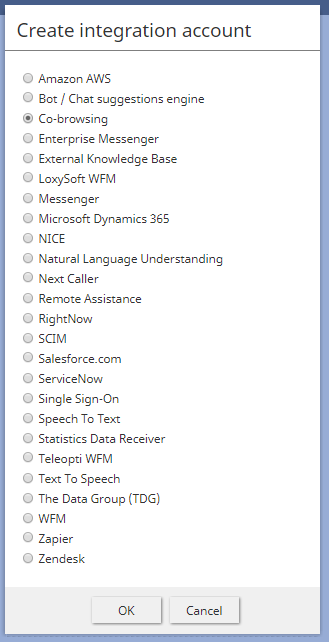
Select the Co-browsing option - In the Properties tab, configure the following:
- The account name (any)
- The account provider (i.e., Surfly is the default option)
- The Surfly widget key (e.g., 218he91ndionvri4f9iquwndiuqwnd); the Surfly widget key is located in your Surfly account, section Settings > Integration.
- If you wish, you may test your widget key; if the key works, a validation message will pop. When you are finished, click Apply.
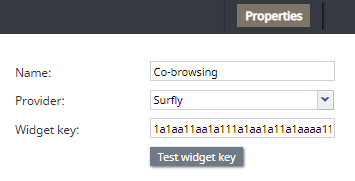
Integration account settings < Previous | Next >

