Case State
Agent Desktop allows you to assign each case a state, which may be used to organize and classify your case workload. The activity history for changes in the case state can be searched; i.e. if a case changes from New to Open or from Open to Pending, that is tracked as well.
For more information about cases, see How to Work with Case Queue Views and How to Search Email Cases.
States
The following states can be applied to cases:
New
This state is automatically applied to new, unopened cases.

Open
This state is for cases that have been opened but are not yet processed.

Pending
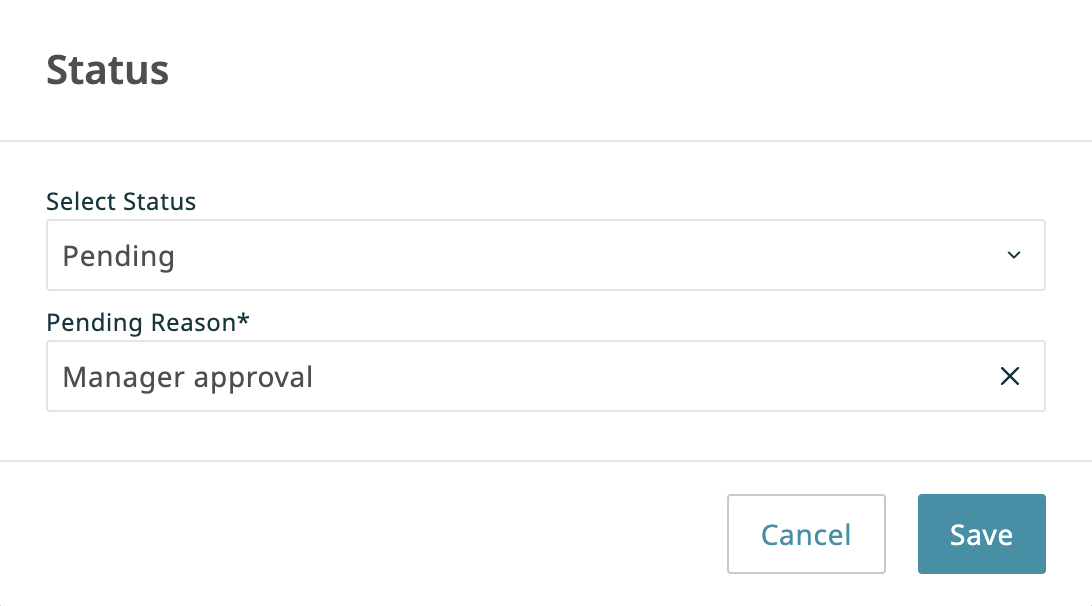
This state is for cases that require further action. When a case is marked as Pending, you must select a corresponding Case Pending Reason. Case Pending Reasons are defined by your system administrator and allow you to provide additional information as to why a case is pending. Hover your cursor over the Pending status indicator to view the selected reason.

Resolved
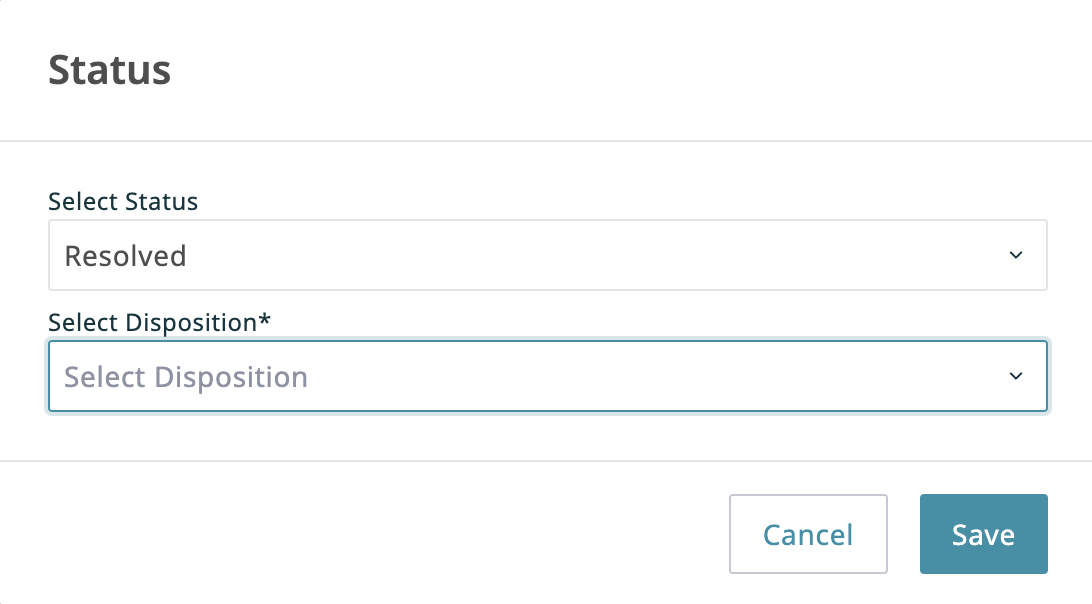
This state is for cases that are completed. Note that cases marked as Resolved will automatically switch to the Open state if a new email is received or if the agent uses the case on any interaction. Cases marked as Resolved can have changes made to them and will stay in the Resolved state for a period of time as configured by your administrator; after this point, the case will be Closed. Additionally, when marking a case as Resolved, you will have the opportunity to disposition it.

Closed
This state is applied automatically to cases that have been Resolved for the period of time configured by your administrator (e.g. 14 days). Changes cannot be made to closed cases; however, it is possible to create a follow-up case from a closed case.

Changing Case State
- Navigate to the Cases page.
- Select the case in question.
- Click the Set Status button above the queue table, or click on the current case status inside the Case Preview pane.
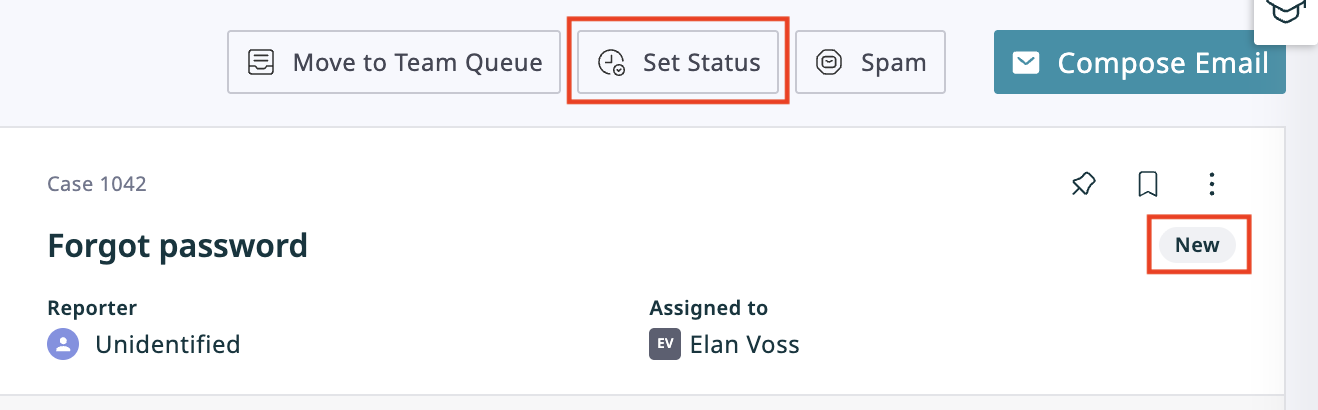
- Choose one of the following statuses from the Select Status drop-down menu in the pop-up window.
- Open
- Pending: Once this option is selected, choose the relevant reason from the Pending Reason drop-down menu that appears.
- Resolved: Once this option is selected, the Select Disposition drop-down menu may appear, depending on the service configuration. If so, use this menu to set a disposition for this case.
- Press Save.


Case Activity
The Case Preview pane on the Cases and Records pages displays all state changes for the selected case. Press the Show/Hide Preview icon  to expand or collapse this pane.
The Cases tab on the Records page displays cases of all statuses by default. Click on All Statuses to filter cases by current status: New, Open, Pending, Resolved, or Closed.
