Supervisors
How do I supervise?
To be a supervisor, you must be given the role "Supervisor" and you must be assigned to supervise a team. Note that supervisors are assigned at the team level only. A user who has supervision privileges also supervises the team they are a member of, without being added to that team's list of supervisors; see What is the difference between explicit and implicit supervisor assignment? below.
You may add a supervisor to a team by following these steps:
- Log in as Admin to the Contact Center Administrator application.
- Make sure that the person who will be the supervisor has been added to the system as a User.
- From Configuration > Users & Teams > Users, select the user who will be supervising.
- Click the Roles tab.
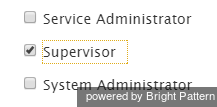
- Select the checkbox for Supervisor and apply your changes. Note that a user can have multiple roles (e.g., can be both an agent and supervisor).
- Navigate to Configuration > Users & Teams > Teams and select the team that the user will supervise.
- From the Properties tab, next to "Supervisors", click edit.
- Select the user who now has the supervisor role and assign him/her to the team by clicking the arrow buttons, and click OK.


That user is now the supervisor of the team. You may add multiple supervisors to a team.
What is the difference between explicit and implicit supervisor assignment?
There are two ways in which a user can supervise a team:
- Explicit assignment means that the user has been added to the team's Supervisors list, as described above.
- Implicit assignment means that the user has supervision privileges and is a member of the team. Nothing has to be configured in the team's Supervisors list for this to take effect.
Keep the following in mind about implicit assignment:
- An implicit supervisor is not shown in the team's list of supervisors, because that list shows explicit supervisors only. An implicit supervisor can, however, do anything that an explicit supervisor can do.
- Implicit assignments are checked at runtime by Agent Desktop, Interaction Search, and Quality Management.
- Creating a new user with supervision privileges, moving a user from one team to another, or adding supervision privileges to an existing user does not change any of a team's explicit supervisor assignments.
- Implicit and explicit assignments can coexist. For example, if a supervisor is a member of one team and is also explicitly assigned to supervise another team, they will see both teams.
A user whose Admin rights were removed logged into the system and was able to assign himself to all the privileges, including Admin. How is that possible?
If the user was both a supervisor and an agent, the user would have had certain privileges extended to him or her. Under the supervisor role, the settings Grant Privileges and Manage roles and security may have been enabled. You may revoke these privileges from the supervisor role by following these steps:
- In the Contact Center Administrator application, log in as Admin.
- Navigate to Configuration > Roles and select Supervisor from the list of roles.
- Select or deselect the desired privileges.

For more information, see the Contact Center Administrator Guide, section Roles.