From Bright Pattern Documentation
Created page with "<translate>= How to Reassign All of an Agent’s Events to Another Agent = Sometimes it may be more convenient to reassign all of the agent’s events within a time range in a..." |
Updated via BpDeleteTranslateTags script |
||
| Line 1: | Line 1: | ||
= How to Reassign All of an Agent’s Events to Another Agent = | |||
Sometimes it may be more convenient to reassign all of the agent’s events within a time range in a single step. | Sometimes it may be more convenient to reassign all of the agent’s events within a time range in a single step. | ||
| Line 6: | Line 6: | ||
# Specify the desired time range by either typing in the date or clicking into the date field and selecting the date from the mini calendar.[[File:Reassign-Event-Date-Range-50.png|450px|thumbnail|center|Select the date range]] | # Specify the desired time range by either typing in the date or clicking into the date field and selecting the date from the mini calendar.[[File:Reassign-Event-Date-Range-50.png|450px|thumbnail|center|Select the date range]] | ||
# Select the desired agent and click '''Ok'''.[[File:Agent-Reassignment-50.png|450px|thumbnail|center|Select the agent]] | # Select the desired agent and click '''Ok'''.[[File:Agent-Reassignment-50.png|450px|thumbnail|center|Select the agent]] | ||
Latest revision as of 04:04, 29 May 2024
How to Reassign All of an Agent’s Events to Another Agent
Sometimes it may be more convenient to reassign all of the agent’s events within a time range in a single step.
- Click the Reassign by range… button.
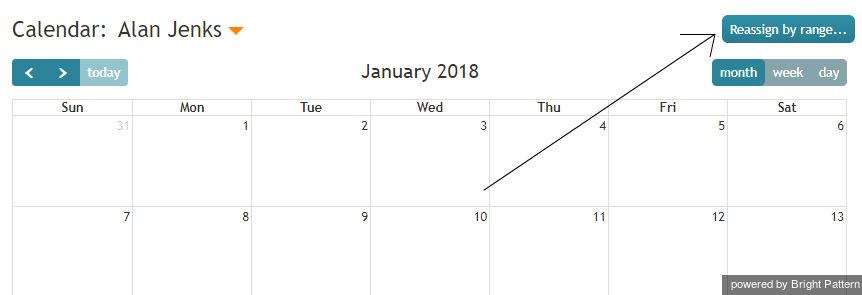
Reassign by Range button - A dialog window will appear showing the list of agents that this task can be assigned to and time range controls.
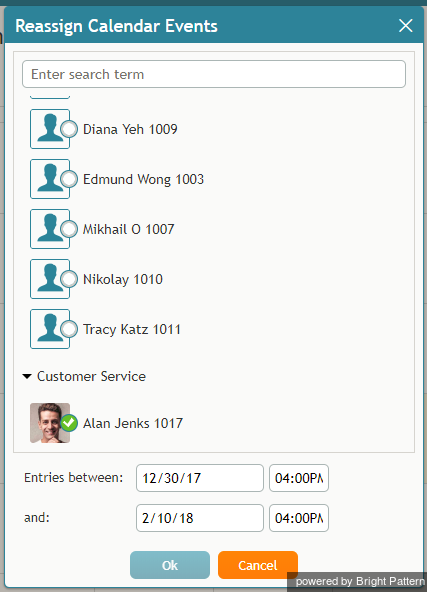
Select an agent to be assigned a range of events - Specify the desired time range by either typing in the date or clicking into the date field and selecting the date from the mini calendar.
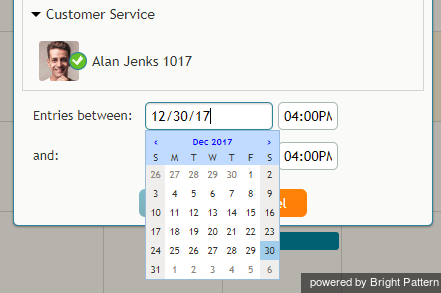
Select the date range - Select the desired agent and click Ok.
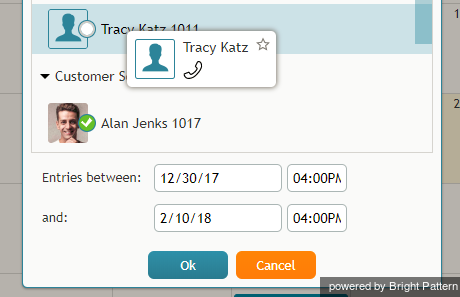
Select the agent < Previous


