No edit summary |
Updated via BpDeleteTranslateTags script |
||
| Line 1: | Line 1: | ||
= Global Wallboards= | |||
Wallboards can be created and saved locally to your Agent Desktop as personal wallboards, or they can be created and exported to a global pool for other users in your contact center to access. | Wallboards can be created and saved locally to your Agent Desktop as personal wallboards, or they can be created and exported to a global pool for other users in your contact center to access. | ||
Both global wallboards and personal wallboards are listed by title in a drop-down list at the upper left-hand corner of the screen. To access it, click the down icon [[File:Wallboard-Selector-Icon-316.png|26px]] beside the current wallboard's title. | Both global wallboards and personal wallboards are listed by title in a drop-down list at the upper left-hand corner of the screen. To access it, click the down icon [[File:Wallboard-Selector-Icon-316.png|26px]] beside the current wallboard's title. | ||
[[File:Wallboard-Selector-316.png|650px|thumbnail|center|Select a wallboard from the list]] | [[File:Wallboard-Selector-316.png|650px|thumbnail|center|Select a wallboard from the list]] | ||
== Push/Pull Functionality== | == Push/Pull Functionality== | ||
The capability to push personal wallboards to a global scope or pull global wallboards and keep them as personal, is enabled via a privilege set by your system administrator. For more information on the privilege ''Push/Pull Global Wallboards'', see the ''Contact Center Administrator Guide'', section [[contact-center-administrator-guide/Privileges|Privileges]]. | The capability to push personal wallboards to a global scope or pull global wallboards and keep them as personal, is enabled via a privilege set by your system administrator. For more information on the privilege ''Push/Pull Global Wallboards'', see the ''Contact Center Administrator Guide'', section [[contact-center-administrator-guide/Privileges|Privileges]]. | ||
Note that only personal wallboards can be renamed, deleted, or pushed to global, and only global wallboards can be pulled from global. When duplicating a global wallboard, the duplicate appears in your list of personal wallboards. | Note that only personal wallboards can be renamed, deleted, or pushed to global, and only global wallboards can be pulled from global. When duplicating a global wallboard, the duplicate appears in your list of personal wallboards. | ||
=== How to Push to Global === | === How to Push to Global === | ||
To push a wallboard to global, follow these steps: | To push a wallboard to global, follow these steps: | ||
# Click the wallboard selection arrow beside the wallboard title and select the name of the desired personal wallboard to share. The personal wallboard will be displayed.[[File:Select-Personal-316.png|450px|center]] | # Click the wallboard selection arrow beside the wallboard title and select the name of the desired personal wallboard to share. The personal wallboard will be displayed.[[File:Select-Personal-316.png|450px|center]] | ||
| Line 25: | Line 22: | ||
The wallboard is then removed from your personal wallboards and placed in global wallboards. | The wallboard is then removed from your personal wallboards and placed in global wallboards. | ||
[[File:In-Global-Wallboards-316.png|450px|thumbnail|center|Pushed Wallboards are removed from personal and placed in global wallboards]] | [[File:In-Global-Wallboards-316.png|450px|thumbnail|center|Pushed Wallboards are removed from personal and placed in global wallboards]] | ||
=== How to Pull from Global === | === How to Pull from Global === | ||
To pull a wallboard from global, follow these steps: | To pull a wallboard from global, follow these steps: | ||
# Click the wallboard selection arrow beside the wallboard title and select the name of the desired global wallboard to get. The global wallboard will be displayed.[[File:Select-Global-316.png|450px|center]] | # Click the wallboard selection arrow beside the wallboard title and select the name of the desired global wallboard to get. The global wallboard will be displayed.[[File:Select-Global-316.png|450px|center]] | ||
| Line 41: | Line 36: | ||
The wallboard is then pulled from global wallboards and placed in your personal wallboards, as shown. | The wallboard is then pulled from global wallboards and placed in your personal wallboards, as shown. | ||
[[File:In-Personal-Wallboards-316.png|450px|thumbnail|center|Pulled wallboards are placed in your personal wallboards]] | [[File:In-Personal-Wallboards-316.png|450px|thumbnail|center|Pulled wallboards are placed in your personal wallboards]] | ||
<!-- | <!-- | ||
== Supervisor Usage == | == Supervisor Usage == | ||
Supervisors with the [[contact-center-administrator-guide/Privileges|privilege]] ''Customize Wallboards'' and ''Push/Pull Global Wallboards'' can create wallboards to be used by their assigned teams. This capability allows agents on the same teams to view the same metrics, statistics, and information. After creating custom wallboards, supervisors can push the wallboards to global, and agents can pull the wallboard from global to appear on their Agent Desktop home screens. | Supervisors with the [[contact-center-administrator-guide/Privileges|privilege]] ''Customize Wallboards'' and ''Push/Pull Global Wallboards'' can create wallboards to be used by their assigned teams. This capability allows agents on the same teams to view the same metrics, statistics, and information. After creating custom wallboards, supervisors can push the wallboards to global, and agents can pull the wallboard from global to appear on their Agent Desktop home screens. | ||
For more information on customization, see section [[wallboard-builder-reference-guide/CustomizingWallboardStyles|Customizing Wallboard Styles]]. | For more information on customization, see section [[wallboard-builder-reference-guide/CustomizingWallboardStyles|Customizing Wallboard Styles]]. | ||
Upon opening the Wallboard Builder application, both agents and supervisors will see (in View mode) the last wallboard they viewed during their previous login session. If no wallboards were viewed, any of the global wallboards available will be shown instead. | Upon opening the Wallboard Builder application, both agents and supervisors will see (in View mode) the last wallboard they viewed during their previous login session. If no wallboards were viewed, any of the global wallboards available will be shown instead. | ||
To view the desired global wallboard (if it is not displayed already) agents must click the [[File:Wallboard-Title-Arrow-316.png|26px]] down arrow beside the wallboard title and select the desired global wallboard from the list. | To view the desired global wallboard (if it is not displayed already) agents must click the [[File:Wallboard-Title-Arrow-316.png|26px]] down arrow beside the wallboard title and select the desired global wallboard from the list. | ||
--> | --> | ||
Latest revision as of 04:04, 29 May 2024
Global Wallboards
Wallboards can be created and saved locally to your Agent Desktop as personal wallboards, or they can be created and exported to a global pool for other users in your contact center to access.
Both global wallboards and personal wallboards are listed by title in a drop-down list at the upper left-hand corner of the screen. To access it, click the down icon  beside the current wallboard's title.

Push/Pull Functionality
The capability to push personal wallboards to a global scope or pull global wallboards and keep them as personal, is enabled via a privilege set by your system administrator. For more information on the privilege Push/Pull Global Wallboards, see the Contact Center Administrator Guide, section Privileges.
Note that only personal wallboards can be renamed, deleted, or pushed to global, and only global wallboards can be pulled from global. When duplicating a global wallboard, the duplicate appears in your list of personal wallboards.
How to Push to Global
To push a wallboard to global, follow these steps:
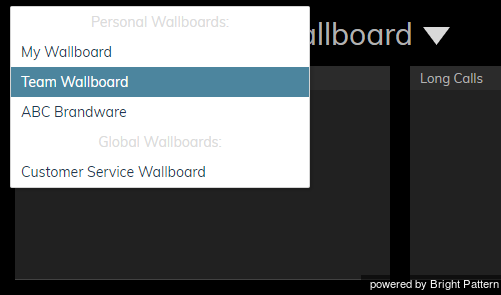
- Click the wallboard selection arrow beside the wallboard title and select the name of the desired personal wallboard to share. The personal wallboard will be displayed.
- Navigate to the Wallboard menu at the upper right-hand part of the screen.
- Click the menu icon
 .
. - Select Push to global. Note that if you do not have the privilege Push/Pull Global Wallboards, the menu will not display the option to push or pull global wallboards.
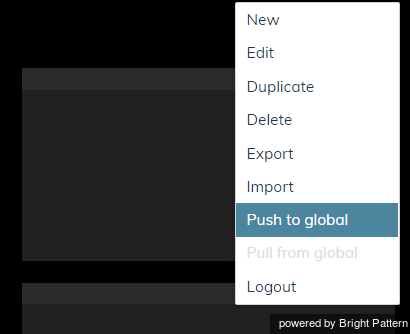
Wallboards are pushed from personal to global via the Menu


The wallboard is then removed from your personal wallboards and placed in global wallboards.

How to Pull from Global
To pull a wallboard from global, follow these steps:
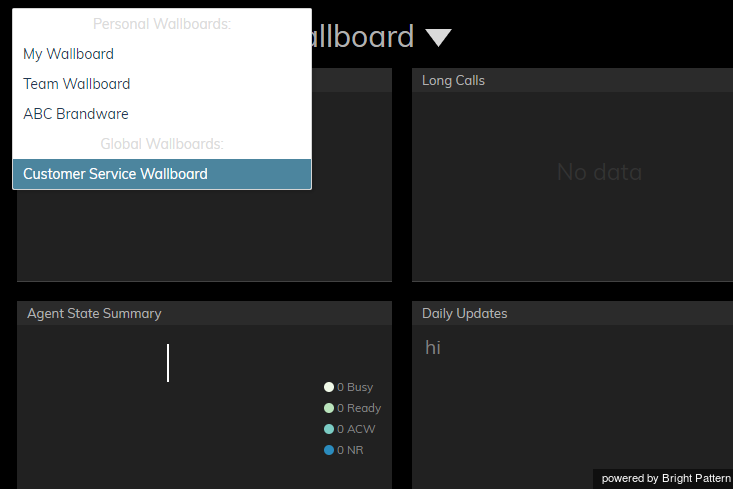
- Click the wallboard selection arrow beside the wallboard title and select the name of the desired global wallboard to get. The global wallboard will be displayed.
- Navigate to the Wallboard menu at the upper right-hand part of the screen.
- Click the menu icon .
- Select Pull from global. Note that if you do not have the privilege Push/Pull Global Wallboards, the menu will not display the option to push or pull global wallboards.
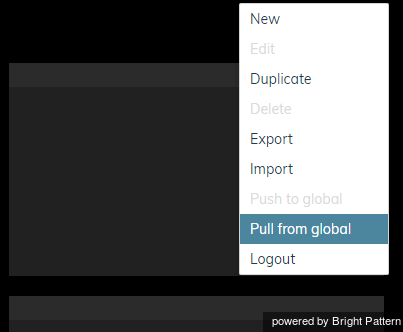
Wallboards are pulled from global via the Menu


The wallboard is then pulled from global wallboards and placed in your personal wallboards, as shown.
