If you have the privilege to edit wallboards, you are also enabled to create new wallboards.
If you have the privilege to edit wallboards, you are also enabled to create new wallboards.
<!--T:2-->
Wallboards can be created either from scratch or from one of five out-of-the-box templates. Because templates are preformatted with widgets and a standard layout, they allow you to build standard wallboards and customize them quickly.
Wallboards can be created either from scratch or from one of five out-of-the-box templates. Because templates are preformatted with widgets and a standard layout, they allow you to build standard wallboards and customize them quickly.
== How to Create a New Wallboard == <!--T:3-->
== How to Create a New Wallboard ==
# At the top of the page, click the '''Menu''' [[File:Wallboard-Menu-Icon-316.png|26px]] icon.<br /><br />
# At the top of the page, click the '''Menu''' [[File:Wallboard-Menu-Icon-316.png|26px]] icon.<br /><br />
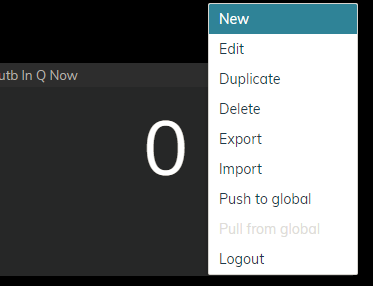
# From the drop-down list that appears, select '''New'''.<br /><br />[[File:Create-New-Wallboard-316.PNG|450px|thumbnail|center|Select "New" to create a new wallboard]].<br /><br />
# From the drop-down list that appears, select '''New'''.<br /><br />[[File:Create-New-Wallboard-316.PNG|450px|thumbnail|center|Select "New" to create a new wallboard]].<br /><br />
Line 12:
Line 11:
== Templates == <!--T:4-->
== Templates ==
Templates are available to create the following types of prefab wallboards:
Templates are available to create the following types of prefab wallboards:
* [[#Empty|Empty]]
* [[#Empty|Empty]]
Line 22:
Line 21:
=== Empty === <!--T:5-->
=== Empty ===
The ''Empty'' template is a blank wallboard that shows a grid of empty cards. No statistics are preconfigured. This wallboard is the type to select when creating a new wallboard from scratch, when you do not wish to use any other template available.
The ''Empty'' template is a blank wallboard that shows a grid of empty cards. No statistics are preconfigured. This wallboard is the type to select when creating a new wallboard from scratch, when you do not wish to use any other template available.
The ''All Agents'' template presents a list view of selected agents from your team. To edit the preconfigured list of agent statistics, click the '''Edit''' icon at the top right of the wallboard template. This opens the ''Select Grid Options'' window, where you can select teams to show and sort/filter the agents in the list.
The ''All Agents'' template presents a list view of selected agents from your team. To edit the preconfigured list of agent statistics, click the '''Edit''' icon at the top right of the wallboard template. This opens the ''Select Grid Options'' window, where you can select teams to show and sort/filter the agents in the list.
If you have the privilege to edit wallboards, you are also enabled to create new wallboards.
Wallboards can be created either from scratch or from one of five out-of-the-box templates. Because templates are preformatted with widgets and a standard layout, they allow you to build standard wallboards and customize them quickly.
How to Create a New Wallboard
At the top of the page, click the Menu icon.
From the drop-down list that appears, select New.
Select "New" to create a new wallboard.
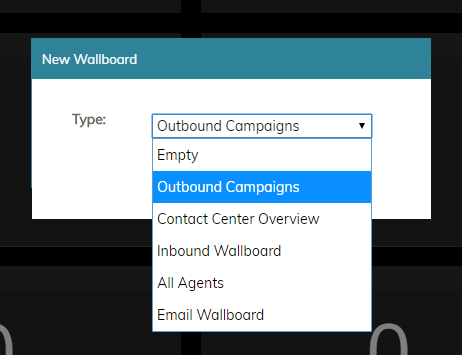
In the New Wallboard dialog that appears, select the desired wallboard template.
Wallboard template selector
Templates
Templates are available to create the following types of prefab wallboards:
The Empty template is a blank wallboard that shows a grid of empty cards. No statistics are preconfigured. This wallboard is the type to select when creating a new wallboard from scratch, when you do not wish to use any other template available.
Empty wallboard
Outbound Campaigns
The Outbound Campaigns template contains statistics related to the outbound campaigns that your team is assigned to handle.
The All Agents template presents a list view of selected agents from your team. To edit the preconfigured list of agent statistics, click the Edit icon at the top right of the wallboard template. This opens the Select Grid Options window, where you can select teams to show and sort/filter the agents in the list.
 icon.
icon.