No edit summary |
No edit summary |
||
| Line 14: | Line 14: | ||
== Sample Code == | == Sample Code == | ||
In this sample code, the methods are attached to button elements. | |||
Copy this sample code for pasting into your HTML file. This is the bare minimum that you need for the SDK to work. Make sure you replace "<tenant>" with the name of your Agent Desktop web server (e.g., "example.brightpattern.com"). | |||
<syntaxhighlight lang="javascript"> | |||
<script type="text/javascript" src="https://<tenant>.brightpattern.com/agentdesktop/libs/servicepattern-sdk-v1.js"> | <script type="text/javascript" src="https://<tenant>.brightpattern.com/agentdesktop/libs/servicepattern-sdk-v1.js"> | ||
</script> | </script> | ||
<iframe id="repeater" style="position:absolute; right: 8px; width: 300px; height: 700px;" src="https://<tenant>.brightpattern.com/agentdesktop/UniversalRepeater.jsp"></iframe> | <iframe id="repeater" style="position:absolute; right: 8px; width: 300px; height: 700px;" src="https://<tenant>.brightpattern.com/agentdesktop/UniversalRepeater.jsp"></iframe> | ||
<button onclick="bpspat.api.getState(log)">Get State</button> | <button onclick="bpspat.api.getState(log)">Get State</button> | ||
< | <br> | ||
< | <br> | ||
<input id="item" type="text" placeholder="Interaction Id, see Logs"/> | <input id="item" type="text" placeholder="Interaction Id, see Logs"/> | ||
< | <br> | ||
< | <br> | ||
<button onclick="bpspat.api.getCallRecordingStatus(document.getElementById('item').value)">Get Call Recording Status</button> | <button onclick="bpspat.api.getCallRecordingStatus(document.getElementById('item').value)">Get Call Recording Status</button> | ||
<button onclick="bpspat.api.startCallRecording(document.getElementById('item').value)">Start Call Recording</button> | <button onclick="bpspat.api.startCallRecording(document.getElementById('item').value)">Start Call Recording</button> | ||
<button onclick="bpspat.api.stopCallRecording(document.getElementById('item').value)">Stop Call Recording</button> | <button onclick="bpspat.api.stopCallRecording(document.getElementById('item').value)">Stop Call Recording</button> | ||
< | <br> | ||
< | <br> | ||
<button onclick="bpspat.api.muteCallRecording(document.getElementById('item').value)">Mute Call Recording</button> | <button onclick="bpspat.api.muteCallRecording(document.getElementById('item').value)">Mute Call Recording</button> | ||
<button onclick="bpspat.api.unmuteCallRecording(document.getElementById('item').value)">Unmute Call Recording</button> | <button onclick="bpspat.api.unmuteCallRecording(document.getElementById('item').value)">Unmute Call Recording</button> | ||
< | <br> | ||
< | <br> | ||
< | <div id="log">Logs...</div> | ||
< | <br> | ||
< | <br> | ||
<script type="text/javascript"> | <script type="text/javascript"> | ||
window.bpspat.api.init("https://<tenant>.brightpattern.com"); | window.bpspat.api.init("https://<tenant>.brightpattern.com"); | ||
function log(data) { | function log(data) { | ||
let div = document.createElement("div"); | let div = document.createElement("div"); | ||
| Line 47: | Line 53: | ||
</script> | </script> | ||
</syntaxhighlight> | |||
== | == Example Exercise == | ||
There are many ways to style your page elements and Agent Desktop widget display. The following is provided for example purposes only. | |||
# Paste the [[5.3:Embedded-agent-desktop-sdk-specification/UseCases/MuteCallRecording#Sample_Code | | # Paste the [[5.3:Embedded-agent-desktop-sdk-specification/UseCases/MuteCallRecording#Sample_Code | | ||
Revision as of 22:14, 26 March 2019
<translate>
Control Call Recordings and Get Status
During a call, it's possible that a party might provide sensitive information or say something that should not be stored in any way by your contact center. When such a call is being recorded, you can use the Outpage JS API's recordings control methods to mute a recording, unmute a recording, start recording, and stop recording. In addition, you can get information about the status of a call recording, including whether the call is being recorded at all.
The following methods (with callbacks) are useful when used together:
- getState
- getCallRecordingStatusCallback
- startCallRecordingCallback
- stopCallRecordingCallback
- muteCallRecordingCallback
- unmuteCallRecordingCallback
This article will show you how to put those methods to use on a webpage on which your Agent Desktop widget is embedded.
Sample Code
In this sample code, the methods are attached to button elements.
Copy this sample code for pasting into your HTML file. This is the bare minimum that you need for the SDK to work. Make sure you replace "<tenant>" with the name of your Agent Desktop web server (e.g., "example.brightpattern.com").
 <script type="text/javascript" src="https://<tenant>.brightpattern.com/agentdesktop/libs/servicepattern-sdk-v1.js">
 </script>

 <iframe id="repeater" style="position:absolute; right: 8px; width: 300px; height: 700px;" src="https://<tenant>.brightpattern.com/agentdesktop/UniversalRepeater.jsp"></iframe>

 <button onclick="bpspat.api.getState(log)">Get State</button>
 <br>
 <br>
 <input id="item" type="text" placeholder="Interaction Id, see Logs"/>
 <br>
 <br>
 <button onclick="bpspat.api.getCallRecordingStatus(document.getElementById('item').value)">Get Call Recording Status</button>
 <button onclick="bpspat.api.startCallRecording(document.getElementById('item').value)">Start Call Recording</button>
 <button onclick="bpspat.api.stopCallRecording(document.getElementById('item').value)">Stop Call Recording</button>
 <br>
 <br>
 <button onclick="bpspat.api.muteCallRecording(document.getElementById('item').value)">Mute Call Recording</button>
 <button onclick="bpspat.api.unmuteCallRecording(document.getElementById('item').value)">Unmute Call Recording</button>
 <br>
 <br>
 <div id="log">Logs...</div>
 <br>
 <br>

 <script type="text/javascript">
 window.bpspat.api.init("https://<tenant>.brightpattern.com");
 function log(data) {
 let div = document.createElement("div");
 div.innerHTML = JSON.stringify(data);
 document.getElementById("log").appendChild(div);
 }

 </script>
Example Exercise
There are many ways to style your page elements and Agent Desktop widget display. The following is provided for example purposes only.
- Paste the
sample code into the body of your HTML file. This is the bare minimum that you need for the SDK to work. Make sure you replace "<tenant>" with the name of your Agent Desktop web server.
- Save and open the page in your web browser. Make sure the agent is logged in and "Ready."
- A call comes in and the agent accepts it.
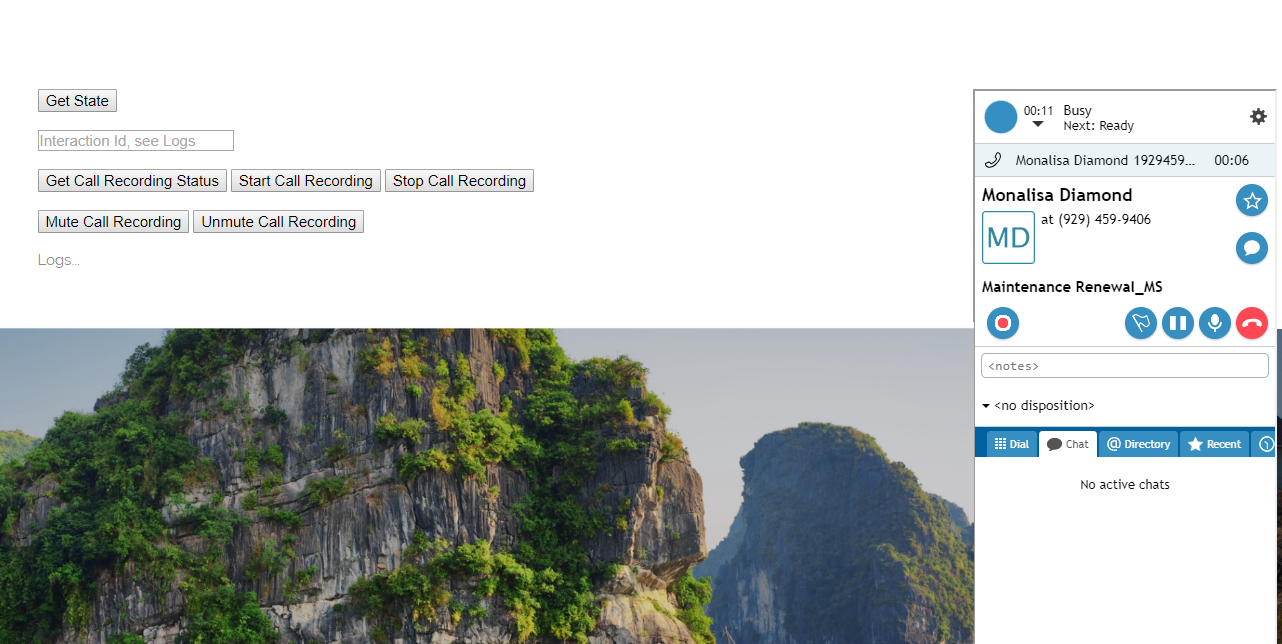
Incoming call - During the call, try clicking all the buttons:
- Get State will retrieve agent state and interaction data; copy the "item_id" from the logs and paste it into the "Interaction ID" field
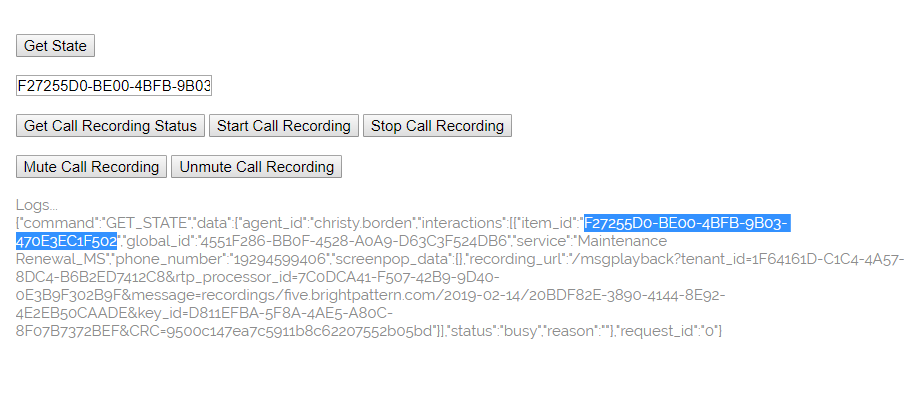
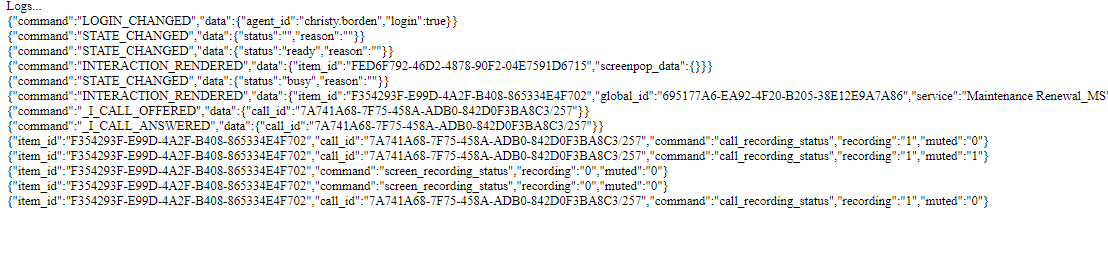
Interaction ID is "item_id" - Get Call Recording Status will retrieve status and place it in the logs; this shows whether the call is being recorded and if it's muted (see the bottom of the example response shown)
Incoming call - Start Call Recording starts the recording
- Stop Call Recording stops the recording
- Mute Call Recording mutes the recording
- Unmute Call Recording unmutes the recording
- Get State will retrieve agent state and interaction data; copy the "item_id" from the logs and paste it into the "Interaction ID" field
- Note that only "Get State" and "Get Call Recording Status" provide a response in the logs.


</translate>