How to Add and Remove Campaign Teams
Initially, teams are assigned to a campaign during the campaign configuration process. For more information, see section Assignments Tab of the Contact Center Administrator Guide.
As a campaign operator, you can assign additional teams to active campaigns and remove previously assigned teams.
To assign a new team to a selected campaign:
- Locate the campaign in question in the Campaigns table.
- Click on one of the team names in the Teams column to bring up the Assign & Delete Teams pop-up window. Alternatively, click the Actions button at the end of the row, then select Assign & Delete Teams.
- Select the desired team from the left-hand list, then click the right arrow button. To assign all listed teams to this campaign, click the double right arrow button.
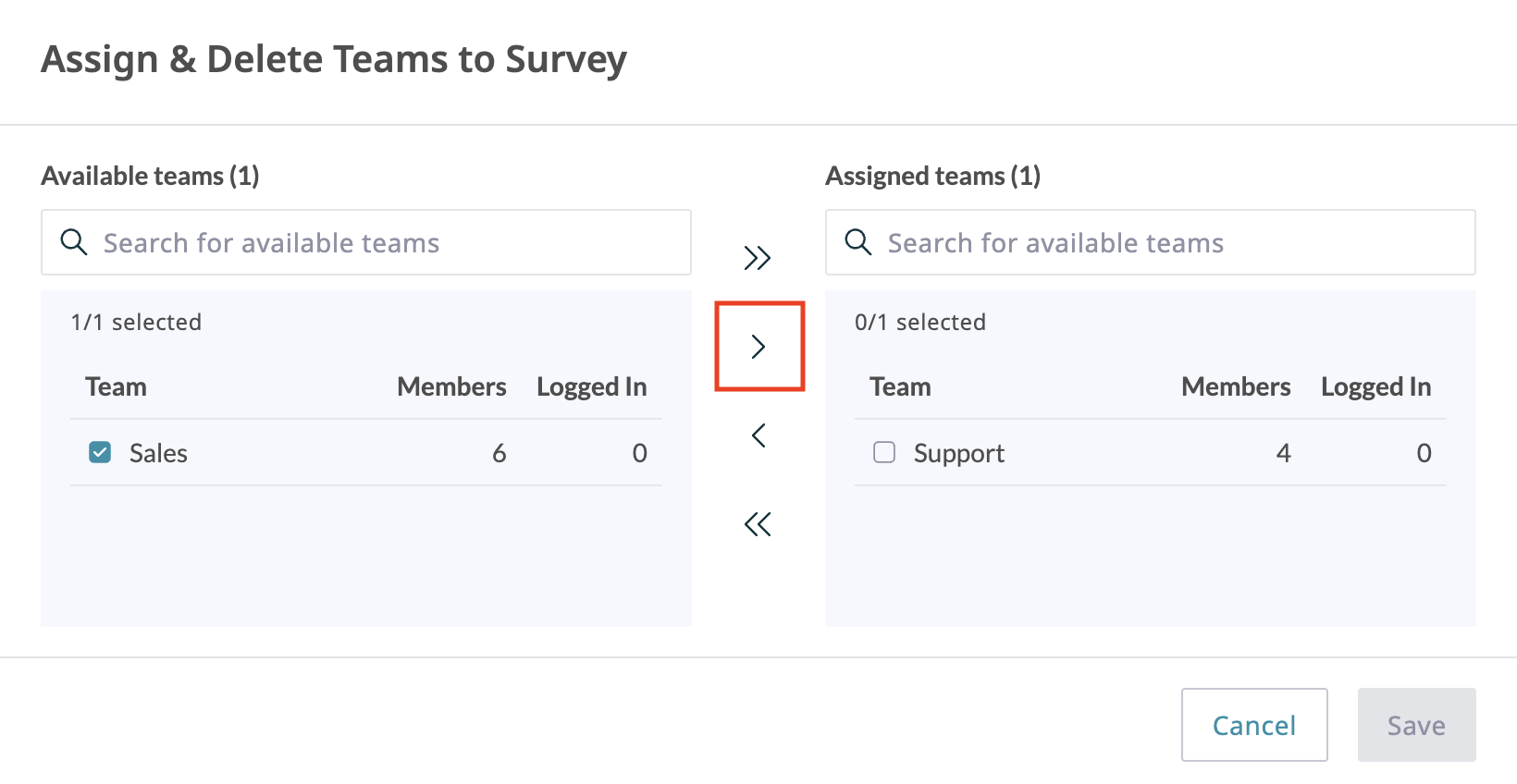
- Press Save to close the pop-up window.
- The team will be listed in the Teams column for this campaign. All agents on the team will have the campaign skill assigned to them automatically at the highest level. You can change this skill assignment manually.

For more information, see section Skill Levels of the Contact Center Administrator Guide.
To remove a previously assigned team:
- Locate the campaign in question in the Campaigns table.
- Click on the team name in the Teams column to bring up the Assign & Delete Teams pop-up window. Alternatively, click the Actions button at the end of the row, then select Assign & Delete Teams.
- Select the desired team from the right-hand list, then click the left arrow button. To remove all assigned teams from this campaign, click the double left arrow button.
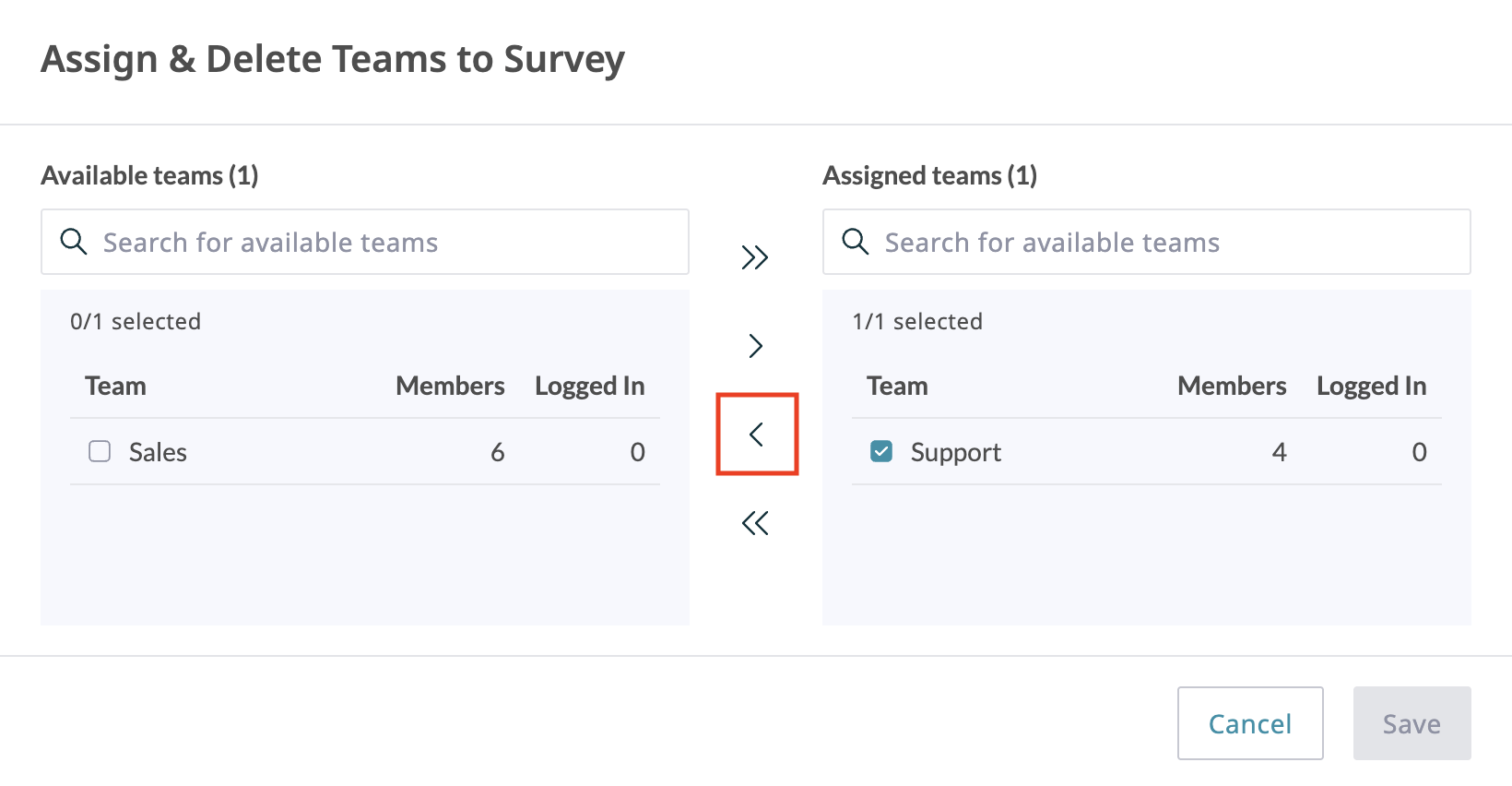
- Press Save to close the pop-up window.
- The selected team will be removed from the campaign.

Note: When teams are assigned to multiple enabled campaigns, the cumulative load of such campaigns must be distributed evenly among those teams. For more information, as well as examples of valid and invalid team assignments, see section Assignments Tab of the Contact Center Administrator Guide.