<translate>
Call Someone on Specific Service
You can use the dialNumber method to dial a phone number and initiate a call for a logged-in agent.
Using dialNumber alongside selectService provides added control over a call. When used together, you can select the service to be used. The getState method retrieves agent state and interaction information in the logs.
Methods can be attached to web elements, such as buttons, on your webpage. When clicked, the buttons will process the API methods. Add fields to enter the phone number to be dialed and the name of the service to use.
In this article, you will learn how to:
- Attach getState, dialNumber, and selectService to buttons
- Add fields
- Place sample JavaScript into HTML
Sample Code
In this sample code, the methods are attached to button elements.
Copy this sample code for pasting into your HTML file. This is the bare minimum that you need for the SDK to work. Make sure you replace "<tenant>" with the name of your Agent Desktop web server (e.g., "example.brightpattern.com").
 <script type="text/javascript" src="https://<tenant>.brightpattern.com/agentdesktop/libs/servicepattern-sdk-v1.js">
 </script>

 <iframe id="repeater" style="position:absolute; right: 8px; width: 300px; height: 700px;" src="https://<tenant>.brightpattern.com/agentdesktop/UniversalRepeater.jsp"></iframe>

 <button onclick="bpspat.api.getState(log)">Get State</button>
 <br>
 <br>
 <input id="service" type="text" placeholder="Service name"/>
 <button onclick="bpspat.api.selectService(document.getElementById('service').value)">Change Service by Name</button>
 <br>
 <br>
 <input id="number" type="text" placeholder="Dial number"/>
 <button onclick="bpspat.api.dialNumber(document.getElementById('number').value)">Dial</button>
 <br>
 <br>

 <div id="log">Logs...</div>

 <script type="text/javascript">
 window.bpspat.api.init("https://<tenant>.brightpattern.com");
 function log(data) {
 let div = document.createElement("div");
 div.innerHTML = JSON.stringify(data);
 document.getElementById("log").appendChild(div);
 }

 </script>
Example Exercise
There are many ways to style your page elements and Agent Desktop widget display. The following is provided for example purposes only.
- Paste the
sample code into the body of your HTML file.
- Save and open the page in your web browser. Make sure the agent is logged in.
- Click Get State to see if the agent is "Ready" to handle a call. The log data will show interaction status.
- In the Service Name field, enter the desired service for the call, and click Change Service by Name.
- Enter the phone number to be dialed. If dialing another contact center user, enter the user's extension number (e.g., "1020").
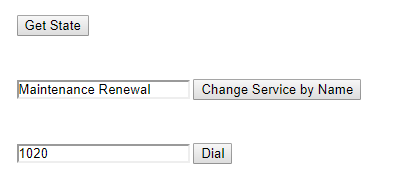
Enter service name and phone number or extension - Click Dial Number to initiate a call. The number will be dialed, even if the agent was in the "Not ready" state.
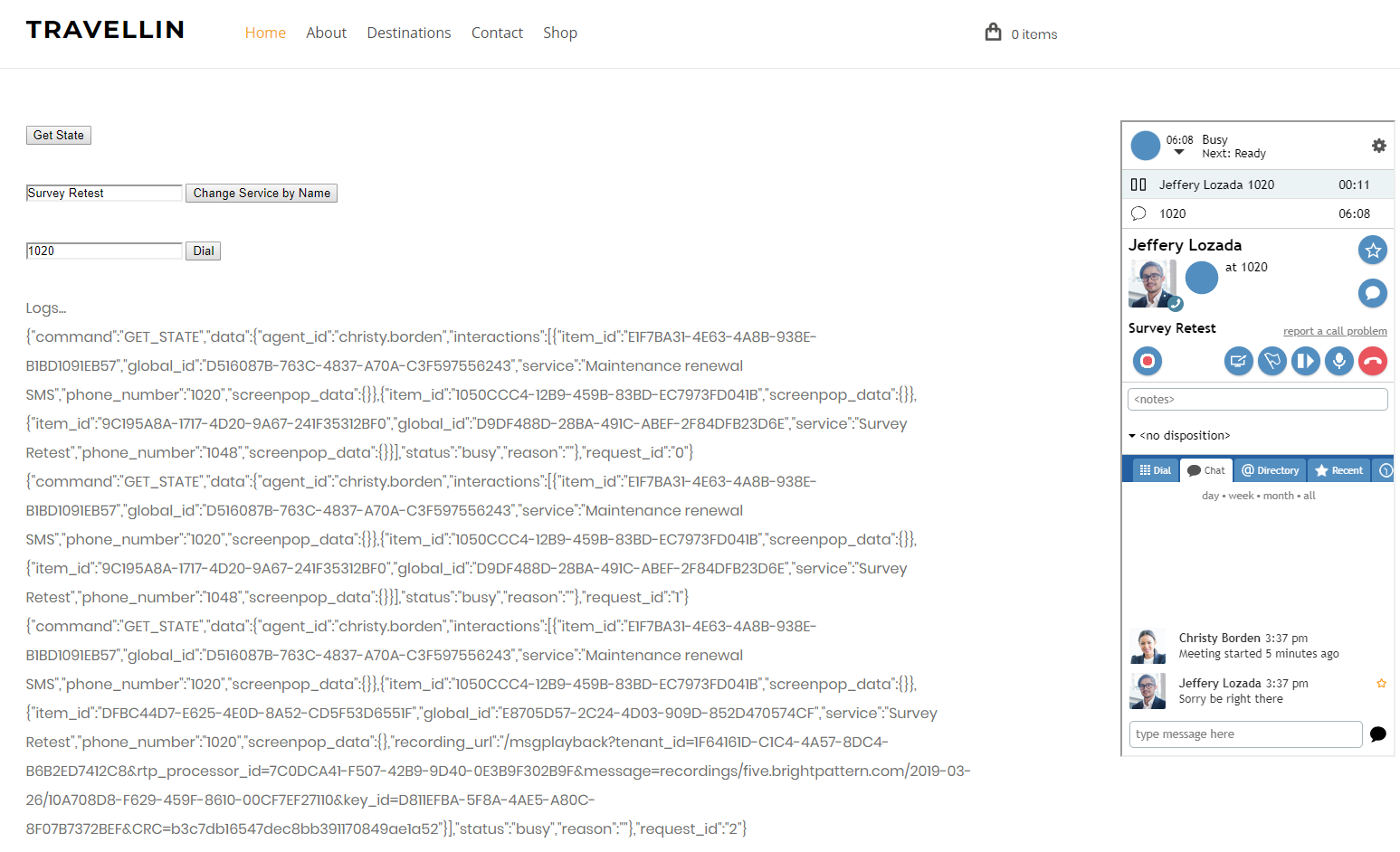
The call was accepted


</translate>