How to Send WhatsApp Messages from Agent Desktop
Depending on your contact center's service configuration and your personal permissions, you may be able to send WhatsApp messages to customers. This capability can be useful when you are done chatting with a customer via WhatsApp and you need to follow up with an approved message, such as a survey or confirmation notice. This article will show you how to send WhatsApp messages to customers.
Please note that you can only send WhatsApp messages to customers within 24 hours of their last interaction with your contact center. Why within 24 hours? Service carriers enforce rules about when, how, and what type of WhatsApp messages are allowed to be delivered to people, and your contact center must follow these rules. In order to prevent spamming, only approved messages, called templates, with specific wording and contents are allowed to be sent to WhatsApp users during a certain period of time. If your contact center supports WhatsApp messaging, please ask your supervisor what messages can be sent.
How to Start a WhatsApp Conversation with Manual Number Input
If the customer has used WhatsApp to chat with your contact center within the last 24 hours, and you already know the customer's WhatsApp number (i.e., phone number), you can send a new WhatsApp message to the customer by following these steps:
- In the Contact Info Panel's number input field (where you enter phone numbers for outbound calls or SMS), type whatsapp: and then the WhatsApp number (e.g., “whatsapp:4151234567”). Note that depending on your contact center’s dialing rules, you may need to enter a prefix, such as “1” (e.g., “whatsapp:14151234567”), in order to send the message.
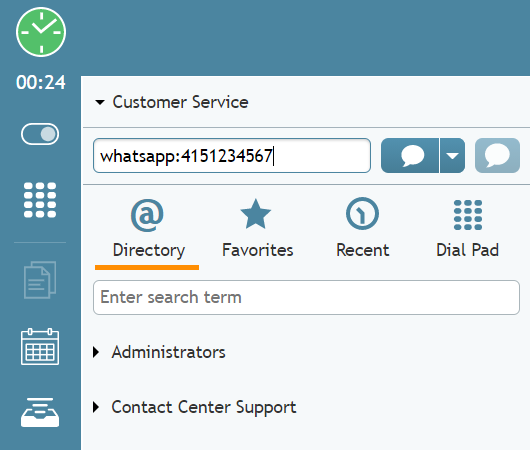
Enter the WhatsApp number as "whatsapp:<phone_number>" - Click the Send SMS
 button. Note that when any number of digits prefixed with "whatsapp:" appear in the number input field, the call button transforms into a chat bubble button.
 - A chat conversation via WhatsApp will begin immediately, and you can type an approved message to the WhatsApp user. Notice that the channel selector for the chat displays “WhatsApp” and the WhatsApp
 icon is displayed next to all text in the chat feed.
 - To send your message, press Enter or Return on your keyboard, or click the Send message
 icon.
icon.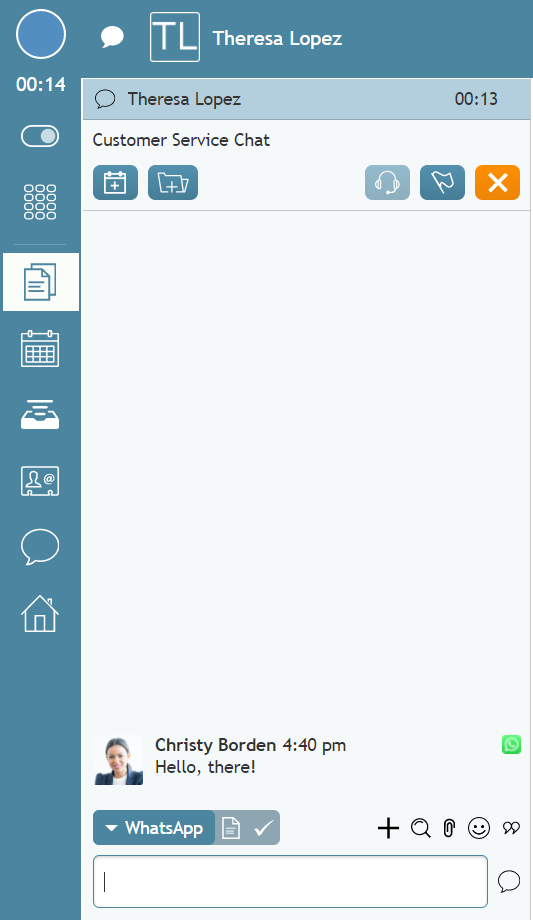
A new chat via WhatsApp will begin, as shown


How to Start a Conversation with Click-to-WhatsApp
If a customer has chatted with your contact center via WhatsApp within the last 24 hours and their WhatsApp number was saved to their contact information, you should be able to start a new WhatsApp conversation with them with the touch of a button.
To start a conversation with Click-to-WhatsApp, follow these steps:
- Go to the Contacts section of Agent Desktop and search for the customer.
- Click the WhatsApp messenger button displayed in the person's contact details.
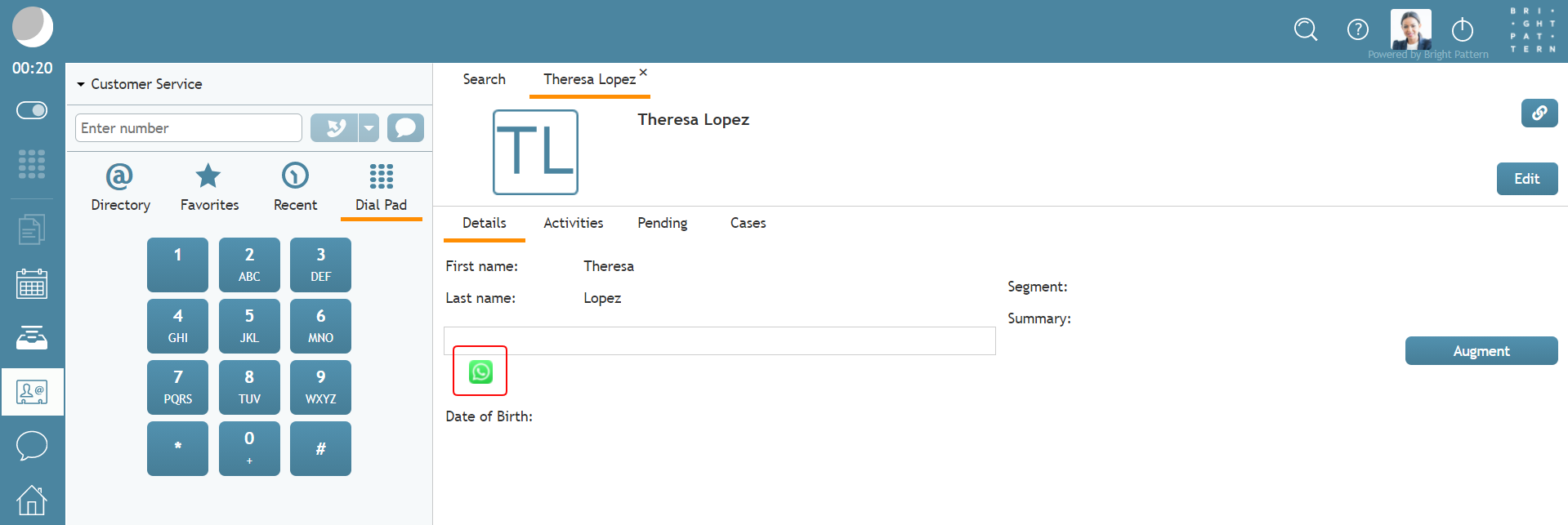
Example of a contact’s details showing a WhatsApp messenger button - A chat conversation via WhatsApp will begin immediately, and you can type an approved message to the WhatsApp user. Notice that the channel selector for the chat displays “WhatsApp” and the WhatsApp icon is displayed next to all text in the chat feed.
- To send your message, press Enter or Return on your keyboard, or click the Send message icon.
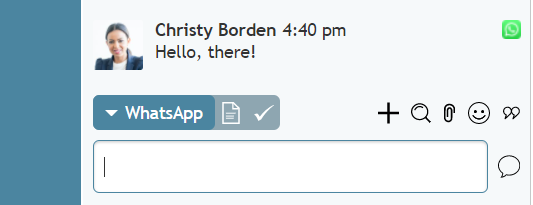
A new chat via WhatsApp will begin, as shown < Previous | Next >

