From Bright Pattern Documentation
Created page with "<translate> = Beginning a Phone Call Remote Assist Session = # When handling an active call, click the Remote Assist 50px b..." |
Updated via BpDeleteTranslateTags script |
||
| Line 1: | Line 1: | ||
= Beginning a Phone Call Remote Assist Session = | = Beginning a Phone Call Remote Assist Session = | ||
| Line 11: | Line 11: | ||
[[File:2022.02.09_NRA_AgentScreen.demoimage.jpg|700px|center|thumb|The potential view of a customer's screen in your Agent Desktop]]<br><br> | [[File:2022.02.09_NRA_AgentScreen.demoimage.jpg|700px|center|thumb|The potential view of a customer's screen in your Agent Desktop]]<br><br> | ||
Latest revision as of 04:01, 29 May 2024
Beginning a Phone Call Remote Assist Session
- When handling an active call, click the Remote Assist
 button.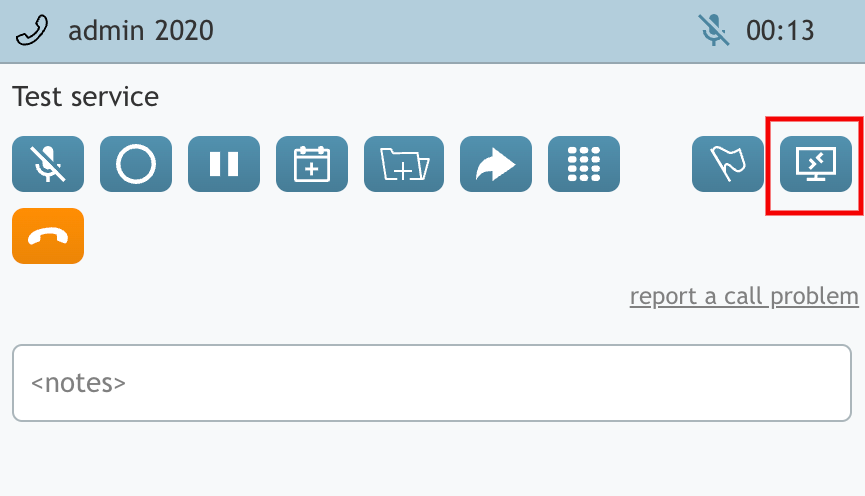
Remote Assist button seen during an active call - A Remote Assist tab will open in Agent Desktop's Context Information Area. This tab contains explanatory Remote Assist information that may be used during a voice interaction.
- Note: If you are using the Embedded Agent Desktop widget in a CRM environment (e.g., Zendesk, ServiceNow, Dynamics, or Salesforce) the Remote Assist window will open in a separate pop-up.
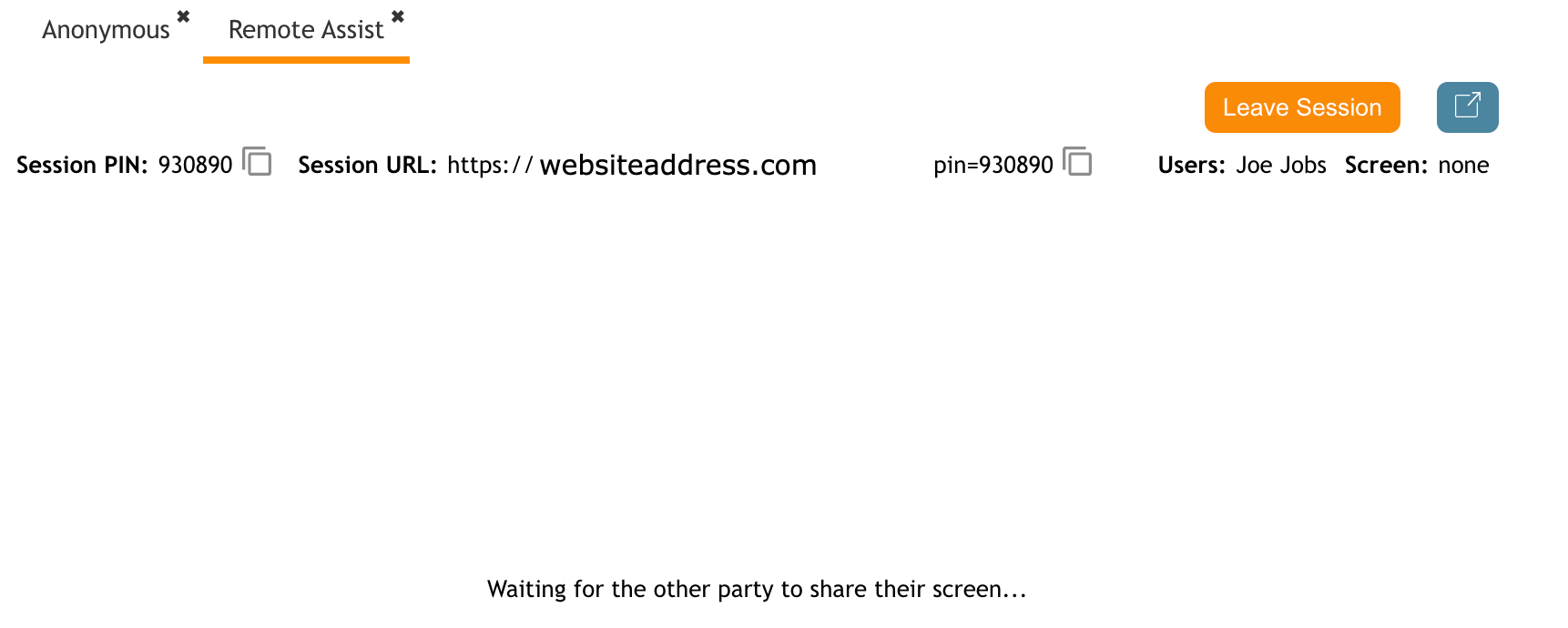
Remote Assist tab seen in the Context Information Area
- Note: If you are using the Embedded Agent Desktop widget in a CRM environment (e.g., Zendesk, ServiceNow, Dynamics, or Salesforce) the Remote Assist window will open in a separate pop-up.
- Note: Voice interaction Remote Assist sessions necessitate that you provide the customer the Session Pin and Session URL vocally.
- Instruct the customer to open a browser window and enter the session URL into the address bar.
- This will take the user to an application launch window. Your customer will continue the process from there.
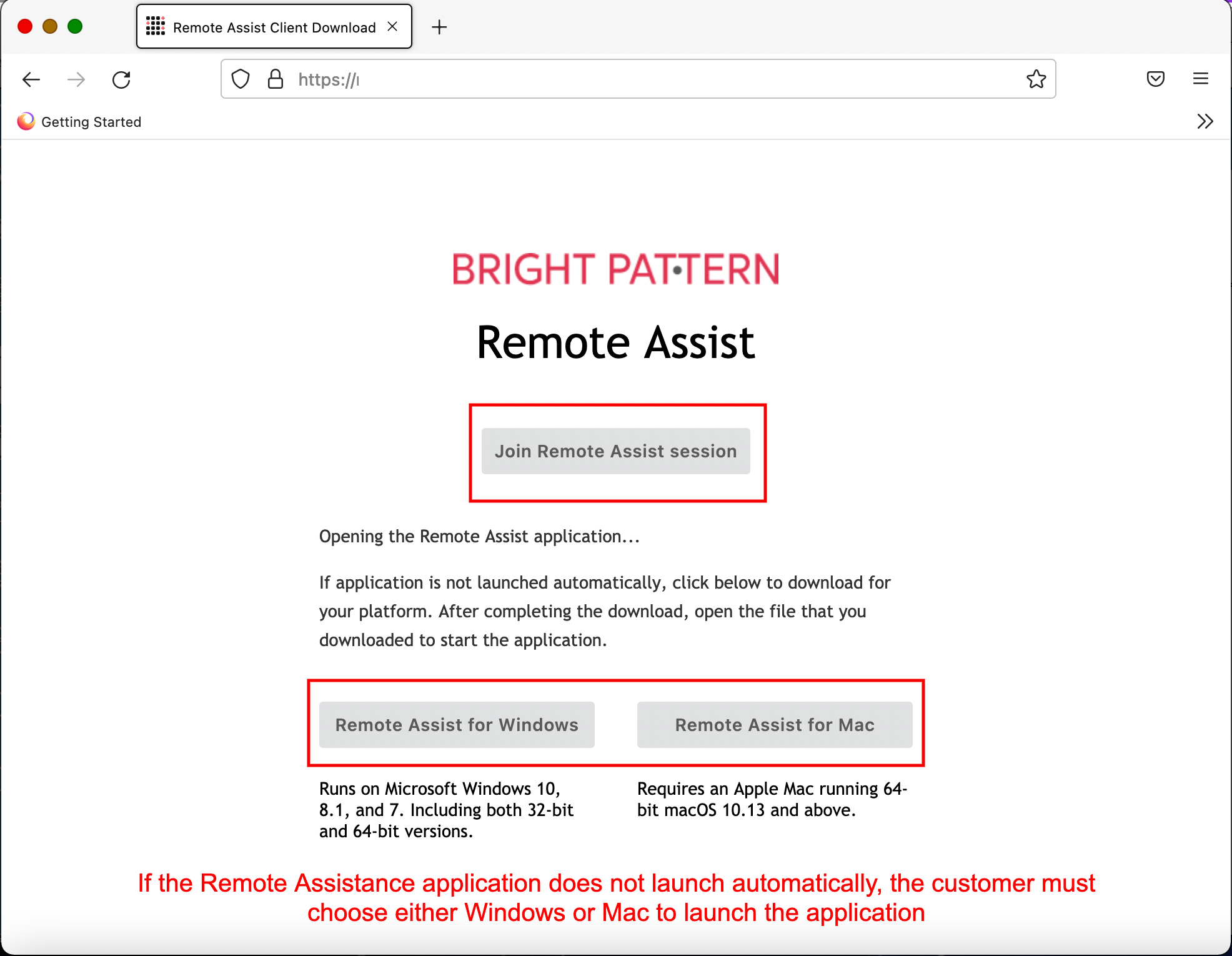
Customer's view of the RA application launcher - Once the customer has successfully signed in, you will see their screen in your browser.


