From Bright Pattern Documentation
No edit summary |
Updated via BpDeleteTranslateTags script |
||
| Line 1: | Line 1: | ||
= How to Download and Run the Remote Assist Application = | = How to Download and Run the Remote Assist Application = | ||
Once the customer has successfully entered the URL into their browser or has clicked a provided link via a chat or SMS interaction, then the application for desktop devices (Mac/Windows) will download onto their computer for downloading.<br><br> | Once the customer has successfully entered the URL into their browser or has clicked a provided link via a chat or SMS interaction, then the application for desktop devices (Mac/Windows) will download onto their computer for downloading.<br><br> | ||
| Line 10: | Line 10: | ||
# During the Remote Assist session, the conversation can continue as normal via phone or chat. | # During the Remote Assist session, the conversation can continue as normal via phone or chat. | ||
<br><br> | <br><br> | ||
Latest revision as of 04:01, 29 May 2024
How to Download and Run the Remote Assist Application
Once the customer has successfully entered the URL into their browser or has clicked a provided link via a chat or SMS interaction, then the application for desktop devices (Mac/Windows) will download onto their computer for downloading.

- The customer should open the app and provide the required permissions for the agent to continue in the Connect to server dialogue box.
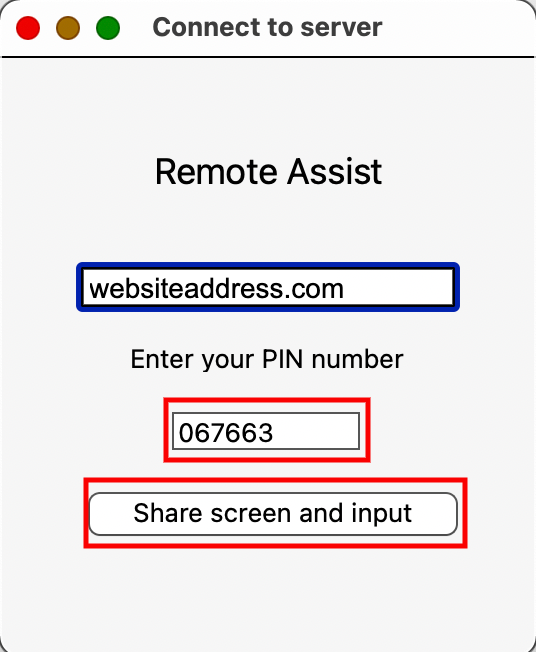
Customers should enter the PIN and click "Share screen and input" to allow agents to remotely assist them - Your customers can connect to the Remote Assist session via accepting the permissions. This is done by clicking the Share screen and input
 button.
 - The Remote Assist session is now established and the agent can interact with the customer’s computer at will.
- During the Remote Assist session, the conversation can continue as normal via phone or chat.

