From Bright Pattern Documentation
Created page with "<translate> = How to Enable Screen Recording = Enabling screen recording allows quality evaluators to watch an agent's screen during the time of an interaction in Eval Console..." |
Marked this version for translation |
||
| Line 1: | Line 1: | ||
<translate> | <translate> | ||
= How to Enable Screen Recording = | = How to Enable Screen Recording = <!--T:1--> | ||
Enabling screen recording allows quality evaluators to watch an agent's screen during the time of an interaction in Eval Console's [[QM/EvalConsole/Overview#Screen_Recording_Display | screen recording display]]; this can provide insight and context when examining the quality of the interaction. | Enabling screen recording allows quality evaluators to watch an agent's screen during the time of an interaction in Eval Console's [[QM/EvalConsole/Overview#Screen_Recording_Display | screen recording display]]; this can provide insight and context when examining the quality of the interaction. | ||
<!--T:2--> | |||
This section shows you how to enable screen recording. | This section shows you how to enable screen recording. | ||
== Procedure == | == Procedure == <!--T:3--> | ||
# In the Contact Center Administrator application, go to section ''Configuration > Quality Management > Screen Recording''.<br /><br /> | # In the Contact Center Administrator application, go to section ''Configuration > Quality Management > Screen Recording''.<br /><br /> | ||
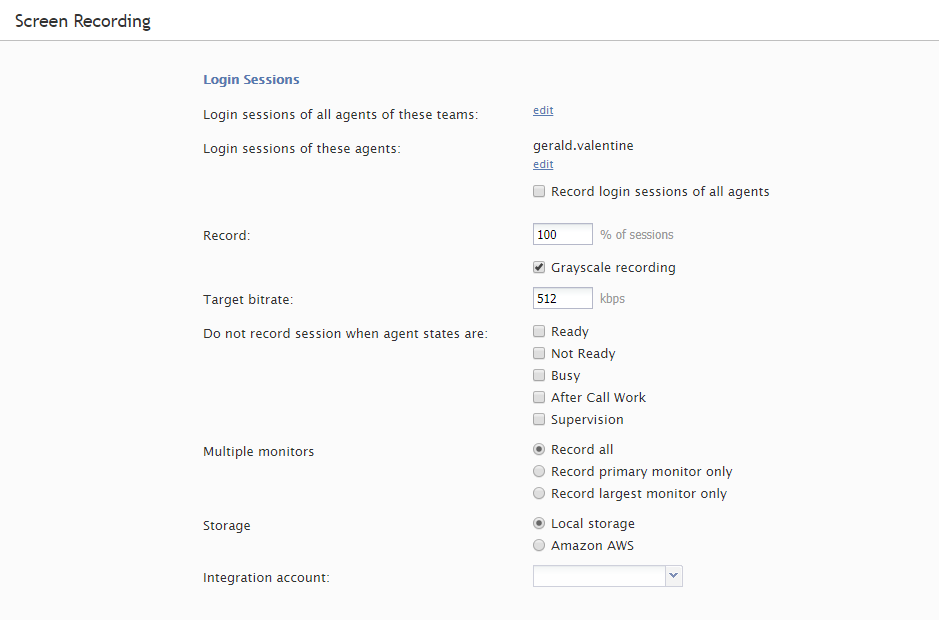
# From here, configure screen recording settings to your contact center's needs.<br /><br />[[File:Screen-Recording-Grayscale-53.PNG|center|thumb|800px|Screen Recording properties]]<br /><br /> | # From here, configure screen recording settings to your contact center's needs.<br /><br />[[File:Screen-Recording-Grayscale-53.PNG|center|thumb|800px|Screen Recording properties]]<br /><br /> | ||
Revision as of 01:30, 11 February 2020
• 日本語
<translate>
How to Enable Screen Recording
Enabling screen recording allows quality evaluators to watch an agent's screen during the time of an interaction in Eval Console's screen recording display; this can provide insight and context when examining the quality of the interaction.
This section shows you how to enable screen recording.
Procedure
- In the Contact Center Administrator application, go to section Configuration > Quality Management > Screen Recording.
- From here, configure screen recording settings to your contact center's needs.
Screen Recording properties - Click Apply to save your changes.

</translate>