From Bright Pattern Documentation
<translate>
How to Switch a User to Administrator Mode in Windows
After elevating the desktop on a customer's Windows OS machine, you may need to switch to the Administrative user in order to achieve your desired goals.
- Click the Send Keys button.
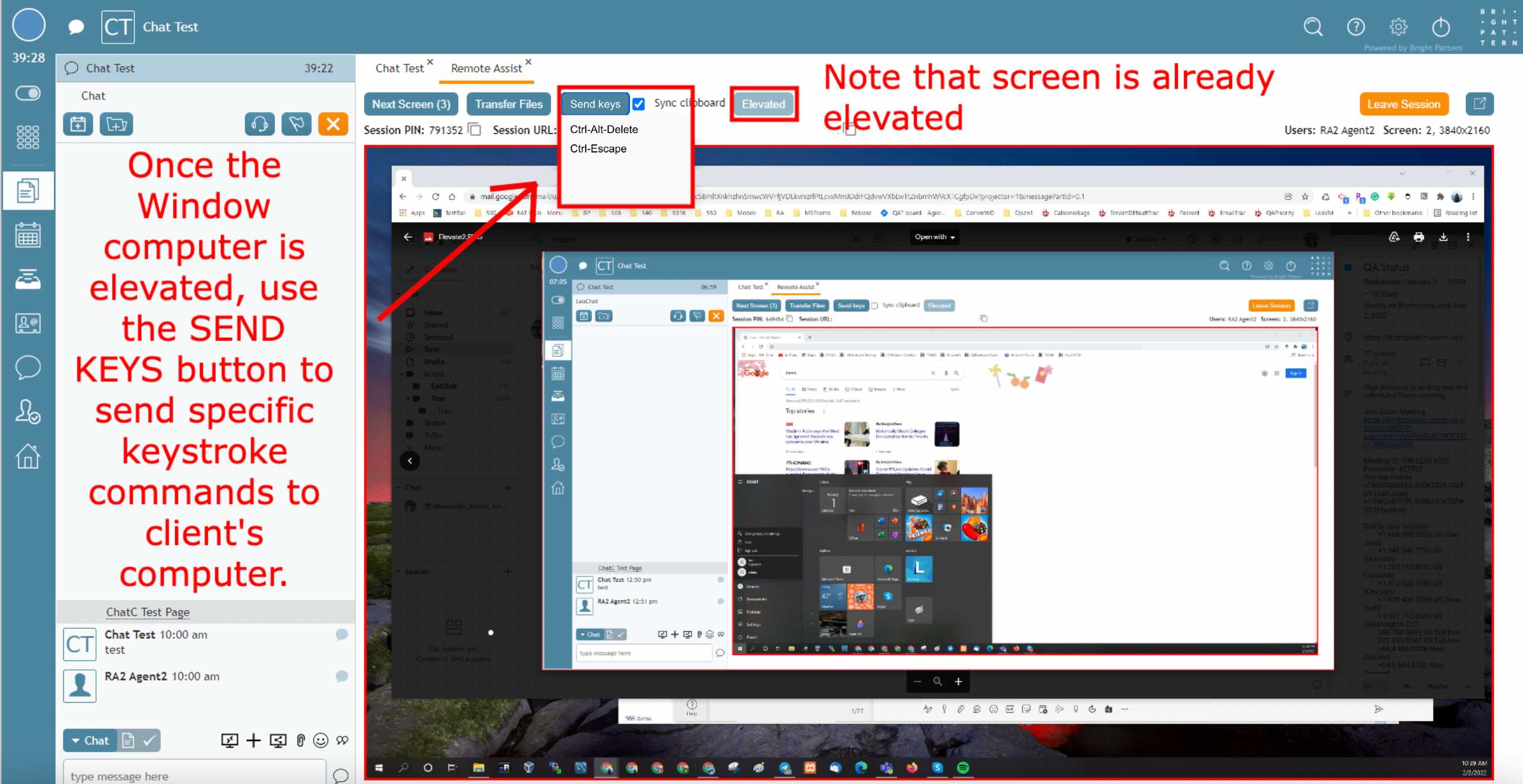
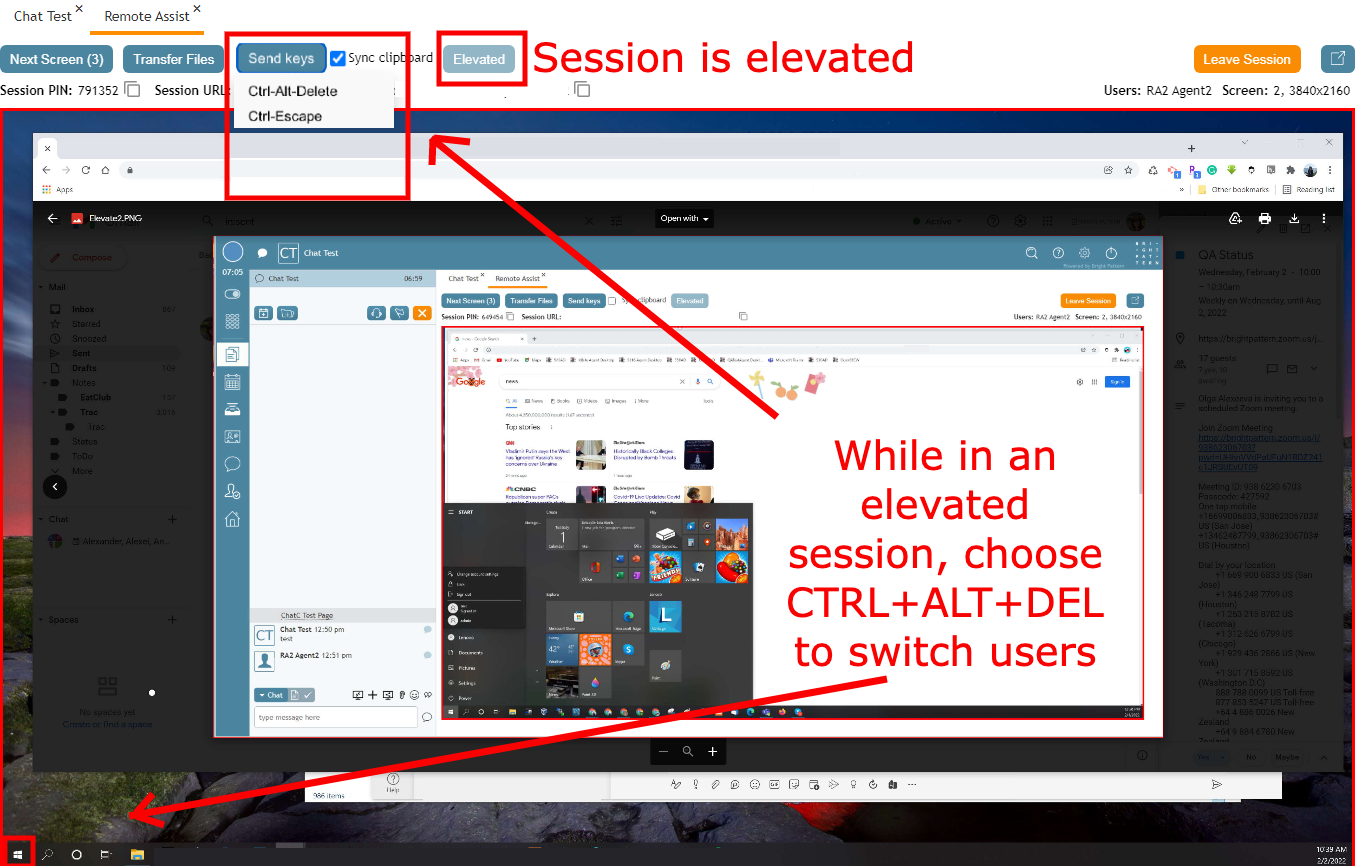
Switching users via use of the Ctrl+Alt+Delete "Send Keys" button on Windows - Choose Ctrl+Alt+Delete.
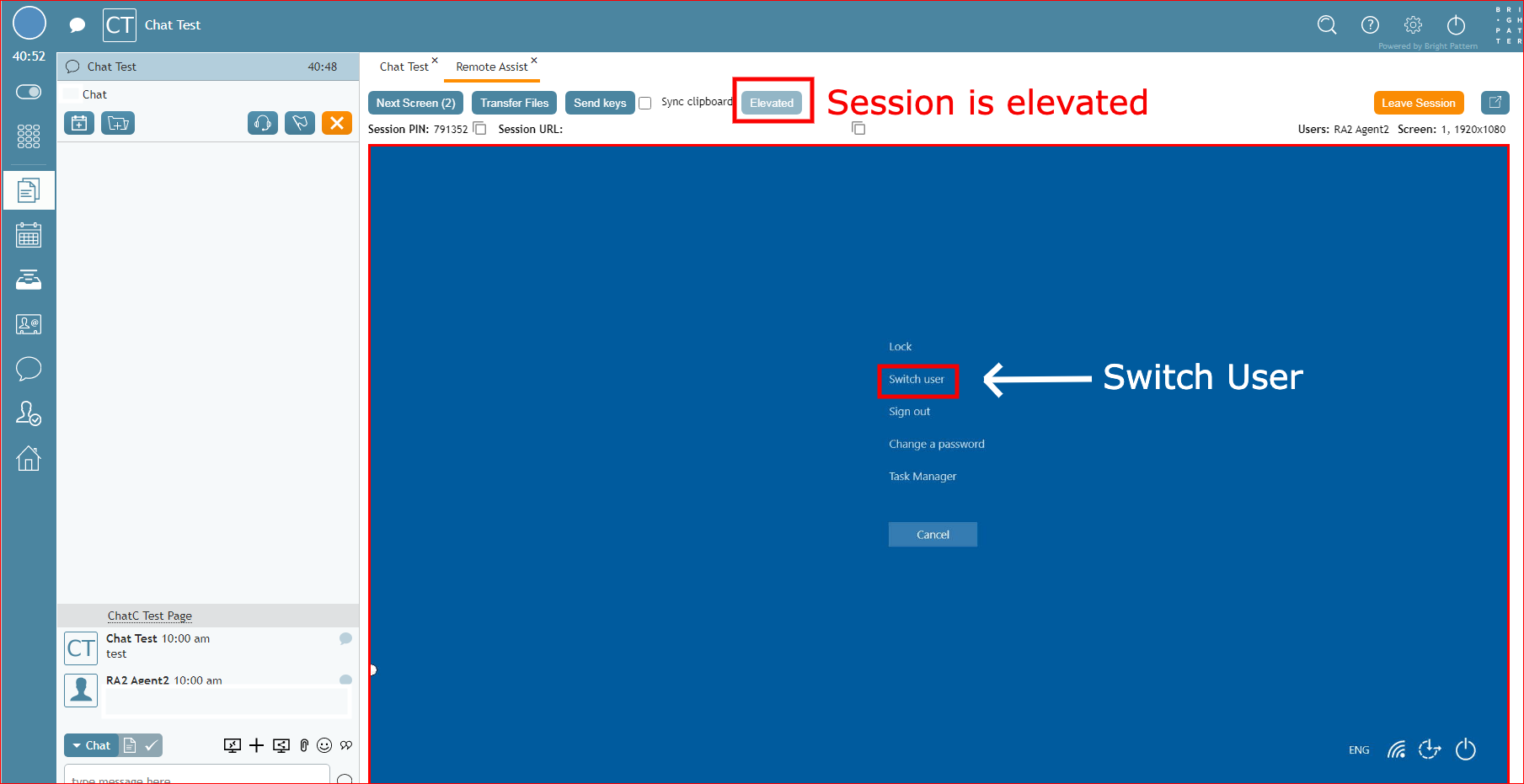
Beginning the process of switching users - When the option page appears, click the Switch Users link.
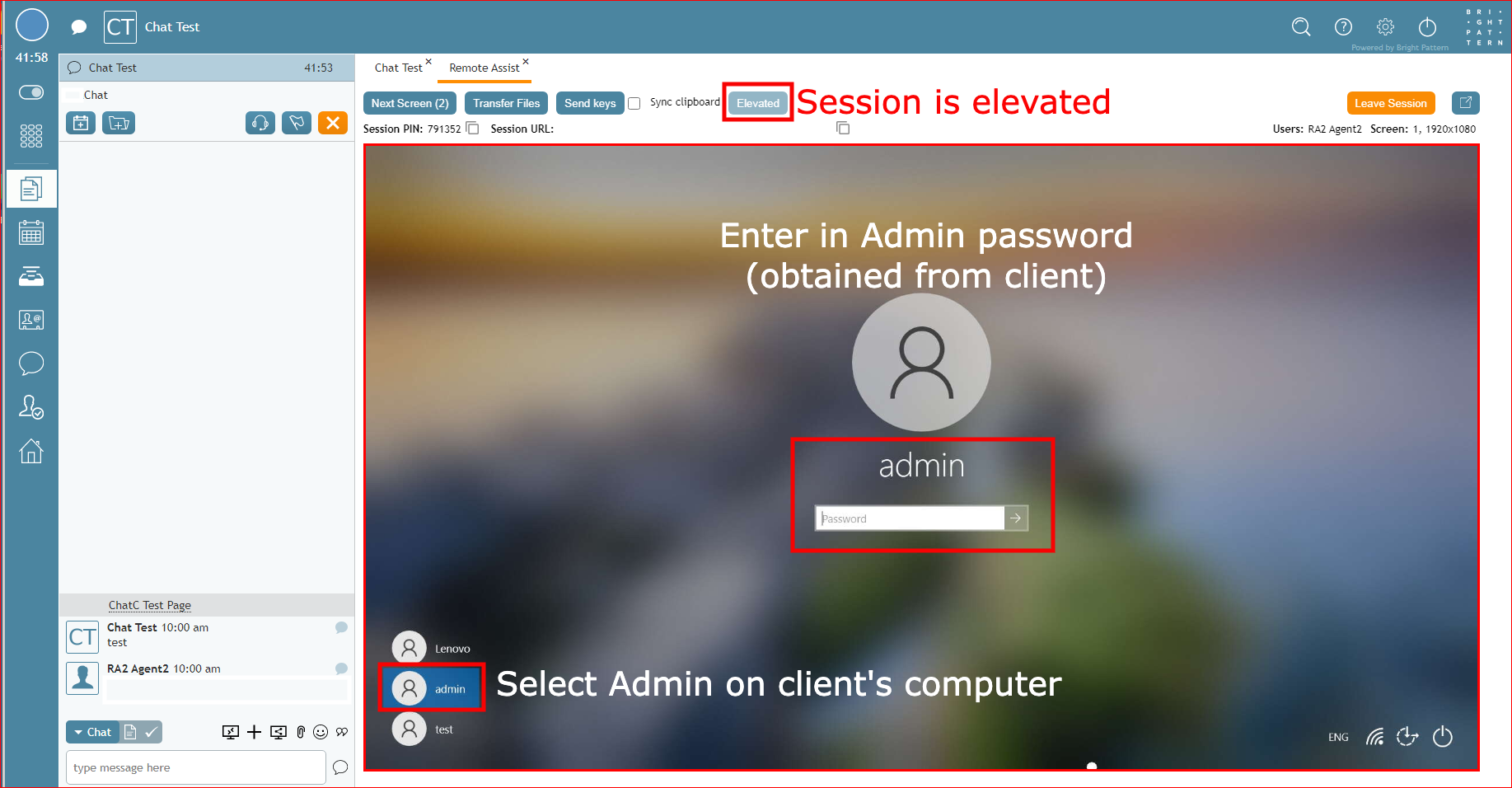
Click the "Switch User" option - Select Admin user in the lower left corner.
- Enter the Administrator password in the password box.
Switching users via use of the Ctrl+Alt+Delete "Send Keys" button - The computer will begin switching users over to the Administrator user. This may take a few minutes.
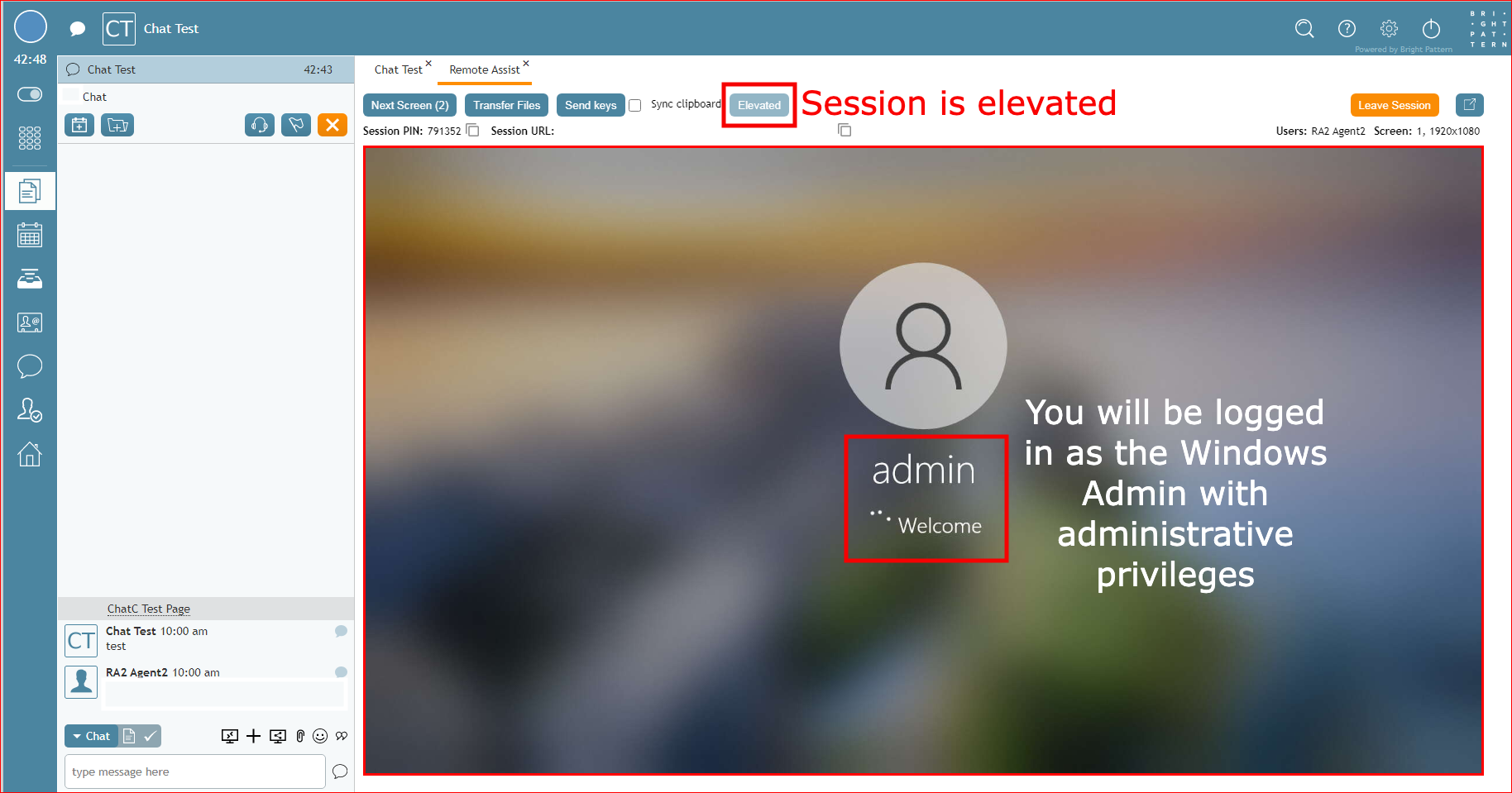
Switching from the regular user to the Administrator user may take a few minutes - You now have Administrator access to your customer's machine and may proceed as necessary.


Note: For security reasons, the user's session will be logged out immediately (without waiting 30 seconds) when the last agent leaves the RA session.

</translate>