How to Participate in a Conference
A conference is a portion of a call where three or more parties can talk to each other simultaneously. The party that turns a regular two-way call into a three-way conference by connecting a third participant becomes the conference host. (For more information about being a conference host, see How to Host a Conference Call.) The other two parties in such a three-way conference become regular conference participants.

As a conference participant, you can do any of the following:
- See all other conference participants in the Active Interactions List and talk to all of them.
- Add new participants to the conference.
- Leave the conference at any time.
Adding New Participants
To add a new participant to the conference, follow these steps:
- Press the Consult, Conference, or Blind Transfer
 button in the Interaction Details panel.
 - Hover over a contact in the panel and click the Conference icon
 . Alternately, enter their extension or phone number into the Dial Number field; open the drop-down menu next to the Consult button, then select Conference.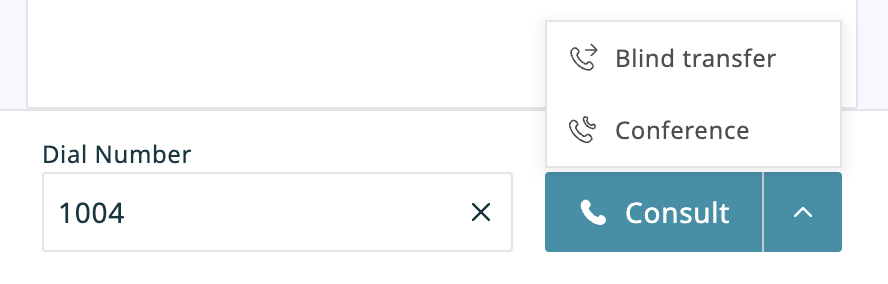
Adding a party to a conference call - The dialing will begin immediately. Both you and the other parties currently on the call will be able to monitor the progress of the dial attempt and engage in a multi-party conversation as soon as the new participant answers.


Leaving a Conference
To leave the conference, click the Leave button  . You will be disconnected while the remaining parties will carry on with the conference call.
The conference host can disconnect you from the conference at any time. The conference host can also end the conference for all participants in one step. For more information about conference host’s privileges, see How to Host a Conference Call.