From Bright Pattern Documentation
• 日本語
How to Schedule a Follow-Up Activity
While talking to a customer or colleague, you can schedule follow-up activities related to your present call. For example, you can schedule an outbound call or email to confirm fulfillment of a customer’s request.
To schedule a follow-up activity for the current interaction, follow these steps:
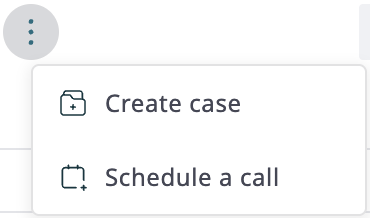
- In the Interaction Details panel, click the Show more button and select the Schedule a call menu option. The dialog window and calendar that appear will have the available contact information (e.g. name and phone number) pre-filled for you.
- Select Follow-up in the event creation panel.
- Select which Calendar to use.
- Enter the activity Title and Notes.
- Specify the activity Start and End time, and set a Reminder.
- Set the Assignee as yourself or another internal user.
- Click on the customer contact to add missing contact information (e.g. email address) if necessary.
- Optional: Click Add Contact to add additional contacts.
- Click Create.

Scheduled activities will appear in your personal calendar, and you will get reminders when those activities are due. For general information about the calendar and reminders, see section How to Open the Calendar.
