From Bright Pattern Documentation
• 日本語
How To Warm Transfer
This tutorial explains how to warm transfer a customer call from the desktop to a new number and then leave the call.
- Sign in to Agent Desktop 2.0.
- Set your status as Ready.
- When you have received a phone call that you wish to transfer, open the Consult, Conference, Blind Transfer window.
- Hover over a recipient and press the Conference
 button that appears. Alternatively, enter the phone number or extension of the party you are transferring the call to in the Dial Number field, then click on the drop-down menu and select Conference.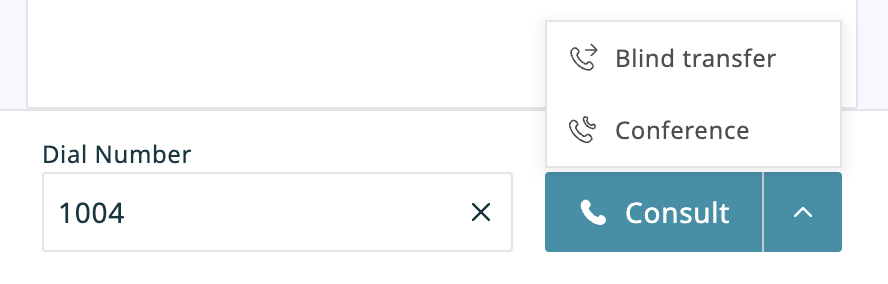
- From here, all parties will be active on the call, and all conference participants will be displayed in the Interaction Details tab.
- When you are satisfied that the customer and transfer agent are connected properly, it is time to leave the call.


|
You can only leave your own conference when it has three participants. | |
- To leave the conference, click the Leave
 button. You will be disconnected while the two remaining parties will carry on with a regular two-way call.
