How to Use Pre-Recorded Messages
Depending on your contact center practices and the services that you provide, you may be required to repeat the same information during each call for one or more services (e.g. a standard company greeting or a policy advisory). Such standard messages can be prerecorded in your Settings menu, then played back to the customer during a call.
In addition, some prerecorded messages can be preconfigured by your system administrator with respect to various services provided by your contact center. In this case, when you handle a call associated with a specific service, messages preconfigured for this service will be made available for selection via the Interaction Details panel. For more information, see Playing Messages During a Call below.
Creating Messages
You can define your personal prerecorded messages and record them using your own voice.
To create a personal message, follow these steps:
- Prepare the text of your message.
- Put on your headset.
- Click on your user icon in the top bar, then select Settings from the drop-down menu.
- Navigate to Phone Settings > Pre-recorded Messages, then click the + Add Message button.
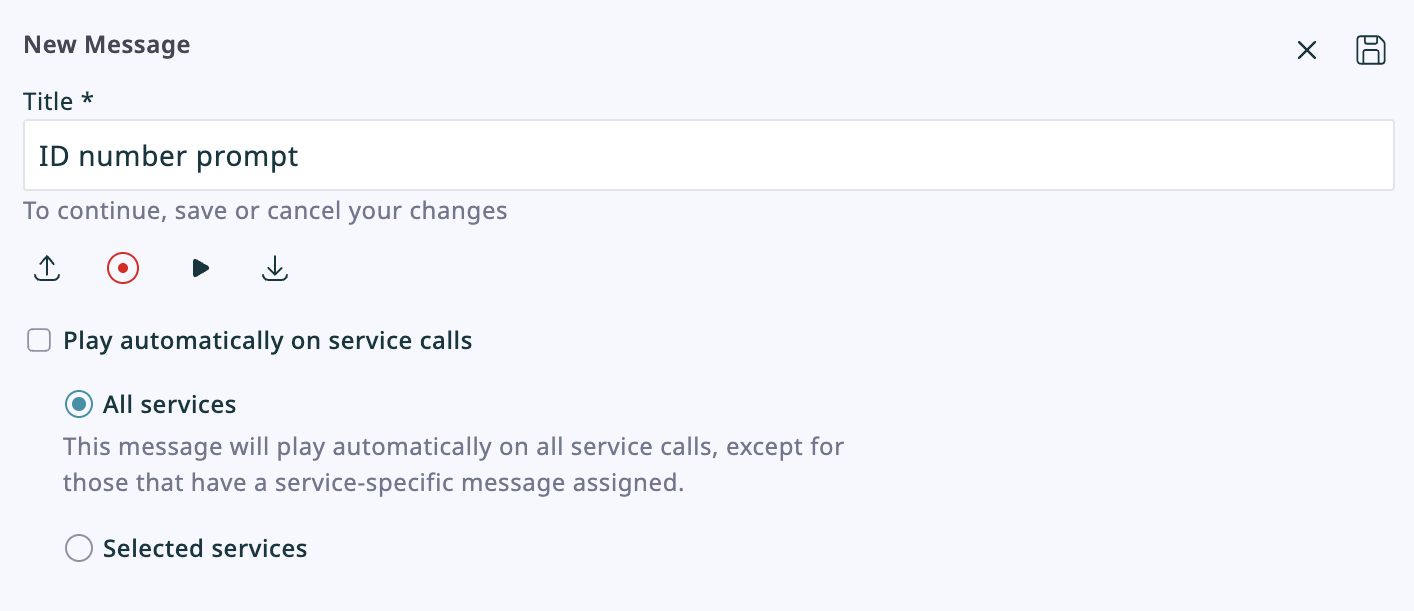
- In the form that appears, specify the message Title (e.g. My regular voicemail message).
- Press the Upload button to upload an existing voice recording, or click the Start recording button
 to record one at this time. You will hear a single ringing tone, which indicates the beginning of the recording. The button appearance will change to show the Stop control.
 - Speak your message into the microphone. When you are finished, click the Stop button
 .
. - Check your recorded message by clicking the Play button
 . If you are not satisfied with the way the message sounds, repeat step 6 and step 7 of this process.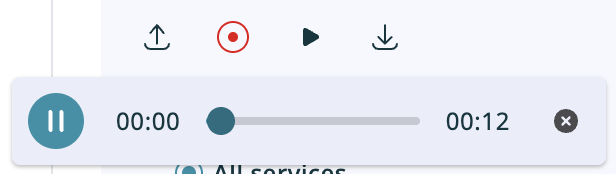
- Optional: Choose whether this message should play automatically at the beginning of some or all services calls.
- Click the Save icon in the top right corner of the form to confirm.
- Repeat as desired to record additional messages.
- Press Save in the bottom right corner of the screen to save all changes to settings.


Note: In addition to recording personal messages via the Agent Desktop 2.0 application, you may also opt to record them offline and store them as audio files. The process of configuring your greetings is the same as above, with one exception: instead of using the recording controls, click the Upload button and select the desired audio file.
Standard Greetings
You can designate one of your prerecorded messages as a standard greeting to be played to customers automatically as soon as you answer their calls (e.g. Welcome to ... My name is ... How can help you today?). You should only use such an automatic greeting if you actually use the same way of greeting your customers on all service calls that you handle.
To create such a greeting, follow these steps:
- When reviewing your message, select the Play automatically on service calls checkbox.
- Select All services.
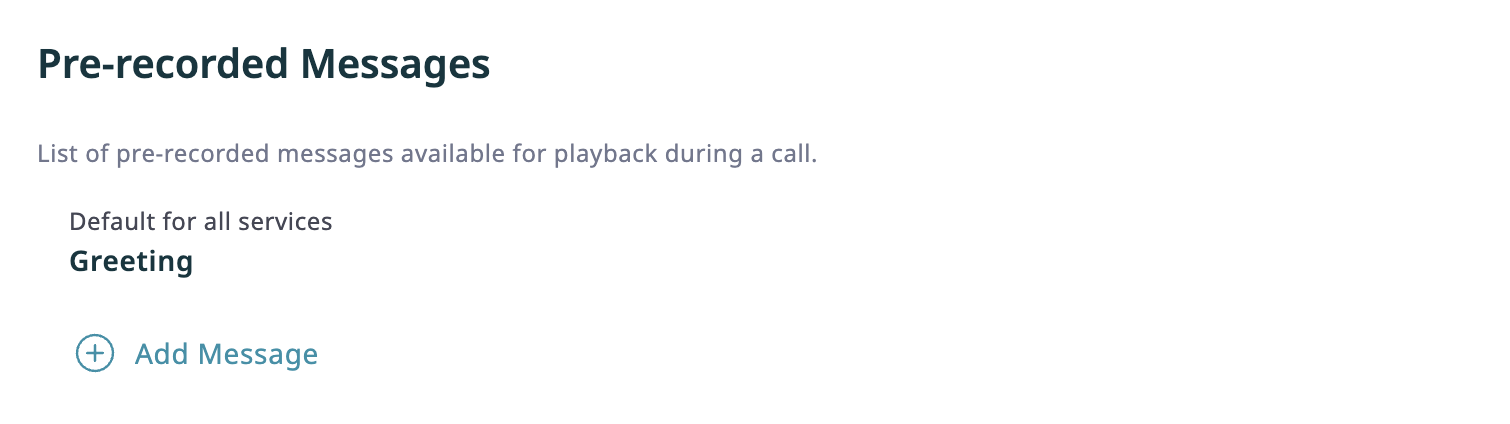
- When you save this pre-recorded message, it will appear marked as Default for all services in the message list.

Service-Specific Greetings
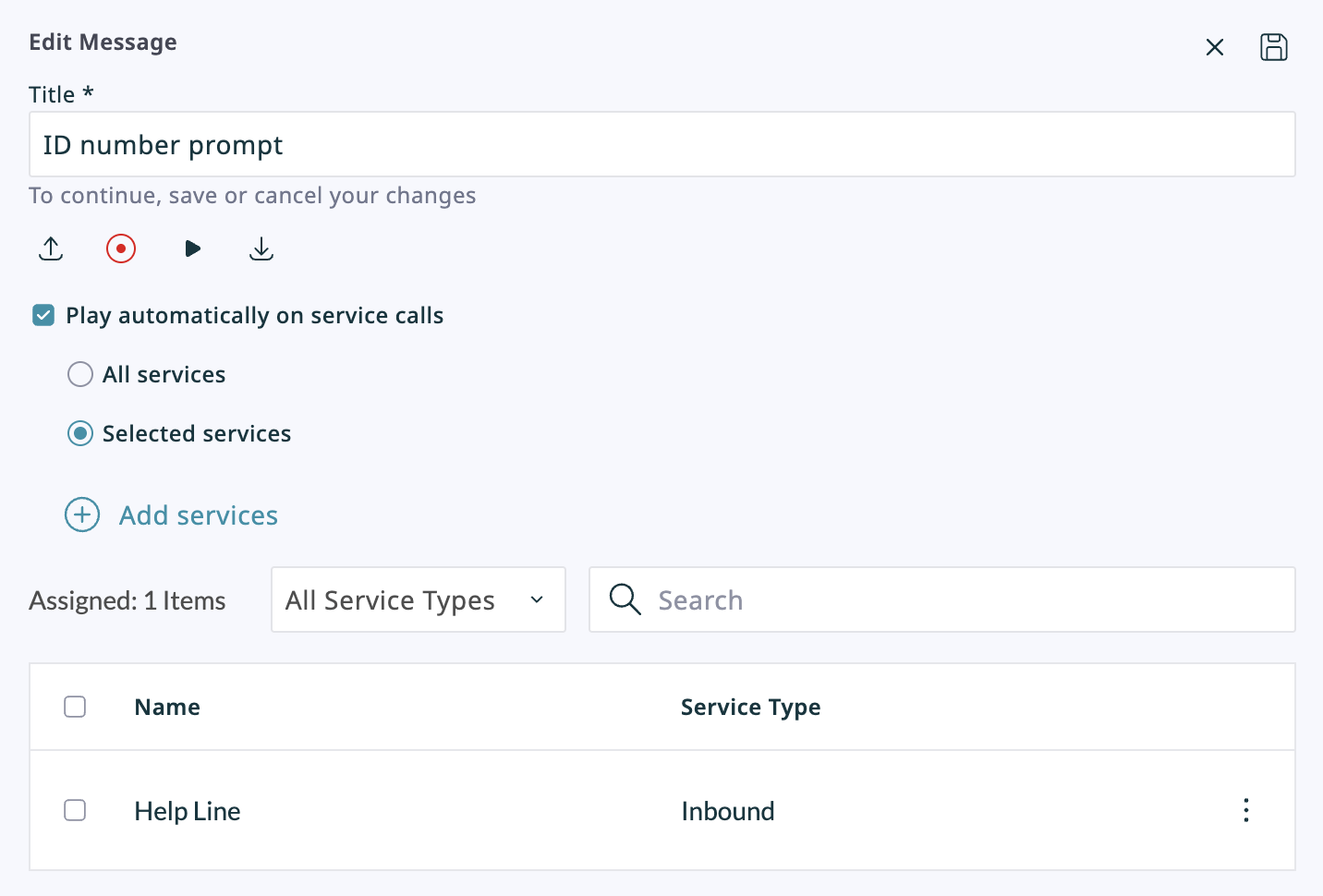
In Agent Desktop 2.0, you can designate prerecorded messages to be played to customers automatically on selected services (e.g. Please provide your member ID number for a member-specific service line). These greetings allow for more specific messages to be recorded and used.
To create such a greeting, follow these steps:
- When reviewing your message, select the Play automatically on service calls checkbox.
- Select Selected services.
- Press the Add services button.
- Use the search bar to select all services that you wish to play this pre-recorded message.
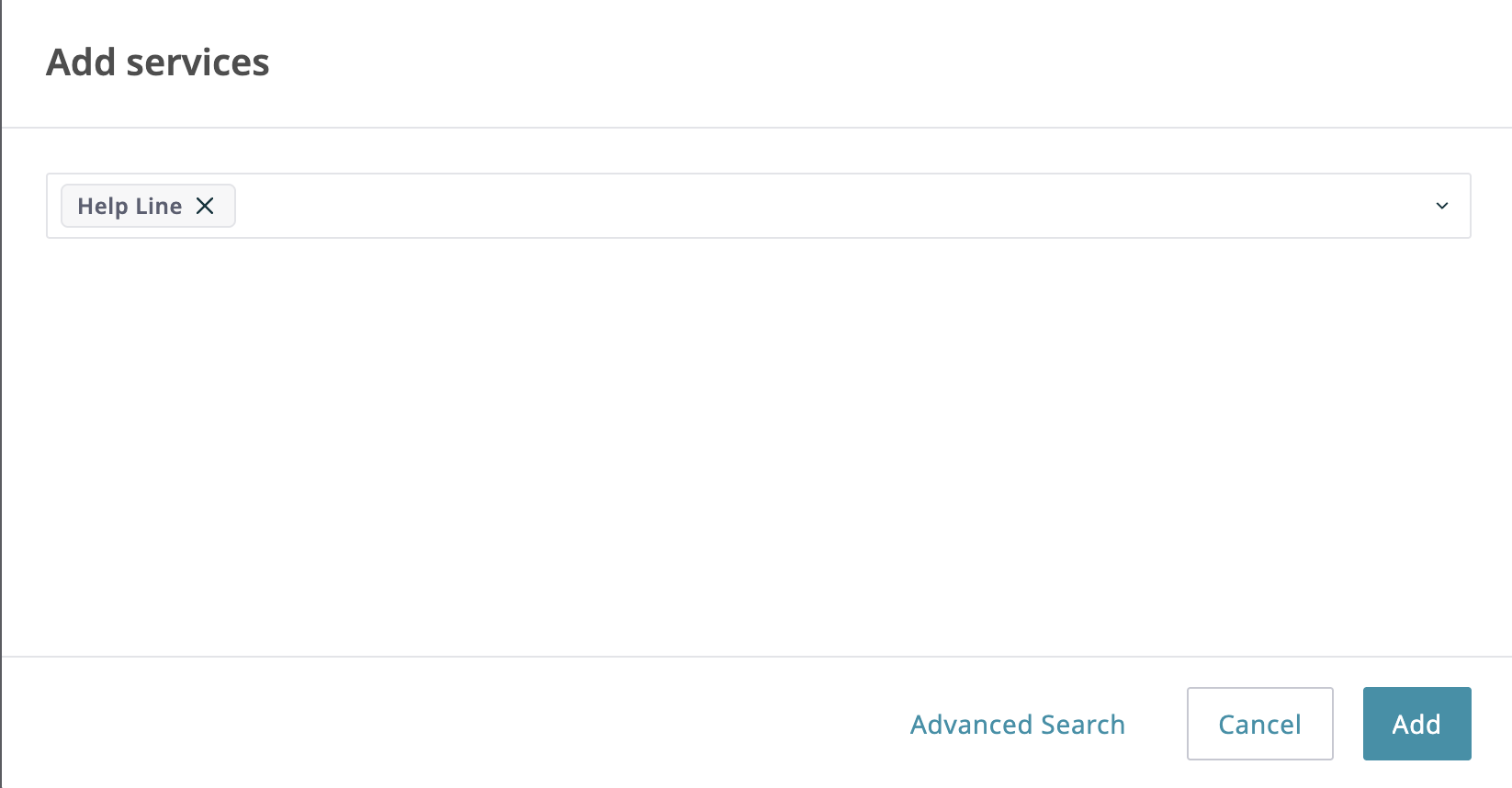
- Press the Add button.
- Click the Save icon in the top right corner of the form to confirm.


Reviewing and Editing Messages
You can review, rename, and re-record your messages whenever you like.
To review and/or edit an existing prerecorded message, follow these steps:
- Navigate to Settings > Phone Settings > Pre-recorded Messages.
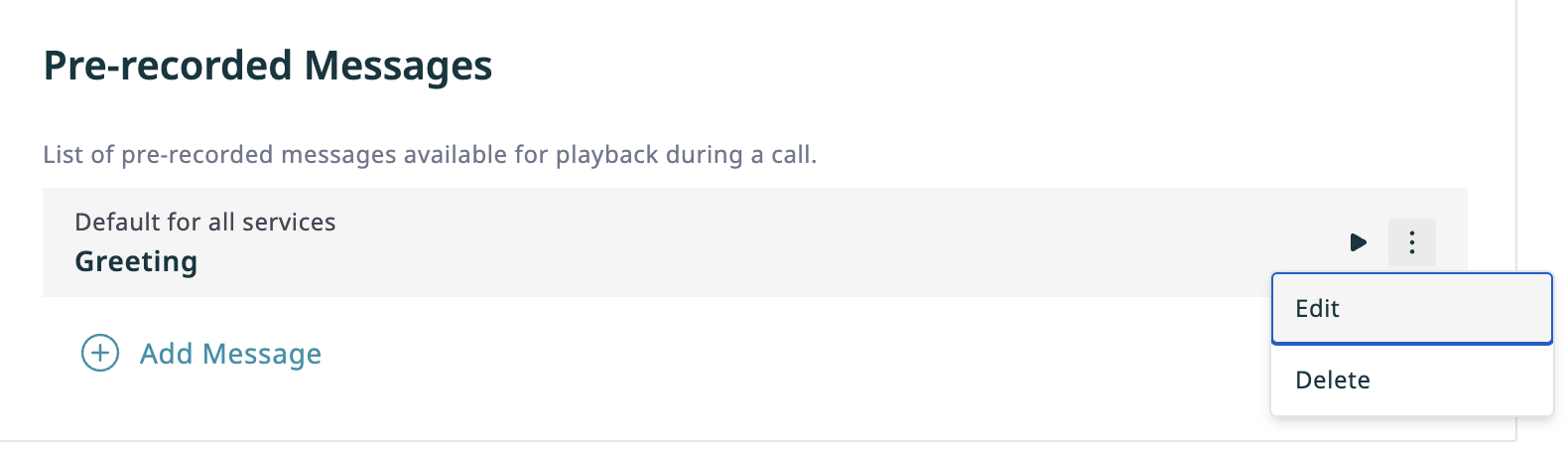
- Hover your cursor over the message in question.
- Press the play button to play back the message, or press the Actions button and select Edit to edit the message.

Playing Messages During a Call
If there are any prerecorded messages defined either at the service level or for your personal use, a message selector will appear in the Interaction Details panel when you have a connected call.

To play a message to the other party on the call, follow these steps:
- Select the desired message from the drop-down menu, then click the Play prompt button
 .
.
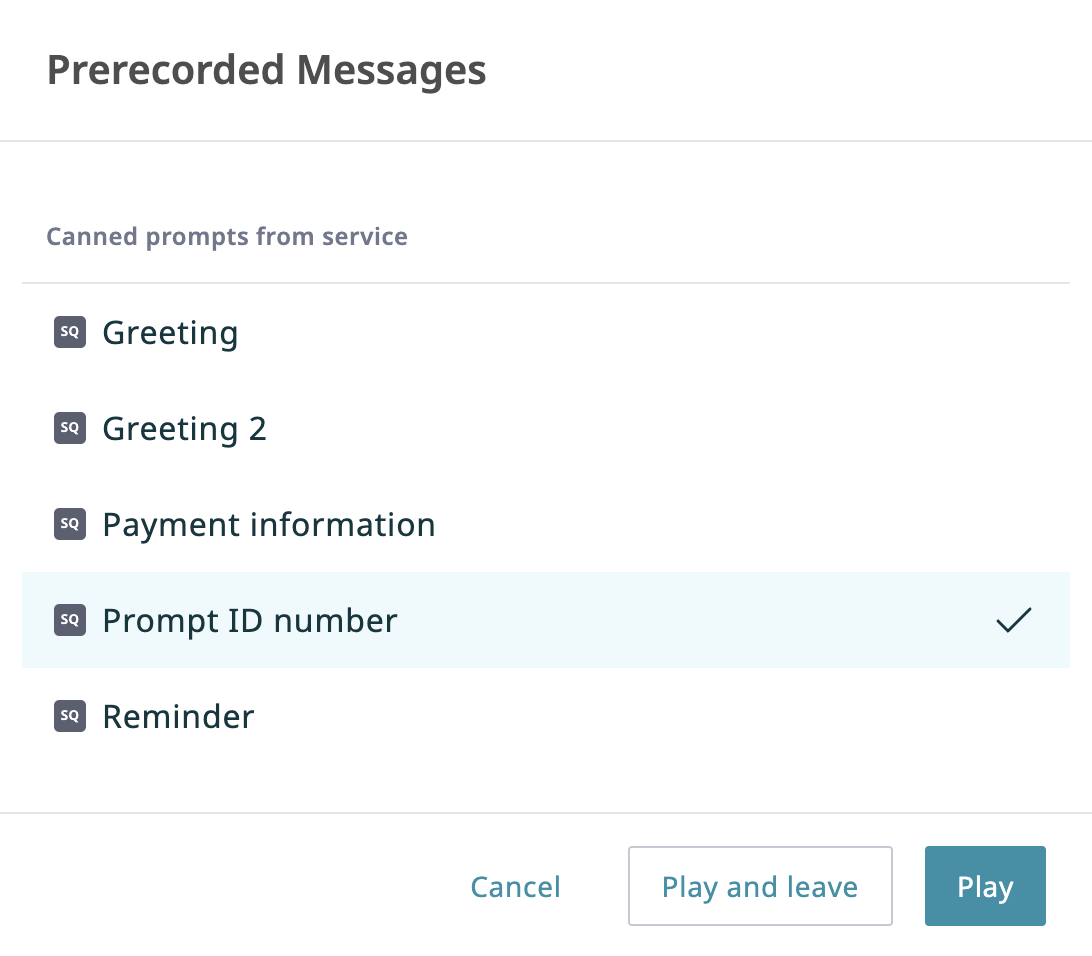
- If you do not see the desired message in the drop-down menu, click More messages, then select the desired message from the Prerecorded Messages dialog window. This window displays all Canned Prompts from Service, which are service-specific prerecorded messages available to all agents on this service, and Personal Pre-recorded Messages, which are your own prerecorded messages.
- Click Play to play the selected message while keeping the window open.
- Click Play and leave to exit the window as soon as playback begins. Playback control will be transferred to the Communication Panel.
- Click Cancel to exit the window at any time. If used while playing a message, playback control will be transferred to the Communication Panel.
- If you do not see the desired message in the drop-down menu, click More messages, then select the desired message from the Prerecorded Messages dialog window. This window displays all Canned Prompts from Service, which are service-specific prerecorded messages available to all agents on this service, and Personal Pre-recorded Messages, which are your own prerecorded messages.
- Playback of the selected message will begin. You will be able to hear the message being played. You can continue the conversation with the other party normally after the message playback ends.
- If you wish to stop the message before the end of the playback, click the Stop prompt button
 . You can continue the conversation with the other party normally after stopping the message.


Using a Pre-Recorded Message As a Voicemail
You can use the message playback function to leave a prerecorded message on the called party’s answering machine. In this case, you can disconnect yourself from the call immediately after activating the message playback.
To leave a prerecorded message on the other party’s answering machine, follow these steps:
- Select the desired message as described, and wait for the invitation to leave a message.
- Click the Play prompt button . Playback of the selected message will begin.
- Click End Call at any time to disconnect yourself from the call.
Playback of the prerecorded message to the called party’s answering machine will continue until the message ends. The call will then be disconnected automatically.