提供: Bright Pattern Documentation
Created page with "= 必須条件 = Twitter統合を設定するには、次のものが必要です: # '''通常Twitterユーザーアカウント''':通常Twitterアカウントを作成す..." |
No edit summary |
||
| Line 4: | Line 4: | ||
# '''Twitterデベロッパーのアカウント''':通常Twitterアカウントを作成したら、それを基にデベロッパーのアカウントを申請します。kのアカウントは、 Bright Patternコンタクトセンターへメッセージを送信するための[[Twitter-integration-guide/Configuration/CreateanApp|アプリの作成]]に使用されます。詳しい手順については、 [[#Applying_for_a_Developer_Account|デベロッパーアカウントの申請]]をご覧ください。<br><br> | # '''Twitterデベロッパーのアカウント''':通常Twitterアカウントを作成したら、それを基にデベロッパーのアカウントを申請します。kのアカウントは、 Bright Patternコンタクトセンターへメッセージを送信するための[[Twitter-integration-guide/Configuration/CreateanApp|アプリの作成]]に使用されます。詳しい手順については、 [[#Applying_for_a_Developer_Account|デベロッパーアカウントの申請]]をご覧ください。<br><br> | ||
# '''別の通常Twitterユーザーアカウント''':この2番目のユーザーアカウントは、 [[Twitter-integration-guide/Configuration/ServiceAssignment#Test_the_Integration|テストのダイレクトメッセージ (DM)]]を一番目のTwitterアカウントへ送信するために使われます。<br><br> | # '''別の通常Twitterユーザーアカウント''':この2番目のユーザーアカウントは、 [[Twitter-integration-guide/Configuration/ServiceAssignment#Test_the_Integration|テストのダイレクトメッセージ (DM)]]を一番目のTwitterアカウントへ送信するために使われます。<br><br> | ||
# ''' | # '''設定済みのチャットサービスとチャットシナリオエントリ''':[[Twitter-integration-guide/Configuration/IntegrationAccount|設定済みのTwitter統合]]をテストする場合や実際に使う場合、設定済みのチャットサービスとチャットシナリオのエントリーが必要です。詳しい情報については、 ''管理者チュートリアル''の [[Tutorials-for-admins/Chat/ChatServiceConfiguration|チャットサービスの設定]]をご覧ください。 | ||
== Applying for a Developer Account == | == Applying for a Developer Account == | ||
# From an existing Twitter account, go to ''Settings and privacy > General > About Twitter > Other > Developers''. This will launch the developer site. Alternately, go directly to [https://developer.twitter.com/ the developer site]. '''Note''': If you have not already done so, add an email address in your account settings; you will need a confirmed email address in order to create a developer account.<br><br>[[File:Twitter-App-Creation-0-54.PNG|650px|thumb|center|Navigate to the Developer site]]<br><br> | # From an existing Twitter account, go to ''Settings and privacy > General > About Twitter > Other > Developers''. This will launch the developer site. Alternately, go directly to [https://developer.twitter.com/ the developer site]. '''Note''': If you have not already done so, add an email address in your account settings; you will need a confirmed email address in order to create a developer account.<br><br>[[File:Twitter-App-Creation-0-54.PNG|650px|thumb|center|Navigate to the Developer site]]<br><br> | ||
# On the developer site's homepage, click '''Apply''' in the upper right corner to begin filling out the developer account application. The application will ask why you're creating a developer account and what you plan to do. Fill in the application and wait for your developer account to be approved. <br><br>[[File:Twitter-App-Creation-0.7-54.PNG|650px|thumb|center|Fill out the developer account application and wait for approval]]<br><br> | # On the developer site's homepage, click '''Apply''' in the upper right corner to begin filling out the developer account application. The application will ask why you're creating a developer account and what you plan to do. Fill in the application and wait for your developer account to be approved. <br><br>[[File:Twitter-App-Creation-0.7-54.PNG|650px|thumb|center|Fill out the developer account application and wait for approval]]<br><br> | ||
Revision as of 13:39, 12 June 2020
• English
必須条件
Twitter統合を設定するには、次のものが必要です:
- 通常Twitterユーザーアカウント:通常Twitterアカウントを作成する必要があります。このアカウントは、会社の通常TwitterアカウントとTwitterデベロッパーのアカウントの両方として機能します。 ご注意: さらに、Twitter設定でこのアカウントにメールアドレスを追加して確定しなければなりません。
- Twitterデベロッパーのアカウント:通常Twitterアカウントを作成したら、それを基にデベロッパーのアカウントを申請します。kのアカウントは、 Bright Patternコンタクトセンターへメッセージを送信するためのアプリの作成に使用されます。詳しい手順については、 デベロッパーアカウントの申請をご覧ください。
- 別の通常Twitterユーザーアカウント:この2番目のユーザーアカウントは、 テストのダイレクトメッセージ (DM)を一番目のTwitterアカウントへ送信するために使われます。
- 設定済みのチャットサービスとチャットシナリオエントリ:設定済みのTwitter統合をテストする場合や実際に使う場合、設定済みのチャットサービスとチャットシナリオのエントリーが必要です。詳しい情報については、 管理者チュートリアルの チャットサービスの設定をご覧ください。
Applying for a Developer Account
- From an existing Twitter account, go to Settings and privacy > General > About Twitter > Other > Developers. This will launch the developer site. Alternately, go directly to the developer site. Note: If you have not already done so, add an email address in your account settings; you will need a confirmed email address in order to create a developer account.
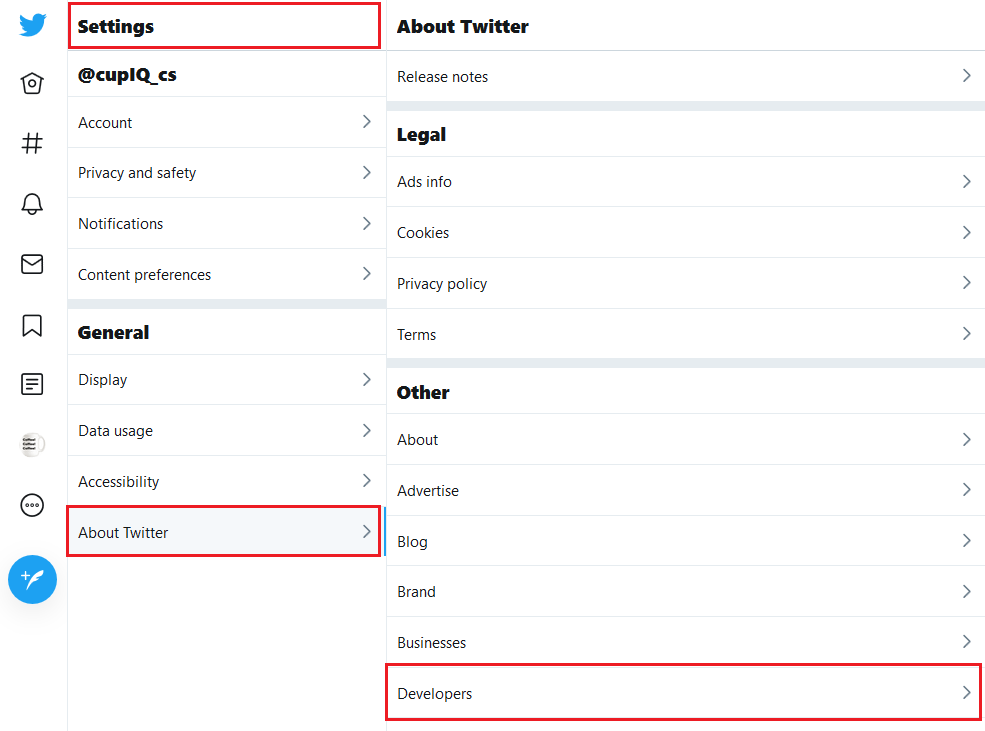
Navigate to the Developer site - On the developer site's homepage, click Apply in the upper right corner to begin filling out the developer account application. The application will ask why you're creating a developer account and what you plan to do. Fill in the application and wait for your developer account to be approved.
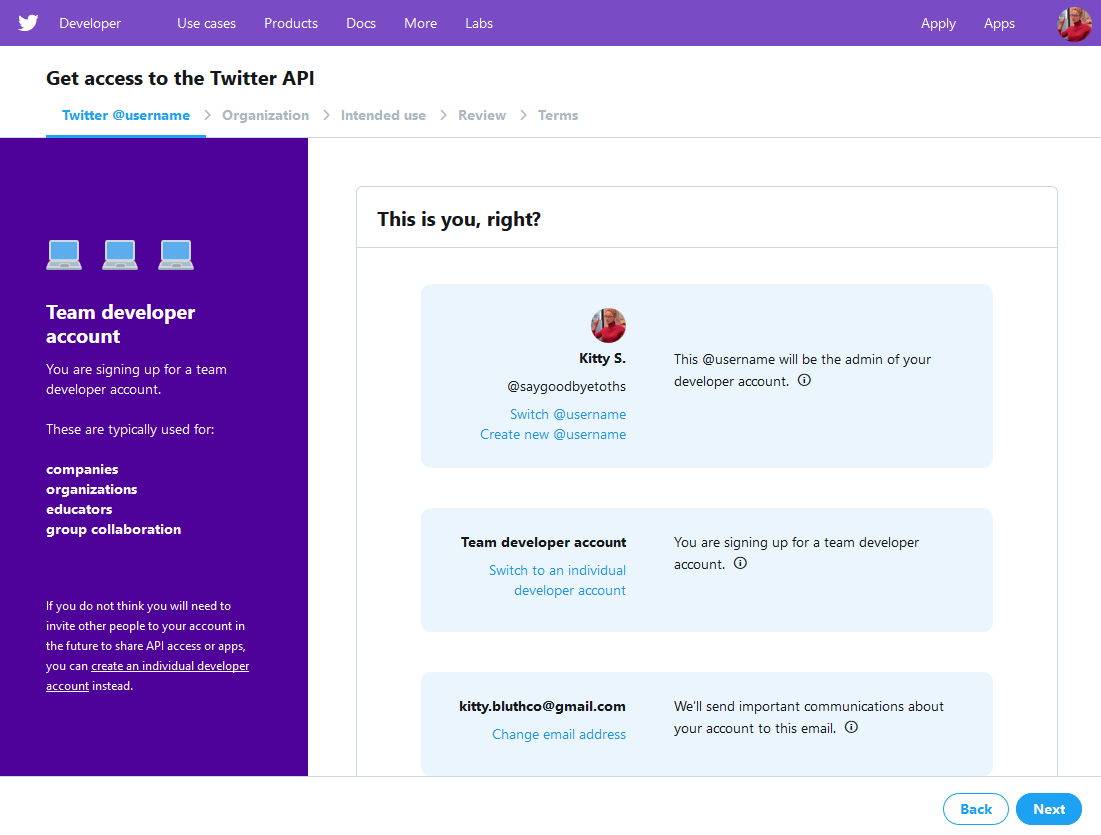
Fill out the developer account application and wait for approval < 前へ | 次へ >

