How to Host a Conference
A conference is a portion of a call where three or more parties can talk to each other simultaneously. You become a conference host when you connect a third participant to your regular two-party call.
There are two ways to connect a third participant to your two-party call: via a consultation call or single-step conference.
Connecting Via Consultation Call
To connect a third party via a consultation call, follow these steps:
- Place your original call on hold and make a consultation call to the desired third party. See How to Make a Consultation Call for more information.
- After making sure that the consultation party is willing to participate in the conference, click the Merge button
 . (If you have two or more calls on hold, you will be asked to confirm whether you wish to conference all held calls with the consultation party.) Upon clicking the Merge button, all three parties will be able to talk to each other.

Note: If you change your mind about conferencing the primary call with the consultation party, then instead of using the Merge button, click the End Call button to finish the consultation call. Then click the Retrieve button to retrieve the primary call from hold and continue the conversation.
Connecting via Single-Step Conference
To connect a third party via a single-step conference, follow these steps:
- Without placing the original call on hold, press the Consult, Conference, or Blind Transfer
 button in the Interaction Details panel.
 - Hover over a contact in the panel and click the Conference icon
 . Alternately, enter their extension or phone number into the Dial Number field; open the drop-down menu next to the Consult button, then select Conference.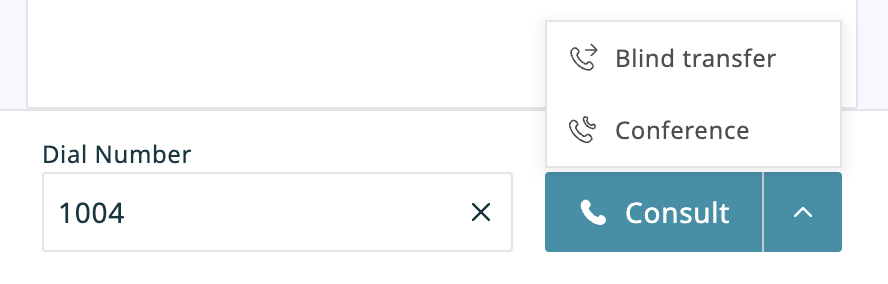
Adding a party to a conference call - The dialing will begin immediately. Both you and the other party currently on the call will be able to monitor the progress of the dial attempt and engage in a three-party conversation as soon as the third party answers.


Note: If you have a call on hold prior to initiating a conference call, it will not be connected to the dial attempt. Instead, a regular two-way call will be initiated to the desired number, while the original call will remain on hold. This is done to prevent the accidental merging of unrelated calls.
You can connect more than one party to your conference following the aforementioned procedures. All conference participants will be displayed in the Interaction Details panel.
Note that any other internal party connected to your conference will be able to add more participants to this conference. However, regardless of the number of participants or who connected them, you will continue to be the host of the conference call because you were the one who set up the original three-way conference.
Disconnecting
As the conference host, you have the following exclusive privileges: you can disconnect any individual participant from your conference at any time, and you can end the conference call for all participants in one step.
To disconnect an individual participant, expand the list of call members in the Interaction Details panel. Hover over the participant’s name, then click the Disconnect button that appears.

To end the conference call for all participants in one step, click the End Conference button 
Other participants can leave your conference at any time. You can only leave your own conference when it has three participants. To leave your conference, click the Leave button  . You will be disconnected while the two remaining parties will carry on with a regular two-way call.
Note: When you connect a third party via a single-step conference function, all of the discussed conference controls become available to you as soon as the dialing begins. Thus, for example, you can leave the call without waiting for the third-party to answer.