From Bright Pattern Documentation
Switch Users for Remote Assist Sessions in Windows
Agents may need to switch to a user account with additional privileges to complete certain tasks.
- Click the Send Keys button.
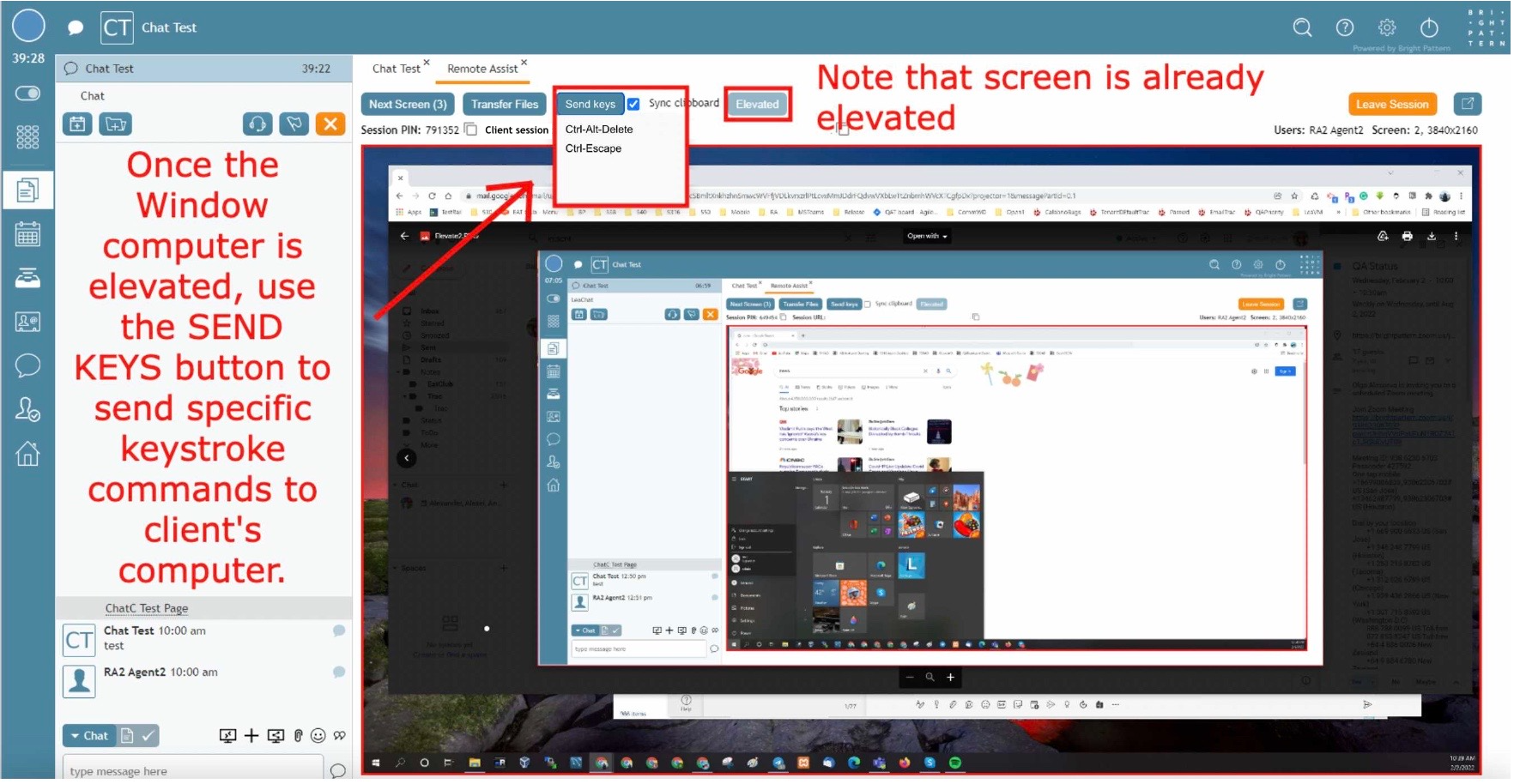
Switching users via use of the Ctrl+Alt+Delete Send Keys button on Windows - Choose Ctrl+Alt+Delete.
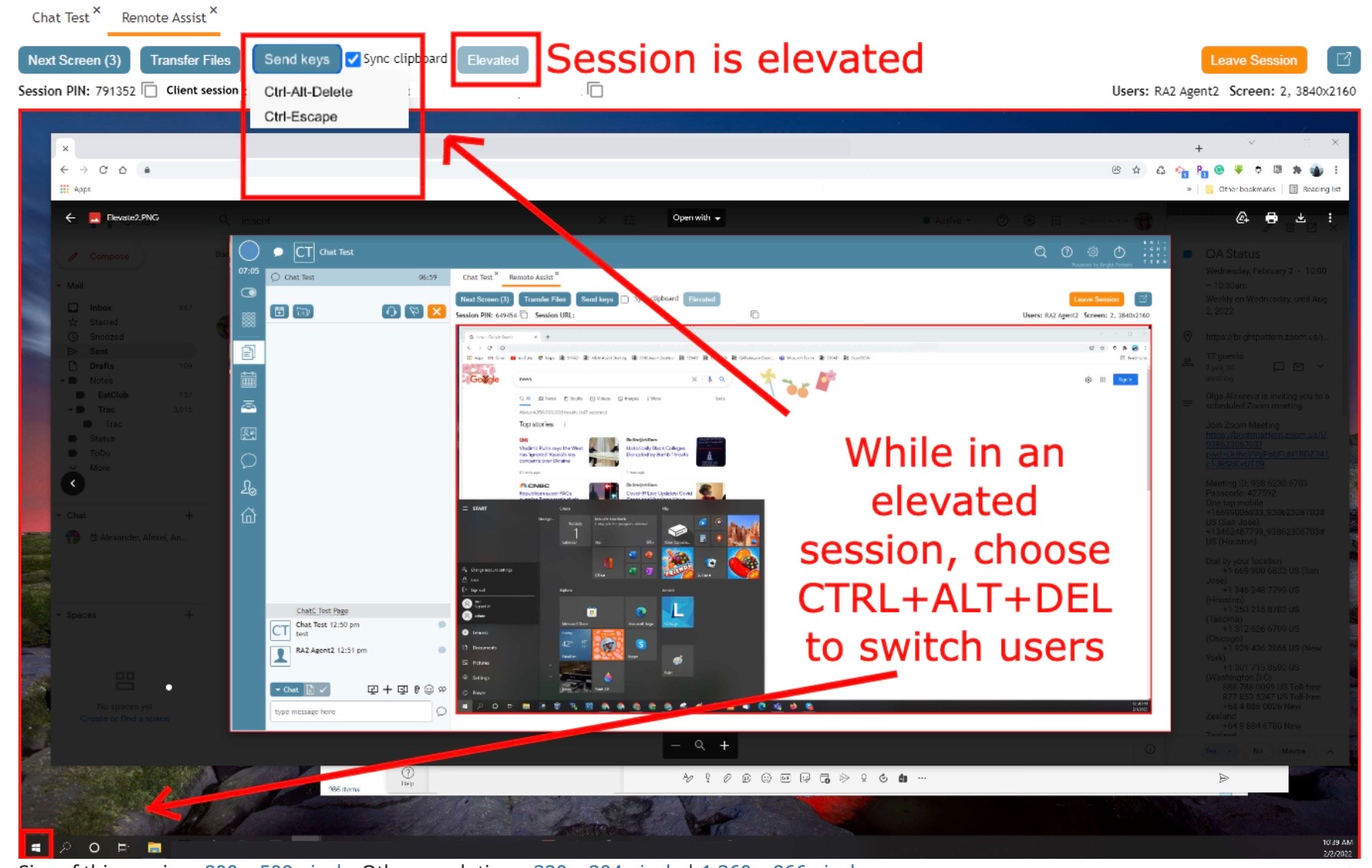
Beginning the process of switching users - When the option page appears, click the Switch Users link.
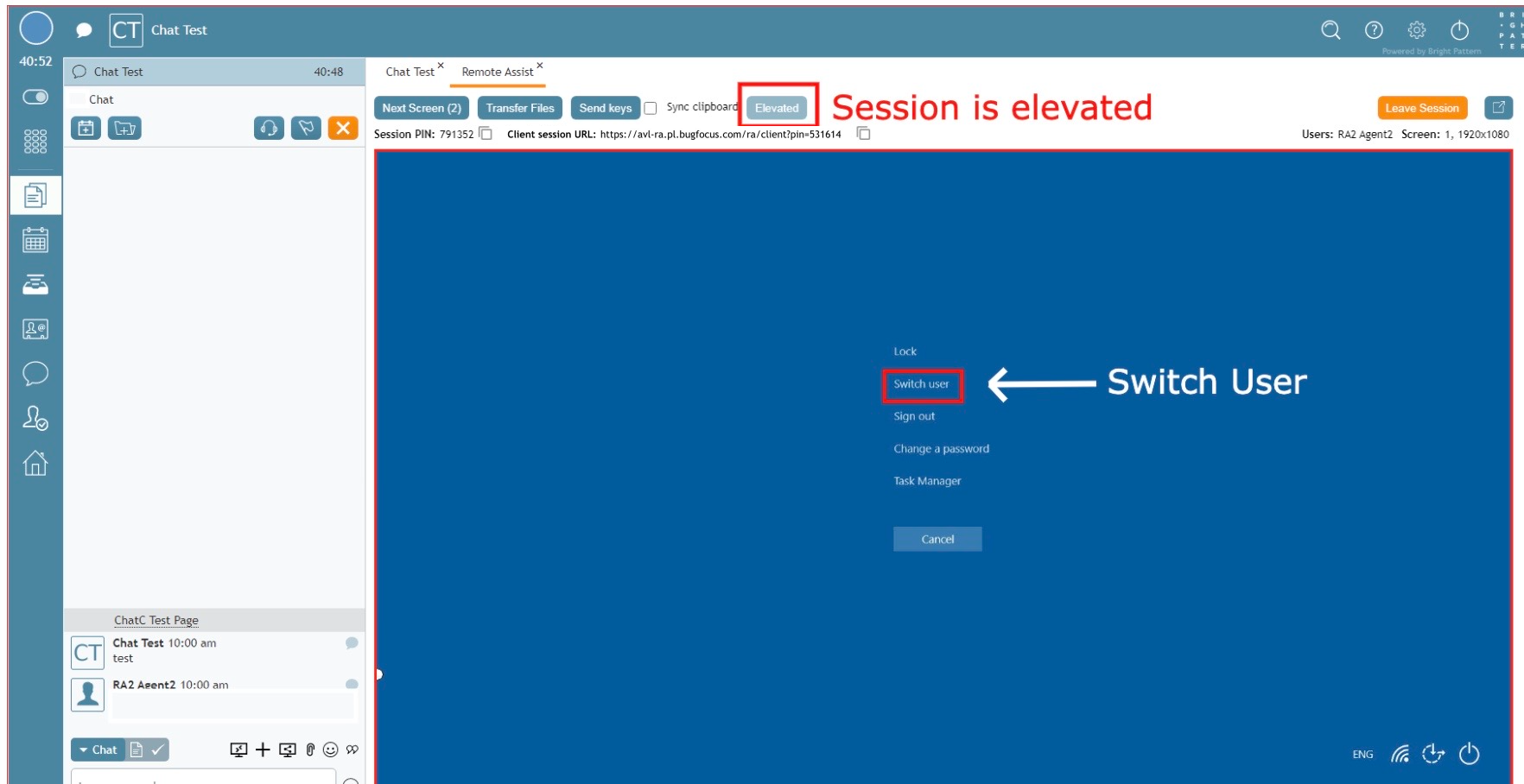
Click the "Switch User" option - Select Admin user.
- Enter the Administrator password in the password box.
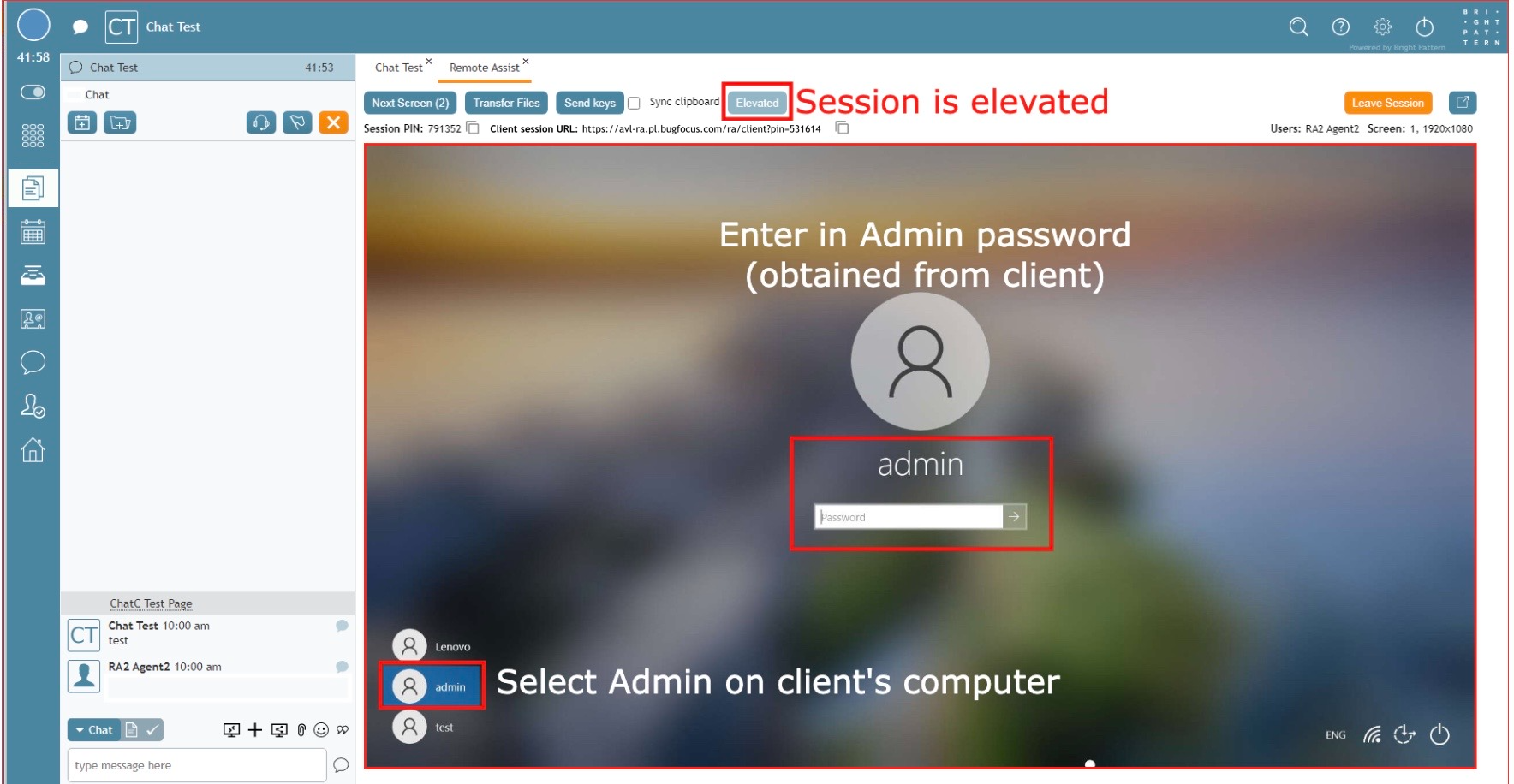
Switching users via use of the Ctrl+Alt+Delete "Send Keys" button - The computer begins switching users over to the Administrator user. This may take a few minutes.
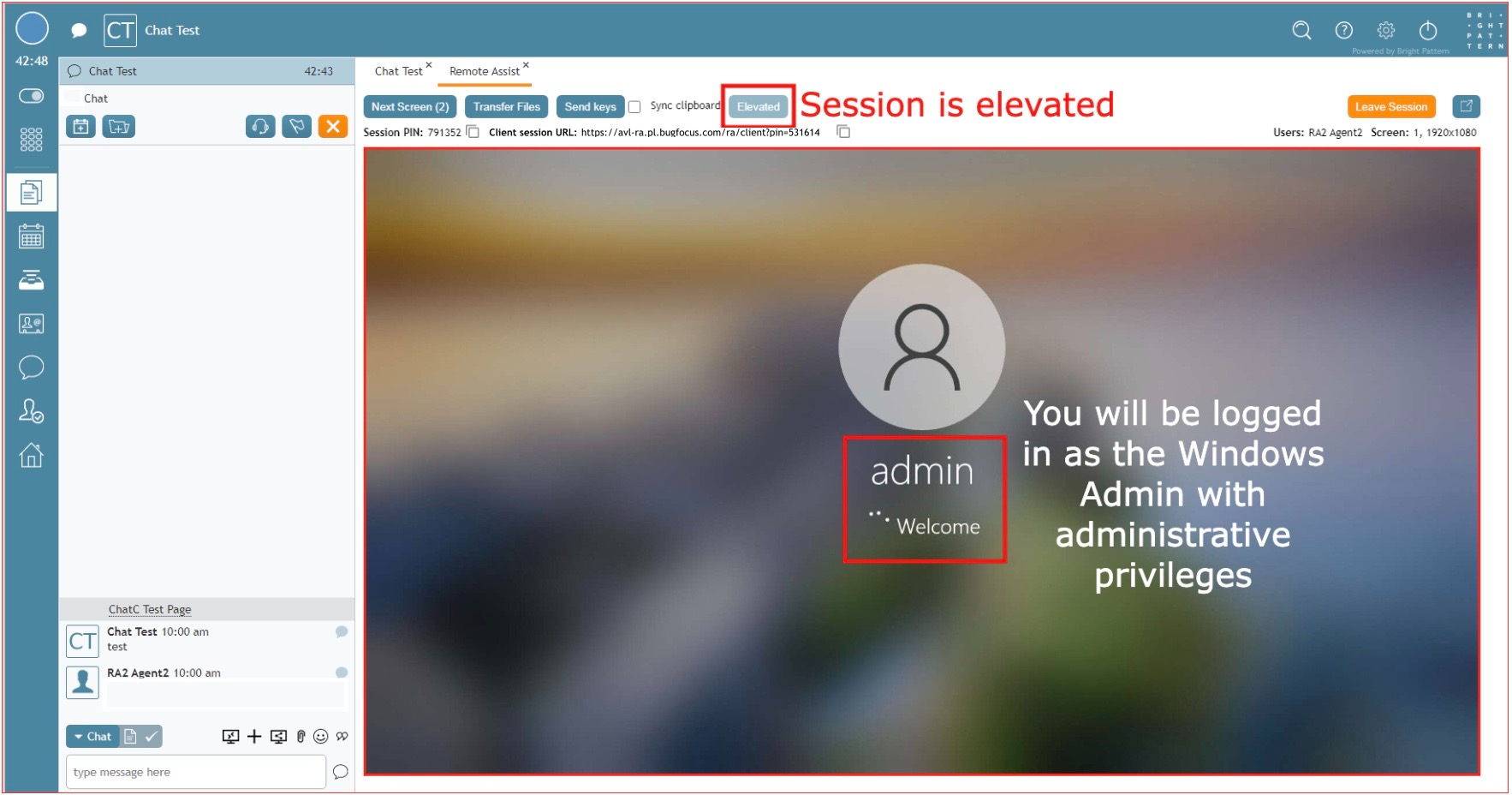
Switching from the regular user to the Administrator user may take a few minutes - You now have Administrator access to your customer's machine and may proceed as necessary.


|
For security reasons, switching users locks the client account until the session ends or the system restarts. Clients must enter their credentials after to proceed. | |