提供: Bright Pattern Documentation
Created page with "Bright Patternコンタクトセンターでは Alterra、 AWS Lex、Watson Assistantというボット統合の利用が可能です。" |
Updating to match new version of source page |
||
| (2 intermediate revisions by one other user not shown) | |||
| Line 1: | Line 1: | ||
= | = How to Add a Bot/Chat Suggestions Engine Integration Account = | ||
Bot/chat suggestions engine integration accounts allow you to use third-party bots to automate chat conversations, provide self-service options, intelligently route customers to agents, and provide meaningful suggestions to an agent during active chat sessions. | |||
Bright | Bright Pattern Contact Center supports the following types of bot integration: AWS Lex and Watson Assistant. | ||
== Adding a New Account == | == Adding a New Account == | ||
# In the Contact Center Administrator application, go to ''Configuration > Call Center Configuration > Integrations Accounts''.<br /><br /> | # In the Contact Center Administrator application, go to ''Configuration > Call Center Configuration > Integrations Accounts''.<br /><br /> | ||
# Click the '''Add account''' ('''+''') button to add a new integration account.<br /><br />[[File: | # Click the '''Add account''' ('''+''') button to add a new integration account.<br /><br />[[File:CCA-Call-Center-Config-Integration-Accounts-54.PNG|thumb|450px|center|Add new integration account]]<br /><br /> | ||
# Select account type '''Bot / Chat suggestions engine''' and click '''OK'''.<br /><br />[[File: | # Select account type '''Bot / Chat suggestions engine''' and click '''OK'''.<br /><br />[[File:CCA-Call-Center-Config-Integration-Accounts-Menu-54.PNG|thumb|450px|center|Select "Bot / Chat suggestions engine"]]<br /><br /> | ||
# In the ''Bot / Chat suggestions engine type'' dialog, select your desired type of bot instance.<br /><br />[[File: | # In the ''Bot / Chat suggestions engine type'' dialog, select your desired type of bot instance.<br /><br />[[File:CCA-Call-Center-Config-Integration-Accounts-Bot-Chat-Suggestions-54.PNG|450px|center|Make a selection]]<br /><br /> | ||
# Click '''OK'''. The properties for that engine will open next. | # Click '''OK'''. The properties for that engine will open next. | ||
| Line 15: | Line 15: | ||
Now that you have a bot/chat suggestions engine integration account, you can edit its properties. | Now that you have a bot/chat suggestions engine integration account, you can edit its properties. | ||
Learn more at: | |||
* [[Tutorials-for-admins/SetupaWatsonAssistantIntegrationAccount | Set up a Watson Assistant Integration Account]] | |||
* [[Tutorials-for-admins/SetupaWatsonAssistantIntegrationAccount |Watson Assistant | |||
Latest revision as of 21:12, 9 September 2021
• English
How to Add a Bot/Chat Suggestions Engine Integration Account
Bot/chat suggestions engine integration accounts allow you to use third-party bots to automate chat conversations, provide self-service options, intelligently route customers to agents, and provide meaningful suggestions to an agent during active chat sessions.
Bright Pattern Contact Center supports the following types of bot integration: AWS Lex and Watson Assistant.
Adding a New Account
- In the Contact Center Administrator application, go to Configuration > Call Center Configuration > Integrations Accounts.
- Click the Add account (+) button to add a new integration account.
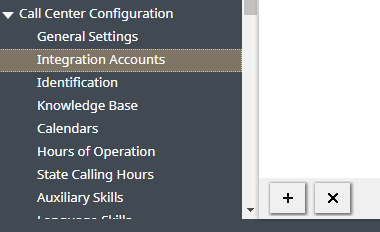
Add new integration account - Select account type Bot / Chat suggestions engine and click OK.
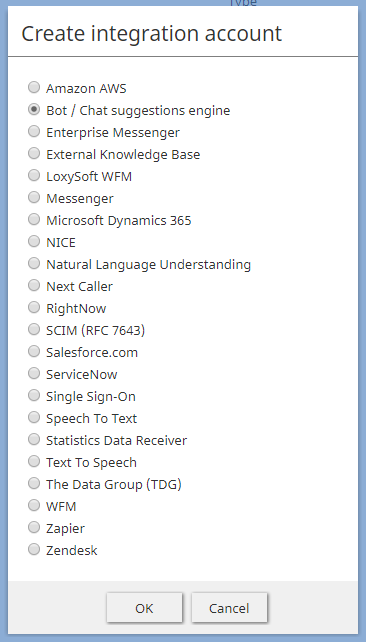
Select "Bot / Chat suggestions engine" - In the Bot / Chat suggestions engine type dialog, select your desired type of bot instance.
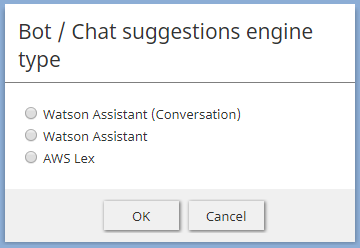
Make a selection - Click OK. The properties for that engine will open next.


Next Steps
Now that you have a bot/chat suggestions engine integration account, you can edit its properties.
Learn more at: