提供: Bright Pattern Documentation
Created page with "==次のステップ == ボット/チャットサジェスト機能エンジンの統合アカウントが作成されたので、そのプロパティを編集できます。" |
Updating to match new version of source page |
||
| Line 1: | Line 1: | ||
= | = How to Add a Bot/Chat Suggestions Engine Integration Account = | ||
Bot/chat suggestions engine integration accounts allow you to use third-party bots to automate chat conversations, provide self-service options, intelligently route customers to agents, and provide meaningful suggestions to an agent during active chat sessions. | |||
Bright | Bright Pattern Contact Center supports the following types of bot integration: AWS Lex and Watson Assistant. | ||
== | == Adding a New Account == | ||
# | # In the Contact Center Administrator application, go to ''Configuration > Call Center Configuration > Integrations Accounts''.<br /><br /> | ||
# ''' | # Click the '''Add account''' ('''+''') button to add a new integration account.<br /><br />[[File:CCA-Call-Center-Config-Integration-Accounts-54.PNG|thumb|450px|center|Add new integration account]]<br /><br /> | ||
# ''' | # Select account type '''Bot / Chat suggestions engine''' and click '''OK'''.<br /><br />[[File:CCA-Call-Center-Config-Integration-Accounts-Menu-54.PNG|thumb|450px|center|Select "Bot / Chat suggestions engine"]]<br /><br /> | ||
# | # In the ''Bot / Chat suggestions engine type'' dialog, select your desired type of bot instance.<br /><br />[[File:CCA-Call-Center-Config-Integration-Accounts-Bot-Chat-Suggestions-54.PNG|450px|center|Make a selection]]<br /><br /> | ||
# '''OK''' | # Click '''OK'''. The properties for that engine will open next. | ||
== | == Next Steps == | ||
Now that you have a bot/chat suggestions engine integration account, you can edit its properties. | |||
Learn more at: | |||
* [[Tutorials-for-admins/SetupaWatsonAssistantIntegrationAccount | Set up a Watson Assistant Integration Account]] | |||
* [[Tutorials-for-admins/SetupaWatsonAssistantIntegrationAccount |Watson Assistant | |||
Latest revision as of 21:12, 9 September 2021
• English
How to Add a Bot/Chat Suggestions Engine Integration Account
Bot/chat suggestions engine integration accounts allow you to use third-party bots to automate chat conversations, provide self-service options, intelligently route customers to agents, and provide meaningful suggestions to an agent during active chat sessions.
Bright Pattern Contact Center supports the following types of bot integration: AWS Lex and Watson Assistant.
Adding a New Account
- In the Contact Center Administrator application, go to Configuration > Call Center Configuration > Integrations Accounts.
- Click the Add account (+) button to add a new integration account.
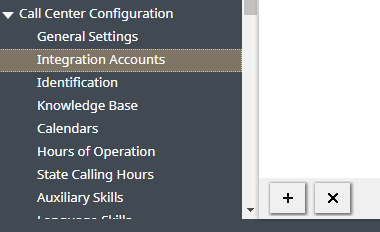
Add new integration account - Select account type Bot / Chat suggestions engine and click OK.
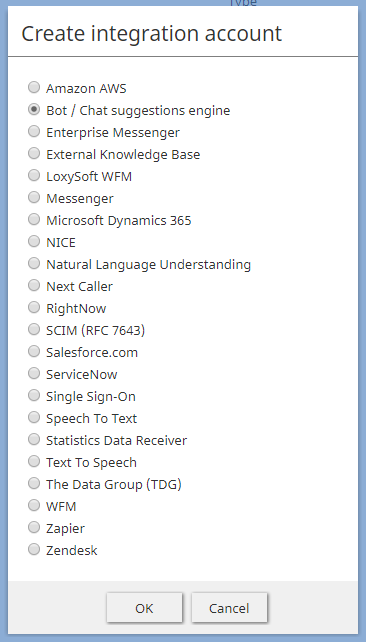
Select "Bot / Chat suggestions engine" - In the Bot / Chat suggestions engine type dialog, select your desired type of bot instance.
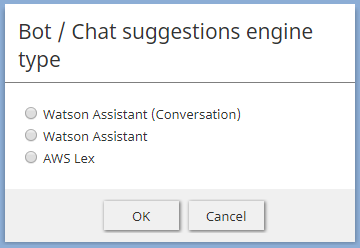
Make a selection - Click OK. The properties for that engine will open next.


Next Steps
Now that you have a bot/chat suggestions engine integration account, you can edit its properties.
Learn more at: