提供: Bright Pattern Documentation
Created page with "次の手順は、ユーザー定義のジェネリックアカウント用です。 VoIPプロバイダーを選択する必要はありません。また、アカウント..." |
Created page with "==== SIPアカウントのセクション ==== SIPアカウントを設定するには、次の手順を実行します: # アカウントに''アカウント名''を付け..." |
||
| Line 14: | Line 14: | ||
次の手順は、ユーザー定義のジェネリックアカウント用です。 VoIPプロバイダーを選択する必要はありません。また、アカウントが無効になっている場合にのみ、アカウントオプションを編集できます。 | 次の手順は、ユーザー定義のジェネリックアカウント用です。 VoIPプロバイダーを選択する必要はありません。また、アカウントが無効になっている場合にのみ、アカウントオプションを編集できます。 | ||
==== | ==== SIPアカウントのセクション ==== | ||
SIPアカウントを設定するには、次の手順を実行します: | |||
# | # アカウントに''アカウント名''を付けます。<br /><br /> | ||
# | #ご希望の ''表示名''を付けます。<br /><br /> | ||
# | #ハードフォンアカウントと同じ ''ユーザー名'' (例:"3001") と ''パスワード'' を付けます。<br /><br /> | ||
# | # ドメインをハードフォンアカウントのドメインに設定し、 ''':5080''' (Bright Pattern CCaaS サービスは規格外のSIPポート 5080を使用)を追加します。 例: "example.brightpattern.com:5080"<br /><br /> | ||
# | # ''プッシュ通知使用''オプションを有効にし、 ''登録モード''オプション を '''単一デバイスエミュレーション'''に設定します。<br /><br /> | ||
# | # ''NATエミュレーション''を無効にします。<br /><br /> | ||
# | # ''プッシュ高度設定''を無効のままにします。 <br /><br /> | ||
==== Section Account Advanced ==== | ==== Section Account Advanced ==== | ||
Revision as of 09:56, 20 September 2020
• English
Bria Mobile ソフトフォン設定
Bria Mobileソフトフォンアプリは、Bright Pattern コンタクトセンターソフトウェアを使った通話に適しています。 Bria Push サービスを使うことで、スタンバイ時のバッテリーの消耗を最小限に抑えます。
設定
コンタクトセンター管理者アプリケーション側
Bria MobileをBright Pattern コンタクトセンターで設定するには、以下を行います:
- ハードフォン アカウントをコンタクトセンター管理者アプリケーションで追加し、プロパティを編集します。
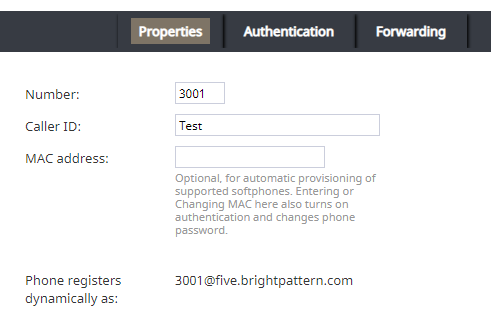
ハードフォンのプロパティ - 認証タブで、 ユーザー名の認証は電話の内線番号と同じであることを確認します。
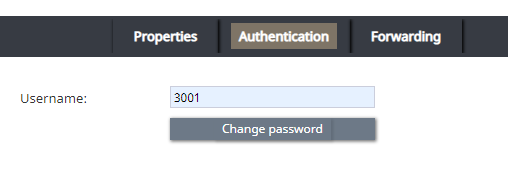
ハードフォン認証タブ - ドメイン (例:プロパティタブの “電話登録 <ext>@<domain>”をご覧ください)、 内線番号、パスワードをメモします。


Bria Mobile ソフトフォン側
Bria Mobile アプリで、新しいアカウントを追加します。これは、 設定 > アカウント > “+” > プロバイダの設定 > ユーザー定義のジェネリックアカウント > SIPに移動して行います。
次の手順は、ユーザー定義のジェネリックアカウント用です。 VoIPプロバイダーを選択する必要はありません。また、アカウントが無効になっている場合にのみ、アカウントオプションを編集できます。
SIPアカウントのセクション
SIPアカウントを設定するには、次の手順を実行します:
- アカウントにアカウント名を付けます。
- ご希望の 表示名を付けます。
- ハードフォンアカウントと同じ ユーザー名 (例:"3001") と パスワード を付けます。
- ドメインをハードフォンアカウントのドメインに設定し、 :5080 (Bright Pattern CCaaS サービスは規格外のSIPポート 5080を使用)を追加します。 例: "example.brightpattern.com:5080"
- プッシュ通知使用オプションを有効にし、 登録モードオプション を 単一デバイスエミュレーションに設定します。
- NATエミュレーションを無効にします。
- プッシュ高度設定を無効のままにします。
Section Account Advanced
To configure section Account Advanced, take the following steps:
- In section Network Traversal, option Custom configuration, turn all options off.
- In section IP Version, set option Wi-Fi IP Version to IPv4
- Also in section IP Version, set option Mobile IP Version to IPv4.
- In section DTMF Type, make sure option Send DTMF using is set to RFC2833.
- In section Transport and Security, set option SIP transport to UDP.
- In section SIP Registration, set options Wi-Fi Refresh Interval and Mobile Refresh Interval to 30 seconds.
- In section TLS Cert Management, disable option Verify TLS cert.
- In section SIP Miscellaneous, leave option Show Miscellaneous disabled.
< 前へ | 次へ >