提供: Bright Pattern Documentation
Created page with "center|thumb|800px|統合アカウントの設定プロパティ" |
Created page with "== 手順 == #コンタクトセンター管理者アプリケーションの''設定 > Contact-center-administrator-guide/CallCenterConfiguration/IntegrationAccounts/Natura..." |
||
| Line 10: | Line 10: | ||
== | == 手順 == | ||
# | #コンタクトセンター管理者アプリケーションの''設定 > [[Contact-center-administrator-guide/CallCenterConfiguration/IntegrationAccounts/NaturalLanguageUnderstanding | コールセンターの設定 > 統合アカウント]]''へ移動します。<br /><br /> | ||
# | # '''アカウントの追加''' (“'''+'''”) ボタンをクリックし、'''Watson 自然言語理解'''というアカウントタイプを選択します。<br /><br />[[File:NLU-Integration-5310.PNG|center|thumb|800px|NLUアカウントタイプの選択 ]]<br /><br /> | ||
# | # ''プロパティ''で IBM Watson 自然言語理解APIの認証情報 (基本認証)を入力します。プロパティ詳細については、''コンタクトセンター管理者ガイド''の[[Contact-center-administrator-guide/CallCenterConfiguration/IntegrationAccounts/NaturalLanguageUnderstanding | 自然言語理解統合]]をご覧ください。<br /><br /> | ||
# Click '''Apply''' to save your changes.<br /><br /> | # Click '''Apply''' to save your changes.<br /><br /> | ||
# '''If utilizing NLU for voice or chat:'''<br /><br /> | # '''If utilizing NLU for voice or chat:'''<br /><br /> | ||
Revision as of 11:24, 19 February 2020
• English
自然言語理解の有効化
自然言語理解 (NLU) は、対話のセンチメントを特定するために使用されます。 センチメントは数字として、または肯定的・中立・否定的な顔のアイコンとして表示されます。 数字でもアイコンでも、センチメントを使うと、対話進行中にお客様がどのように行動し、反応したかを分析でき、エージェント訓練を微調整できます。
NLUの有効化は コールセンターの設定 > 統合アカウントで行われます。音声とチャットの場合、統合アカウントはサービスごとに設定されます。メールの場合、統合アカウントはシナリオエントリーごとに設定されます。 センチメントの結果は、対話の 検索条件として使用でき、 検索結果で表示されます。
ここではNLUを有効する方法について説明します。

手順
- コンタクトセンター管理者アプリケーションの設定 > コールセンターの設定 > 統合アカウントへ移動します。
- アカウントの追加 (“+”) ボタンをクリックし、Watson 自然言語理解というアカウントタイプを選択します。
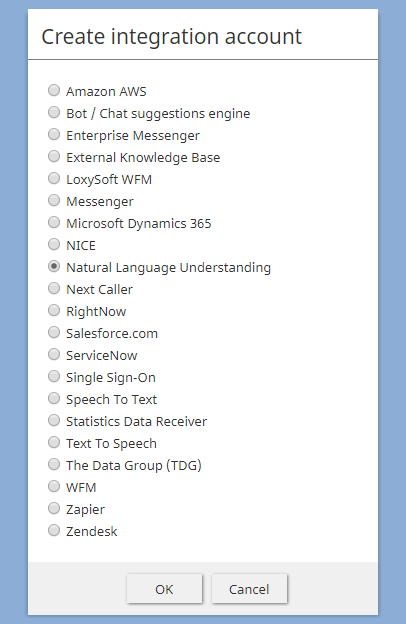
NLUアカウントタイプの選択 - プロパティで IBM Watson 自然言語理解APIの認証情報 (基本認証)を入力します。プロパティ詳細については、コンタクトセンター管理者ガイドの 自然言語理解統合をご覧ください。
- Click Apply to save your changes.
- If utilizing NLU for voice or chat:
- In Contact Center Administrator, go to Configuration > Services & Campaigns, and select a voice or chat service from the list.
- In the service Properties, from the Natural Language Understanding drop-down menu, select the NLU integration account you just configured.
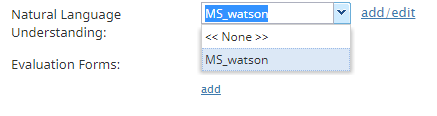
Be sure to select the desired NLU integration account - Click Apply to save your changes.
- In Contact Center Administrator, go to Configuration > Services & Campaigns, and select a voice or chat service from the list.
- If utilizing NLU for email:
- In Contact Center Administrator, go to Configuration > Scenario Entries > Email, and select an email service from the list.
- Click on the Services tab.
- From the Natural Language Understanding drop-down menu, select the NLU integration account you just configured.
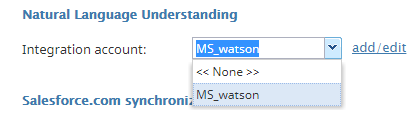
Be sure to select the desired NLU integration account - Click Apply to save your changes.
< 前へ | 次へ >
- In Contact Center Administrator, go to Configuration > Scenario Entries > Email, and select an email service from the list.


