提供: Bright Pattern Documentation
• English
音声合成の設定方法
音声合成 (STT)統合アカウントを使って、評価の目的で通話をテキストに変換できます。 トランスクリプトは評価コンソールの トランスクリプトディスプレイで表示されます。
ここでは、 STT 統合アカウントの設定方法について説明します。
手順
- コンタクトセンター管理者アプリケーションの設定> []へ移動し、音声合成 (STT)オプションを選択します。Then enter in your account details. Note that if you do not see Speech to Text as an option when adding a new integration account, that option has not been enabled for your contact center. See your service provider for more information.
- Click the add account (“+”) button, and select account type Speech To Text (STT).
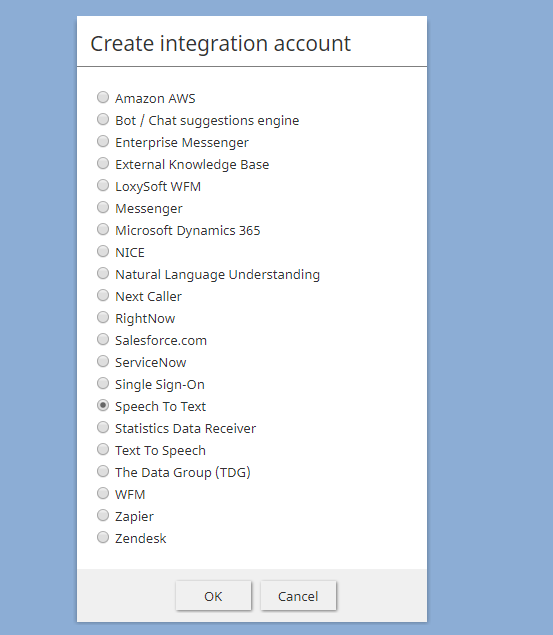
Create integration account - Then select your speech-to-text account type: Watson, Google synchronous STT, or GoVivace.
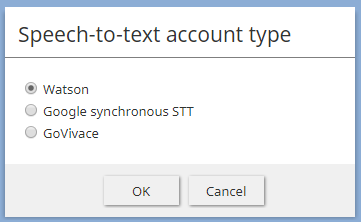
Speech-to-text account type - In Properties, fill in the credentials for your instance type. For property descriptions, see the Contact Center Administrator Guide, section Speech To Text Integration (STT).
- Click Apply to save your changes.
- Now you will be able to use STT for quality management purposes.
< 前へ | 次へ >

