提供: Bright Pattern Documentation
Created page with "== フォームの追加方法 == 新しいフォームを追加するには、以下を行います: # コンタクトセンター管理者アプリケーションの''設定..." |
No edit summary |
||
| Line 7: | Line 7: | ||
== フォームの追加方法 == | == フォームの追加方法 == | ||
新しいフォームを追加するには、以下を行います: | 新しいフォームを追加するには、以下を行います: | ||
# コンタクトセンター管理者アプリケーションの''設定 >フォーム''へ移動します。 | # コンタクトセンター管理者アプリケーションの''設定 >フォーム''へ移動します。[[File:Configuration-Forms-50.PNG|800px|thumbnail|center|コンタクトセンター管理者 > 設定 > フォーム]] | ||
[[File:Configuration-Forms-50.PNG|800px|thumbnail|center|コンタクトセンター管理者 > 設定 > フォーム]] | |||
# 作成するフォームのタイプを選択します (例えば、[[contact-center-administrator-guide/ActivityForms|アクティビティ]]、[[contact-center-administrator-guide/ChatForms|コンタクト]]、ケース、拡張)。[[File:Selecting-Forms-to-Add-50.PNG|450px|thumbnail|center|フォーム > アクティビティ]] | # 作成するフォームのタイプを選択します (例えば、[[contact-center-administrator-guide/ActivityForms|アクティビティ]]、[[contact-center-administrator-guide/ChatForms|コンタクト]]、ケース、拡張)。[[File:Selecting-Forms-to-Add-50.PNG|450px|thumbnail|center|フォーム > アクティビティ]] | ||
# 画面の下部にある '''+''' をクリックし、新しいフォームを追加します。[[File:Add-New-Form-50.PNG|450px|thumbnail|center|"+" をクリックし、新しいフォームを追加します]] | # 画面の下部にある '''+''' をクリックし、新しいフォームを追加します。[[File:Add-New-Form-50.PNG|450px|thumbnail|center|"+" をクリックし、新しいフォームを追加します]] | ||
Revision as of 18:54, 15 April 2020
• English
フォームビルダーの起動方法
フォームビルダーアプリケーションは、原則としてコンタクトセンター管理者アプリケーションから起動されます。フォームは、コンタクトセンター管理者アプリケーションでシステムに追加されない限り、編集およびカスタマイズできません。
フォームは、コンタクトセンターに追加またはインポートされます。
フォームの追加方法
新しいフォームを追加するには、以下を行います:
- コンタクトセンター管理者アプリケーションの設定 >フォームへ移動します。
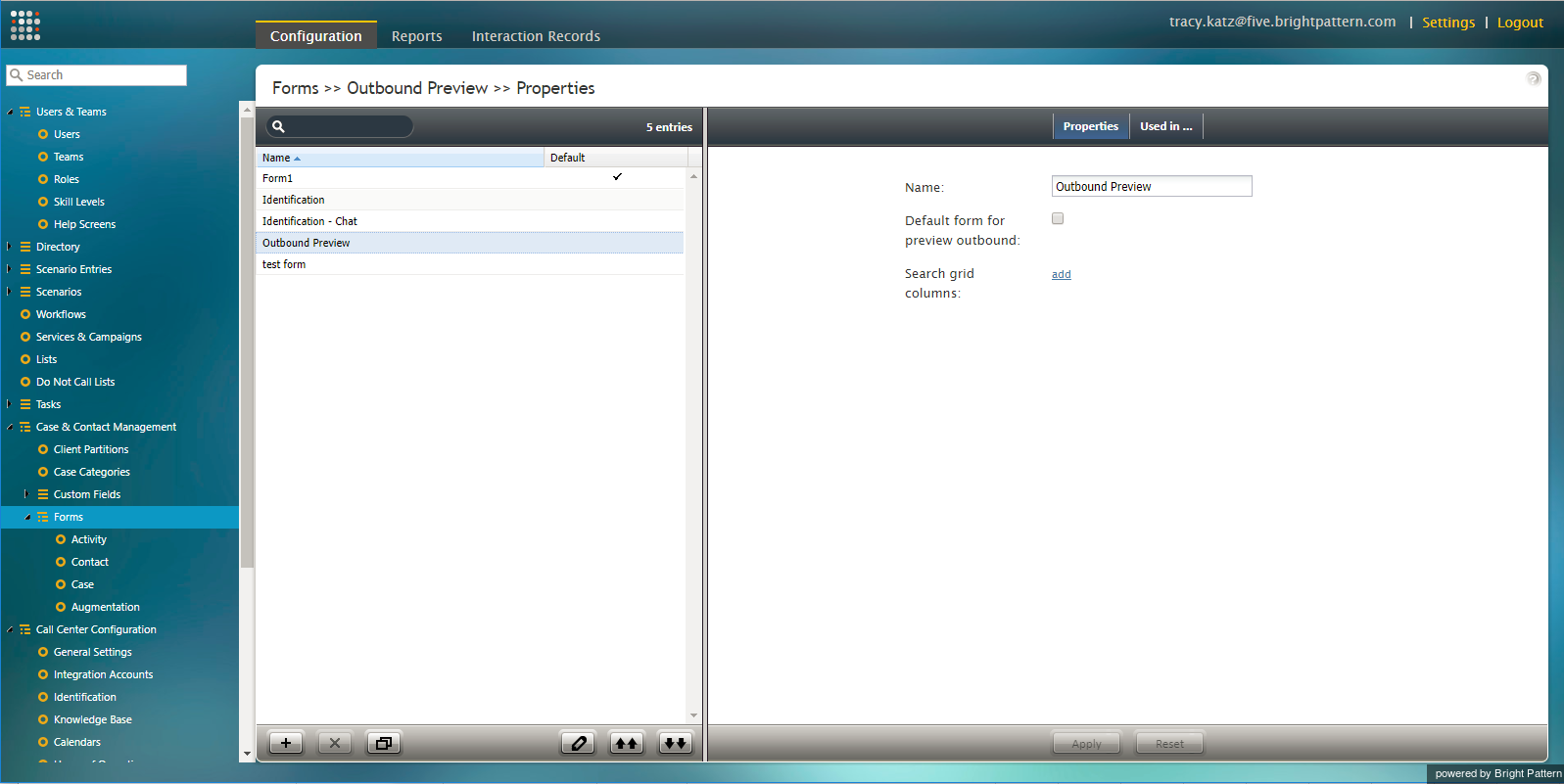
コンタクトセンター管理者 > 設定 > フォーム - 作成するフォームのタイプを選択します (例えば、アクティビティ、コンタクト、ケース、拡張)。
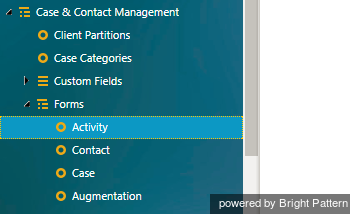
フォーム > アクティビティ - 画面の下部にある + をクリックし、新しいフォームを追加します。
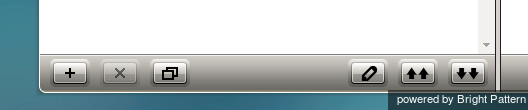
"+" をクリックし、新しいフォームを追加します - フォームビルダーアプリケーションは新しいブラウザウィンドウまたはタブで開かれ、そこで新しいフォームを作成および編集します。
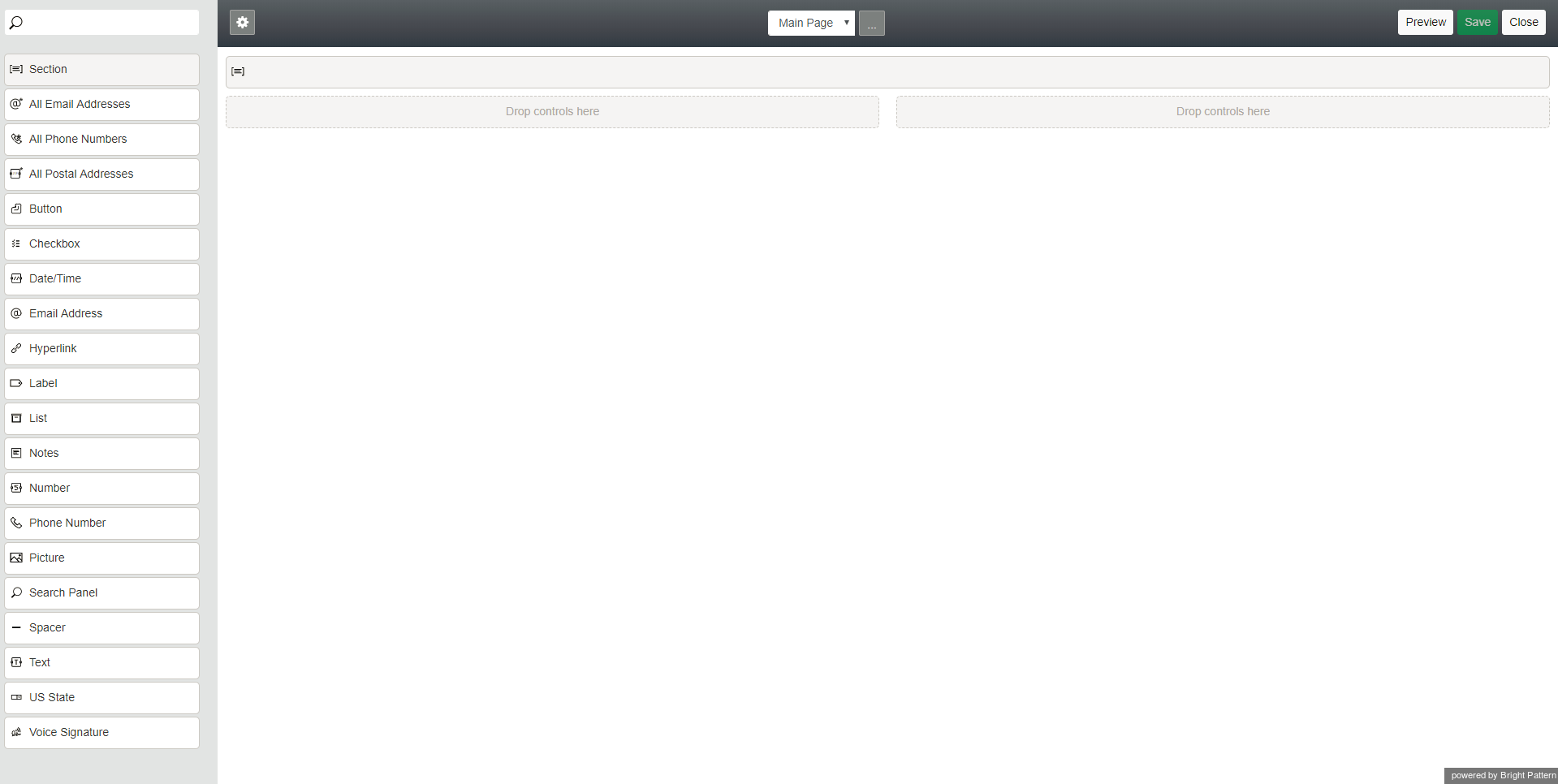
新しいフォーム


How to Import a Form
You can import any form that was built in any version of Bright Pattern Contact Center. When working with forms created in version 3.x of the software, you will need to import them before editing them in Form Builder.
To import a form, follow these steps:
- First log into the Contact Center Administrator application and navigate to Case & Contact Management > Forms.
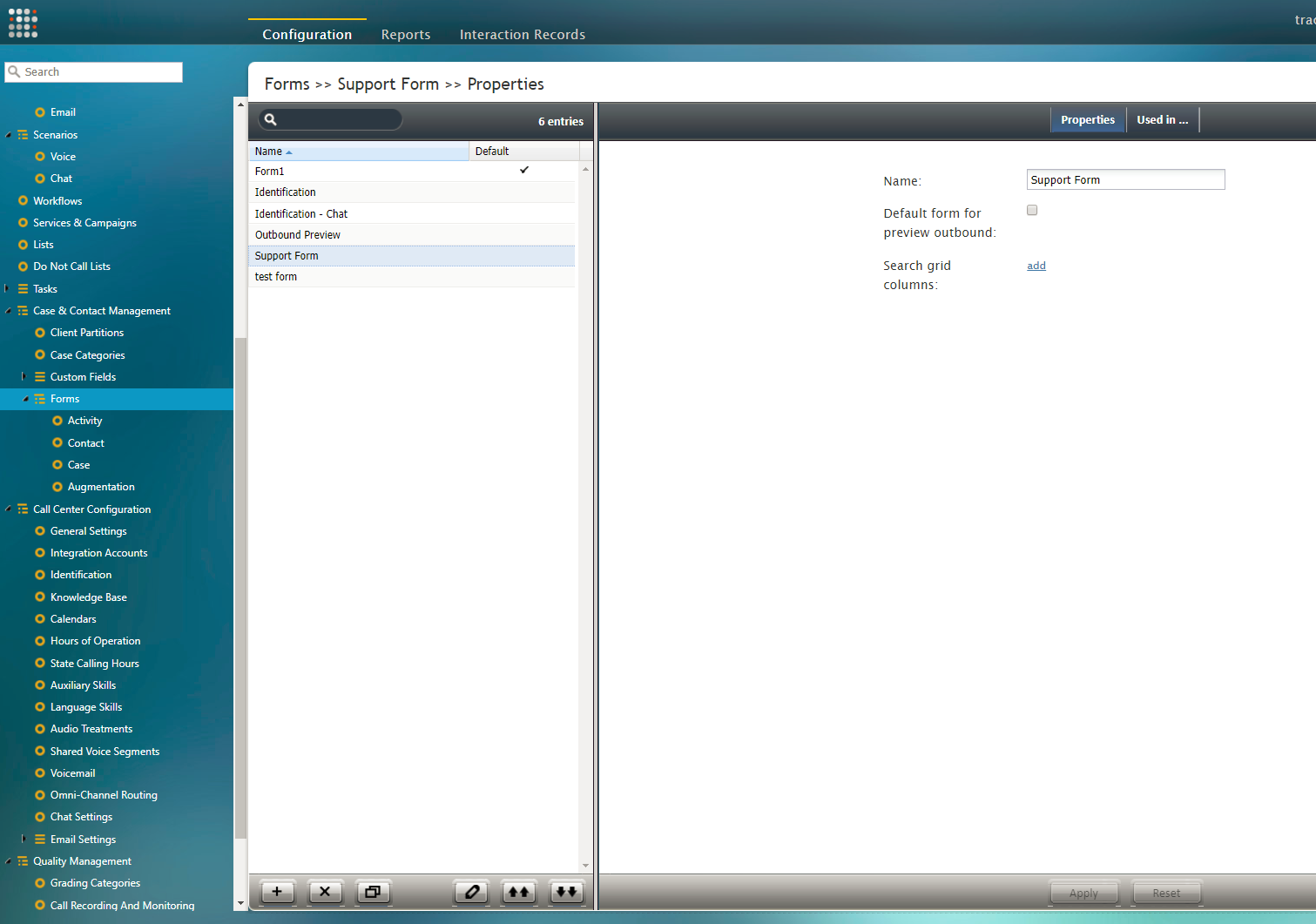
Contact Center Administrator > Case & Contact Management > Forms - Click the Import form
 button.
 - In the Import Screenpop Form dialog, name and browse for your form, and then click Upload.
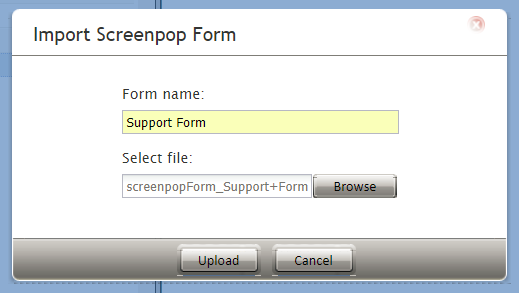
Upload form - Your imported form will appear in the list of forms.
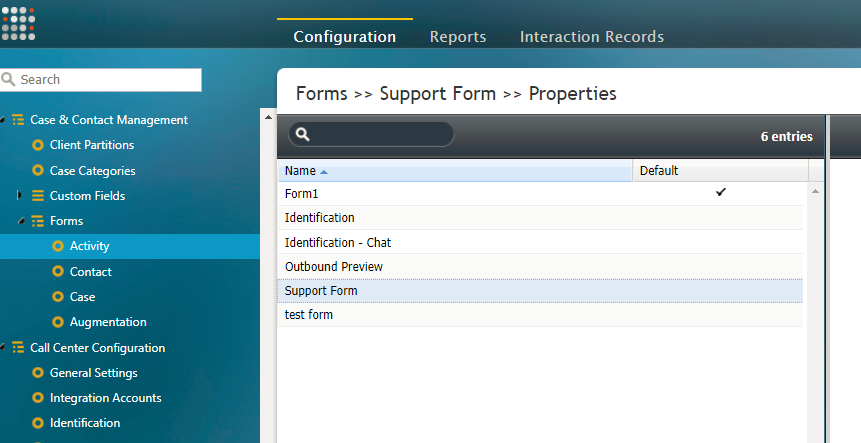
All forms


How to Launch Form Builder and Edit a Form
Once your forms have been added or imported to your contact center, they are ready to be edited in Form Builder.
Follow these steps to open a form in Form Builder:
- In the Contact Center Administrator application, navigate to Case & Contact Management > Forms.
Contact Center Administrator > Case & Contact Management > Forms - Select the form that you want to edit from the list.
- Click the Edit
 button.
 - This will open the form in the Form Builder application, in a new browser window or tab.
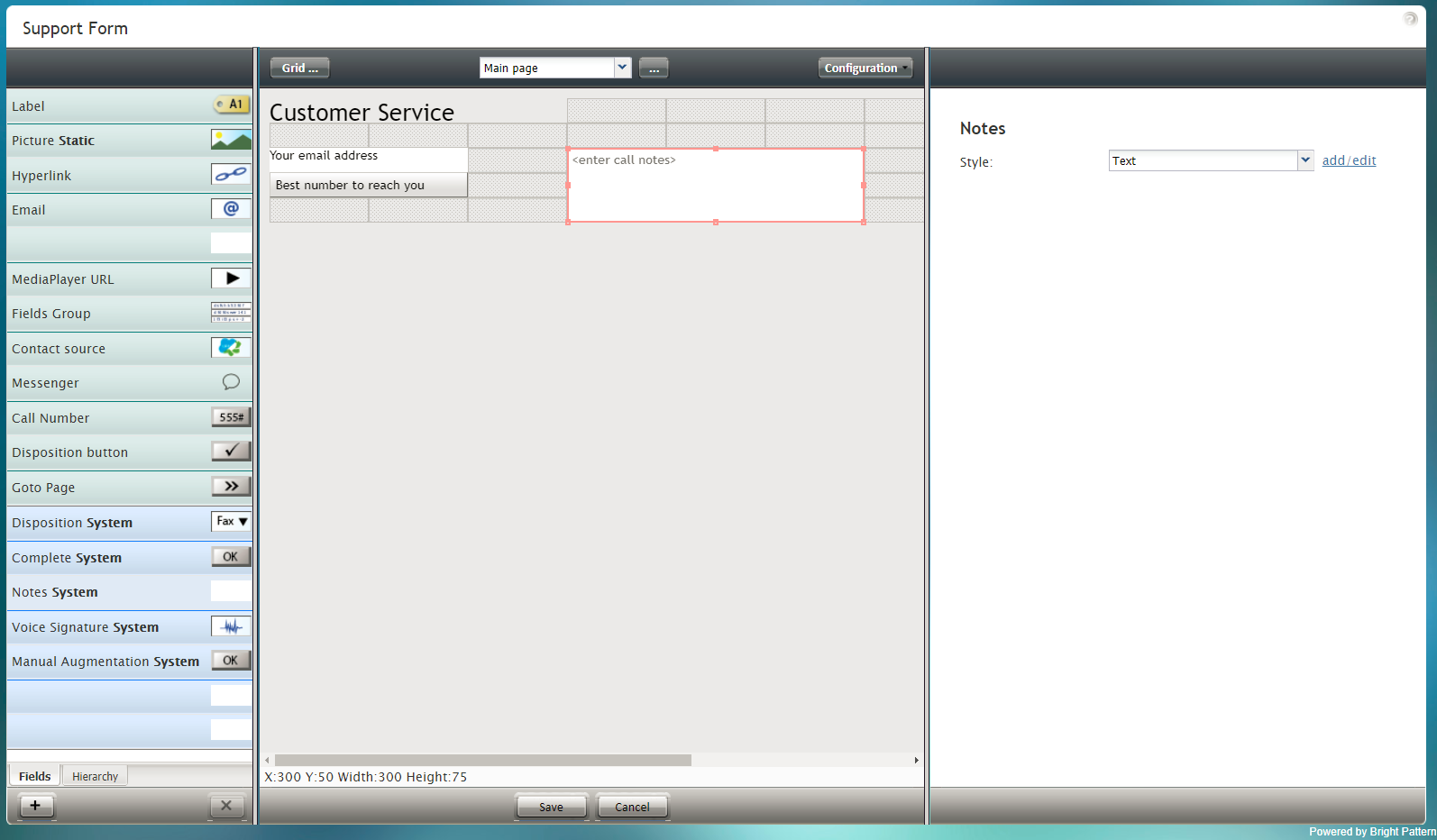
Editing a version 3.x form < 前へ | 次へ >

