提供: Bright Pattern Documentation
• English
How to Edit a Starter Evaluation Form
The Evaluation Form Editor comes with four out-of-the-box forms—one for each main service type (i.e., chat, email, inbound, and outbound). These forms may be connected to a service and used as is or they may be customized. For an overview of the starter forms and the types of areas and questions found in each, see section Default Forms.
Starter forms provide a great starting point for drafting evaluation forms. In this article, you will learn how to modify a starter form to suit your business needs.
Procedure
- In the Contact Center Administrator application, navigate to section Configuration > Quality Management > Evaluation Forms.
- Select one of the starter forms shown, and click the Edit (pencil) button to open the form in the Evaluation Form Editor application.
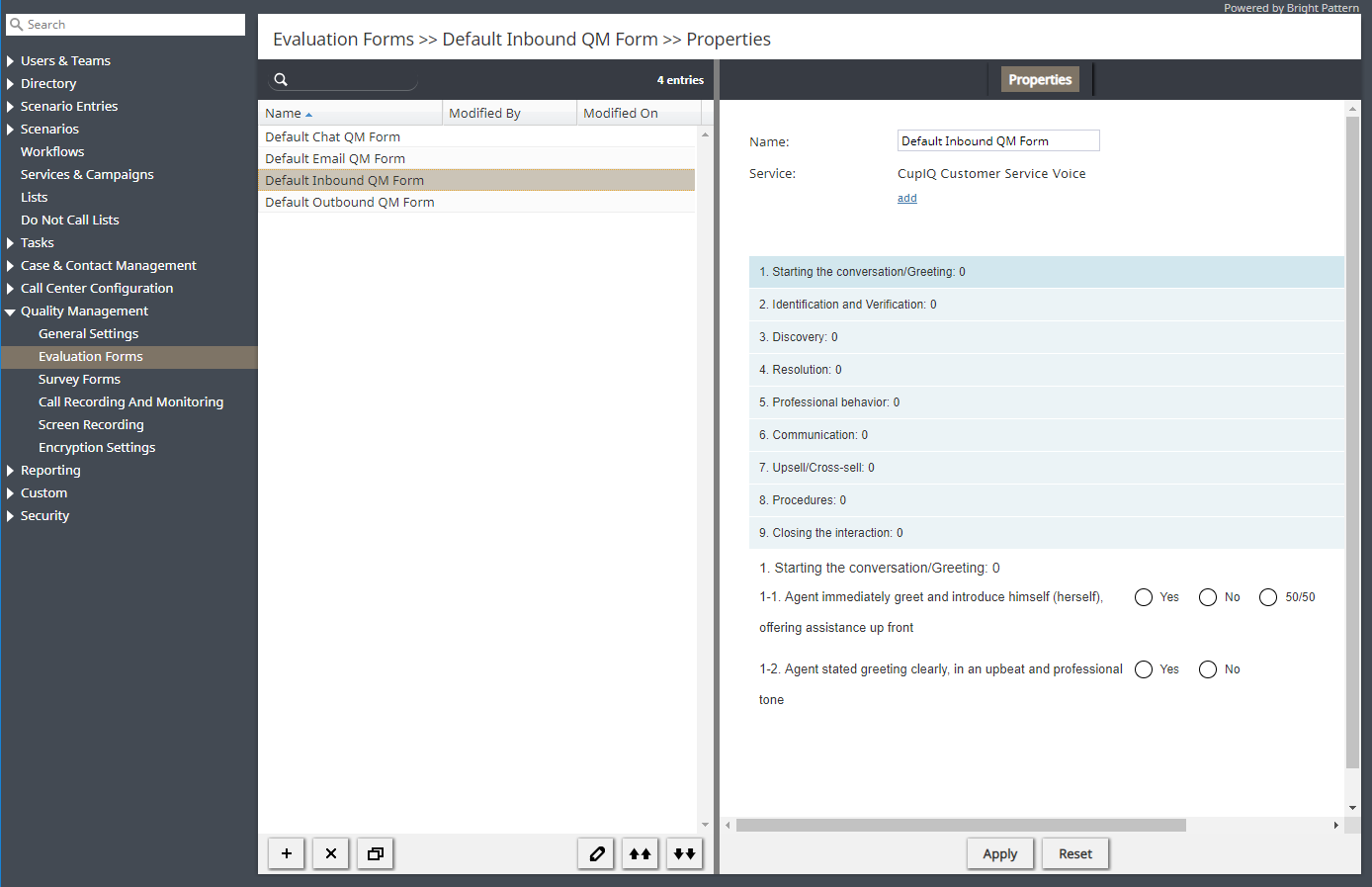
Section Quality Management > Evaluation Forms - Follow Step 2 to Step 6 of the Configuring Evaluation Forms procedure, using the edit (pencil) icons to make changes to the form’s evaluation areas, questions, title, and so forth.
< 前へ | 次へ >
