提供: Bright Pattern Documentation
Created page with "==== 監視画面からのアクセス ==== # ''監視'' 画面からエージェントカレンダーを表示するには、エージェントデスクトップのメイン..." |
No edit summary |
||
| Line 4: | Line 4: | ||
==エージェントカレンダーを操作する== | ==エージェントカレンダーを操作する== | ||
スーパーバイザーは自身のカレンダーをイベントのスケジューリングのために使用できる他、担当するチームのメンバーのカレンダーを見てスケジュールされたタスクを他のエージェントに再割り当てすることができます。 | |||
=== エージェントカレンダーを表示する === | === エージェントカレンダーを表示する === | ||
Revision as of 16:30, 10 July 2019
• English
カレンダーイベントの管理
エージェントデスクトップアプリケーションにはカレンダーがあり、エージェントはそれを、お客様へのフォローアップコールなど、業務に関連する様々なタスクやイベントをスケジューリングするために使用できます。 カレンダーに関する一般的な情報については、Bright Pattern コンタクトセンターのエージェントガイドのカレンダーの利用をご覧ください。
エージェントカレンダーを操作する
スーパーバイザーは自身のカレンダーをイベントのスケジューリングのために使用できる他、担当するチームのメンバーのカレンダーを見てスケジュールされたタスクを他のエージェントに再割り当てすることができます。
エージェントカレンダーを表示する
チームのエージェントのカレンダーを表示する方法は2つあります。 先ず、スーパーバイザーは自身のカレンダーを通じてエージェントのカレンダーにアクセスできます。二つ目の方法は、スーパーバイザーの 監視 画面で利用可能なエージェント管理機能を通じてエージェントのカレンダーに移動する方法です。
スーパーバイザー自身のカレンダーからのアクセス
- 自身のカレンダーを使ってエージェントのカレンダーを表示するには 、エージェントデスクトップのメインメニュにあるカレンダー アイコン
 をクリックします。スーパーバイザーのカレンダーはコンテキスト情報エリアに表示されます。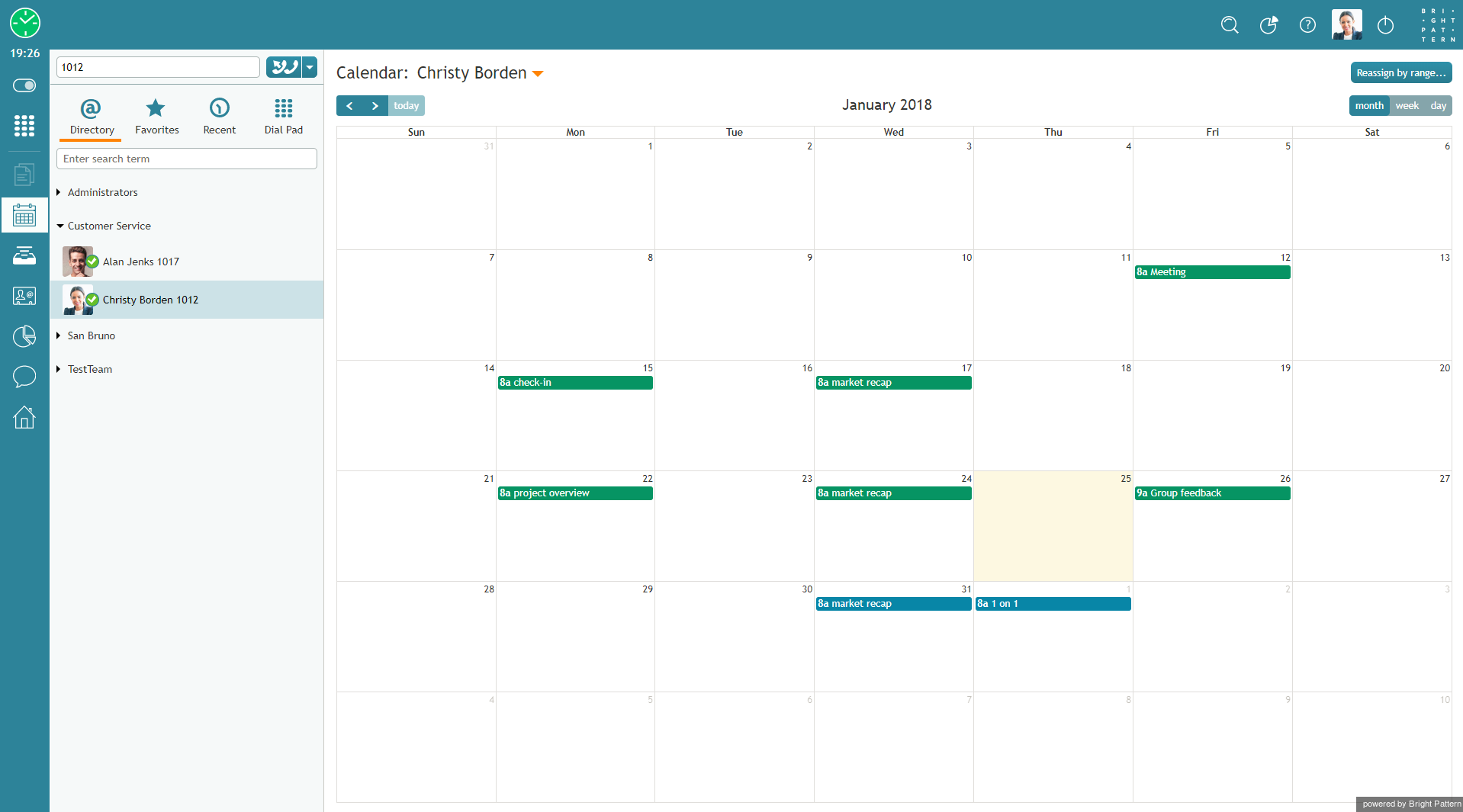
カレンダー - カレンダーの上部かつ名前の右側にある下矢印をクリックし、ディレクトリ内のユーザーのドロップダウンリストを表示します。 450px | thumbnail | center] |ディレクトリからユーザーを選択する
- カレンダーを表示したいエージェントの名前を選択します。 エージェントのカレンダーはコンテキスト情報エリアに表示されます。 カレンダーの上部に表示されている名前を見れば、誰のカレンダーを表示しているかわかります 800px | thumbnail | center |エージェントカレンダーの表示。


監視画面からのアクセス
- 監視 画面からエージェントカレンダーを表示するには、エージェントデスクトップのメインメニュにある監視 アイコン
 をクリックします 。担当するチーム・サービス・エージェントのメトリックはコンテキスト情報エリアに表示されます。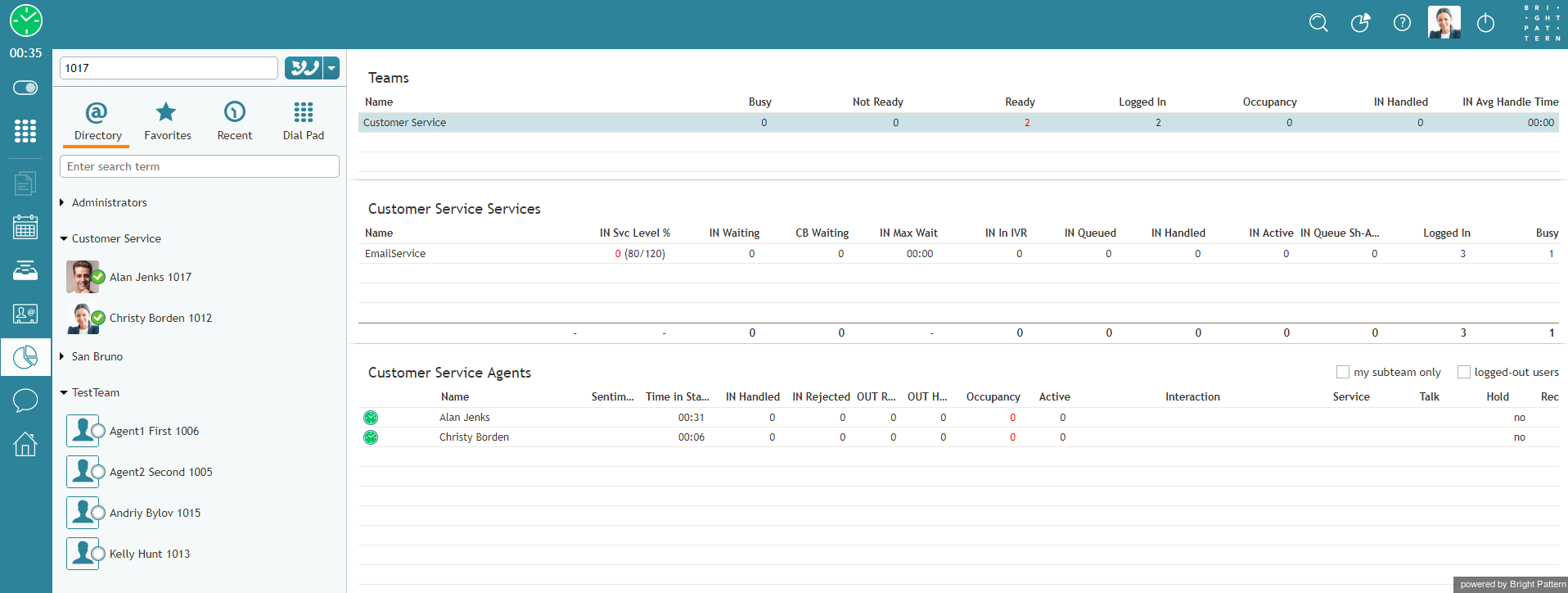
コンテキスト情報エリアにおける監視メトリック - エージェントメトリックビューからエージェントを選択します。ポップアップカードには、指定されたエージェントに対する管理機能が表示されます。
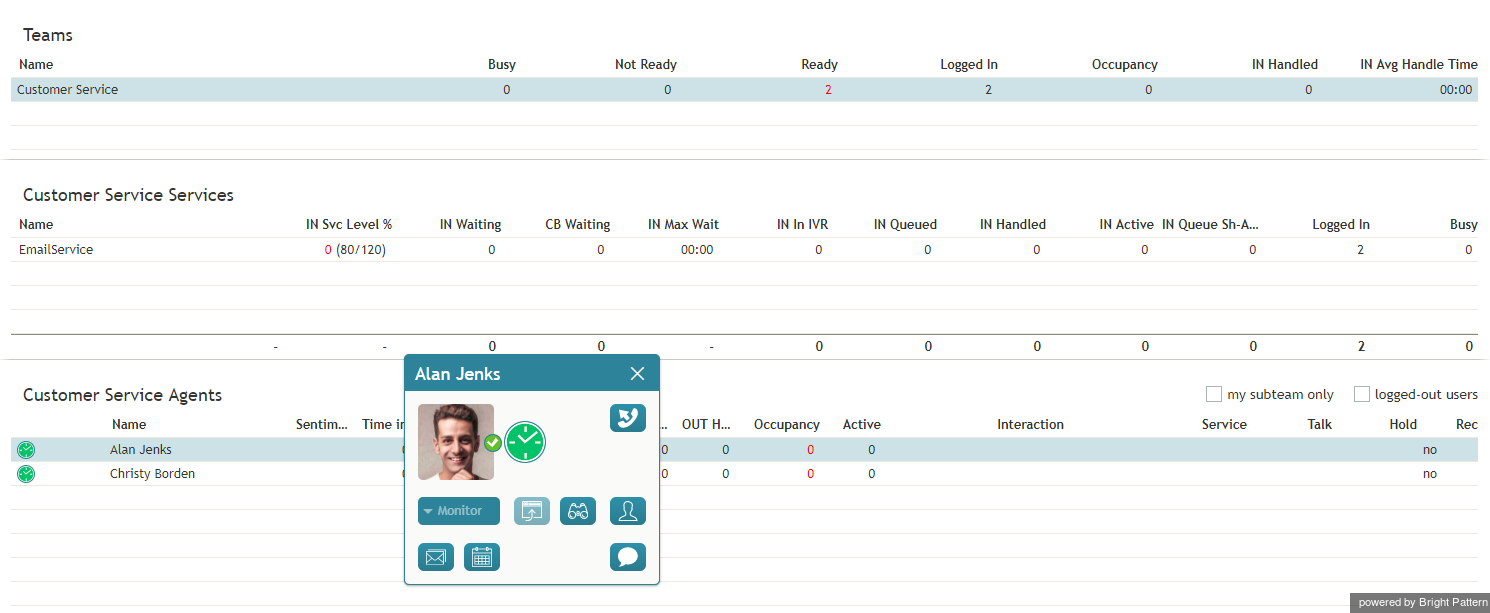
エージェント管理機能 - エージェントカレンダーの表示ボタン
 をクリックします。エージェントカレンダーは コンテキスト情報エリアに表示されます。


How to Reassign an Event
- To reassign a single agent’s event to another agent, view the agent's calendar. See section How to View an Agent's Calendar.
- Select the event in the agent's calendar that you want to reassign. The event properties on the right will display the event information.
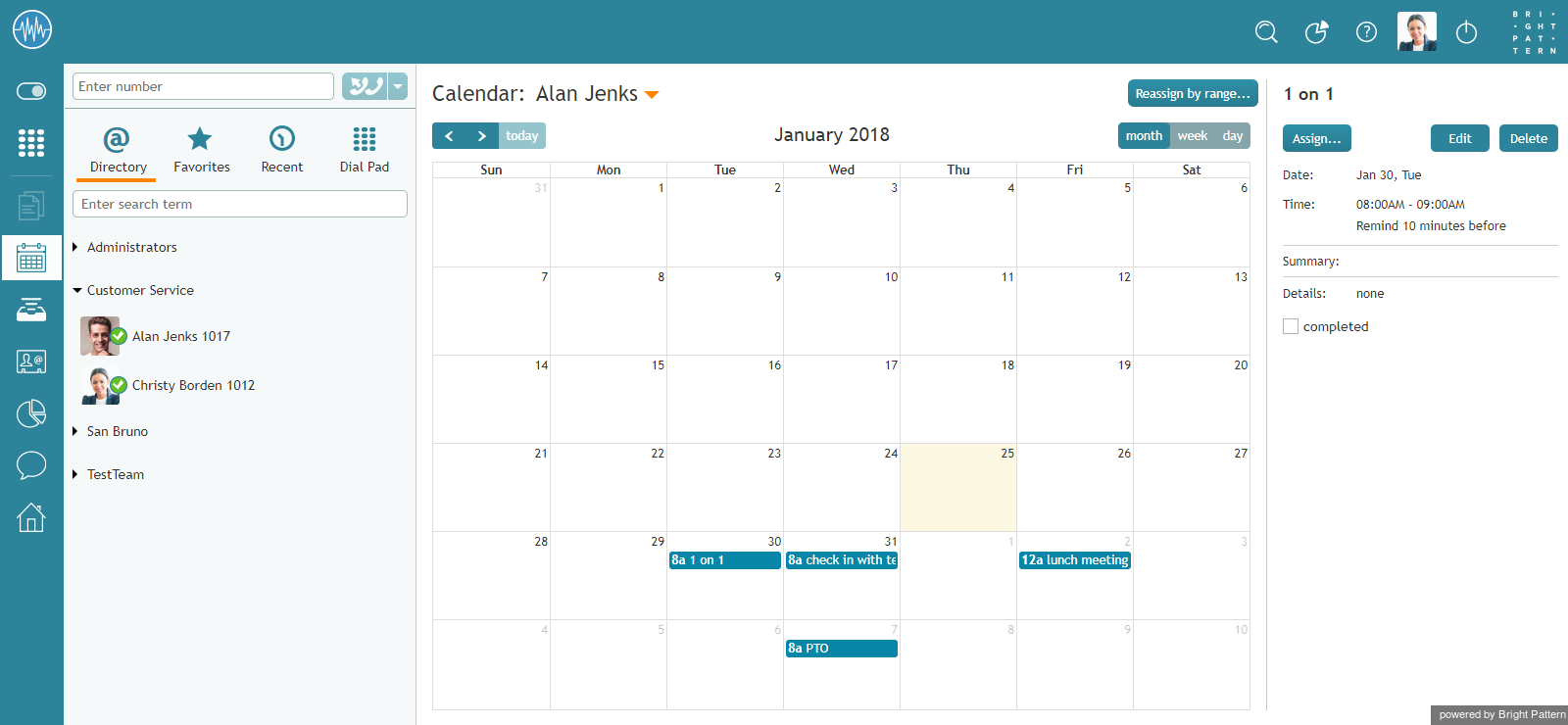
Calendar and event properties - Click the Assign… button. A dialog window will appear, showing the list of agents to which this task can be assigned. To find a specific agent quickly, you can start typing the agent's name in the Enter search term field and matching users will be listed in search results.
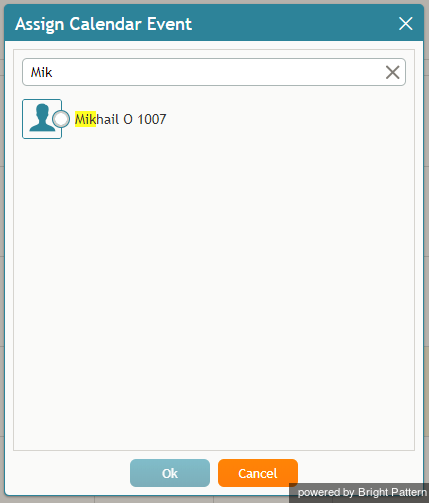
You can search for a specific agent - Select the desired agent and click Ok.
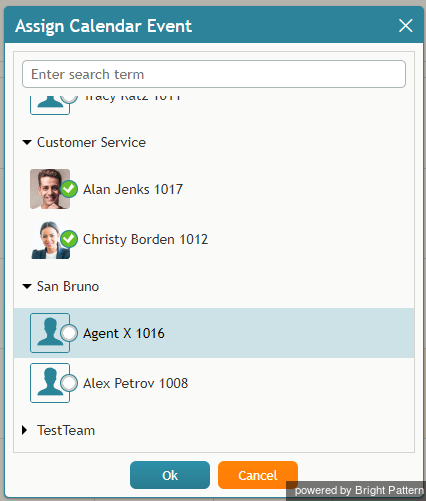
Reassign an event to a selected agent


How to Reassign All of an Agent’s Events to Another Agent
Sometimes it may be more convenient to reassign all of the agent’s events within a time range in a single step.
- Click the Reassign by range… button.
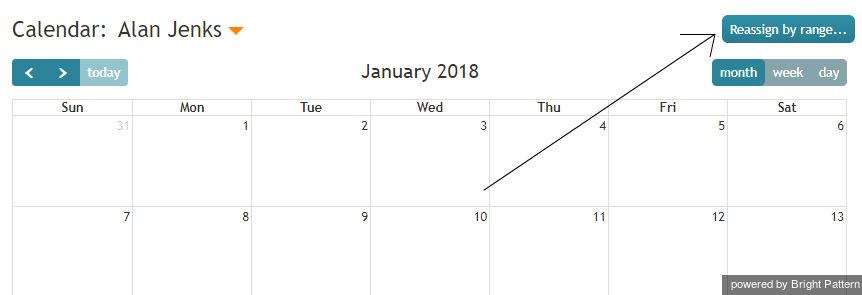
Reassign by Range button - A dialog window will appear showing the list of agents that this task can be assigned to and time range controls.
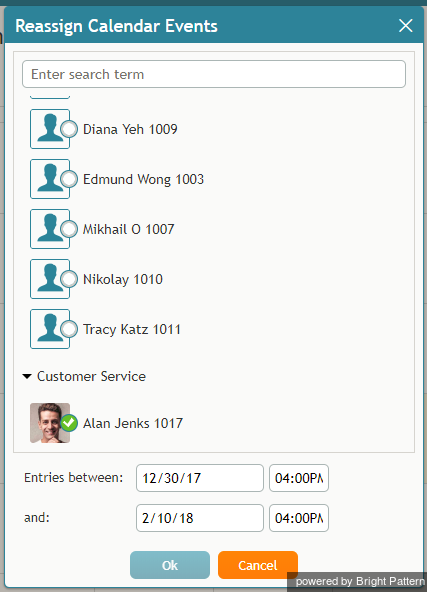
Select an agent to be assigned a range of events - Specify the desired time range by either typing in the date or clicking into the date field and selecting the date from the mini calendar.
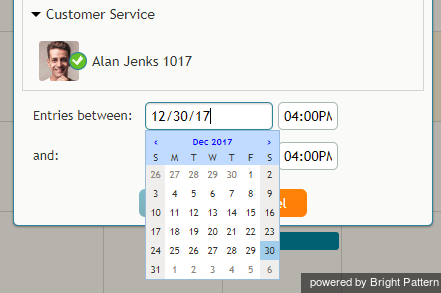
Select the date range - Select the desired agent and click Ok.
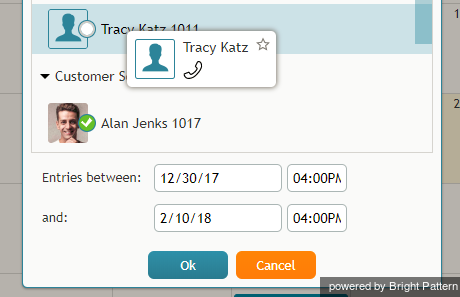
Select the agent < 前へ | 次へ >


![450px | thumbnail | center] |ディレクトリからユーザーを選択する](/index.php?title=File%EF%BC%9ACalendar-Switch-User-50.png&action=edit&redlink=1)
